
Image processing
Open Settings → Image Processing to choose how Mankai processes pages in the reader. You can enable processors, adjust their settings, and arrange the order in which they run.
Choose a local processor
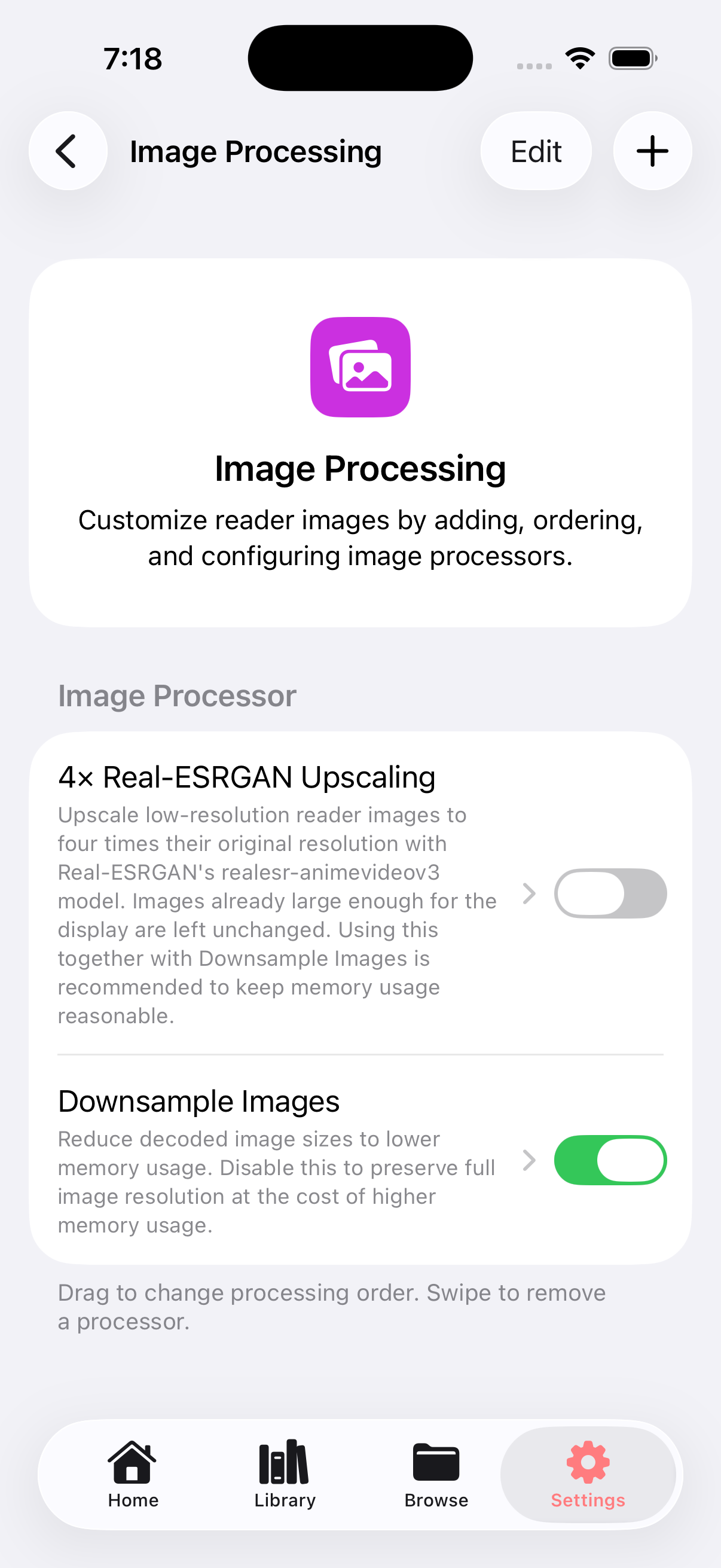
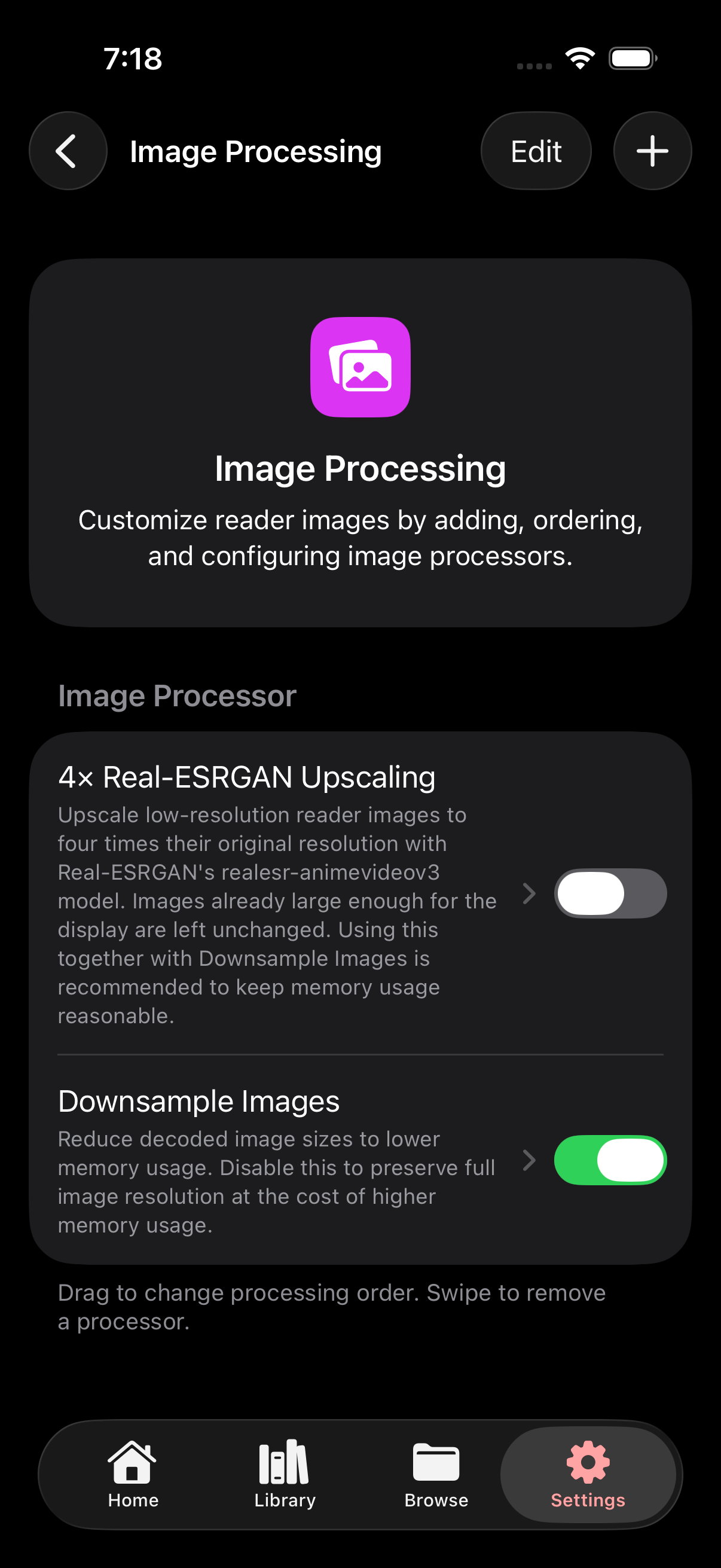
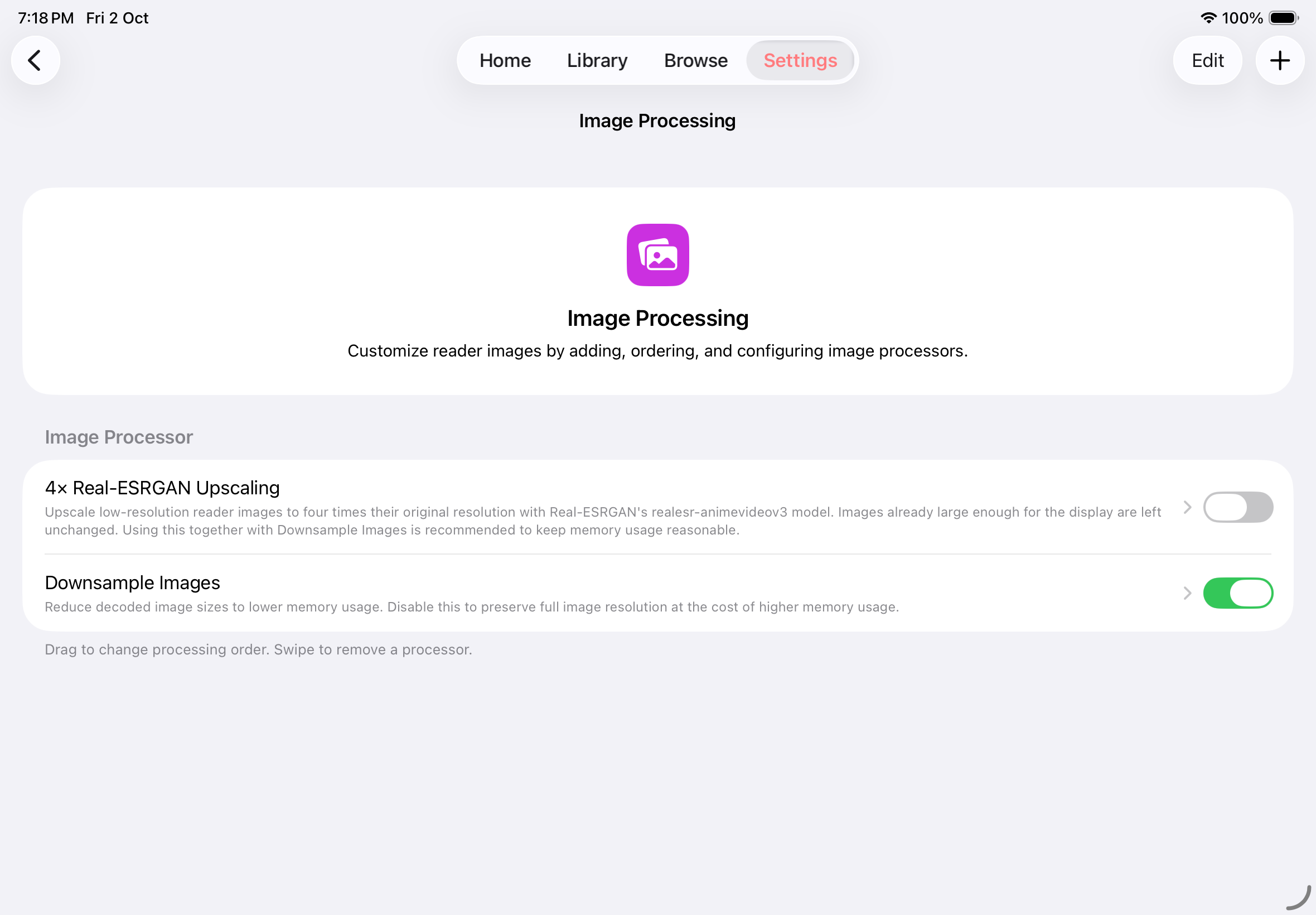
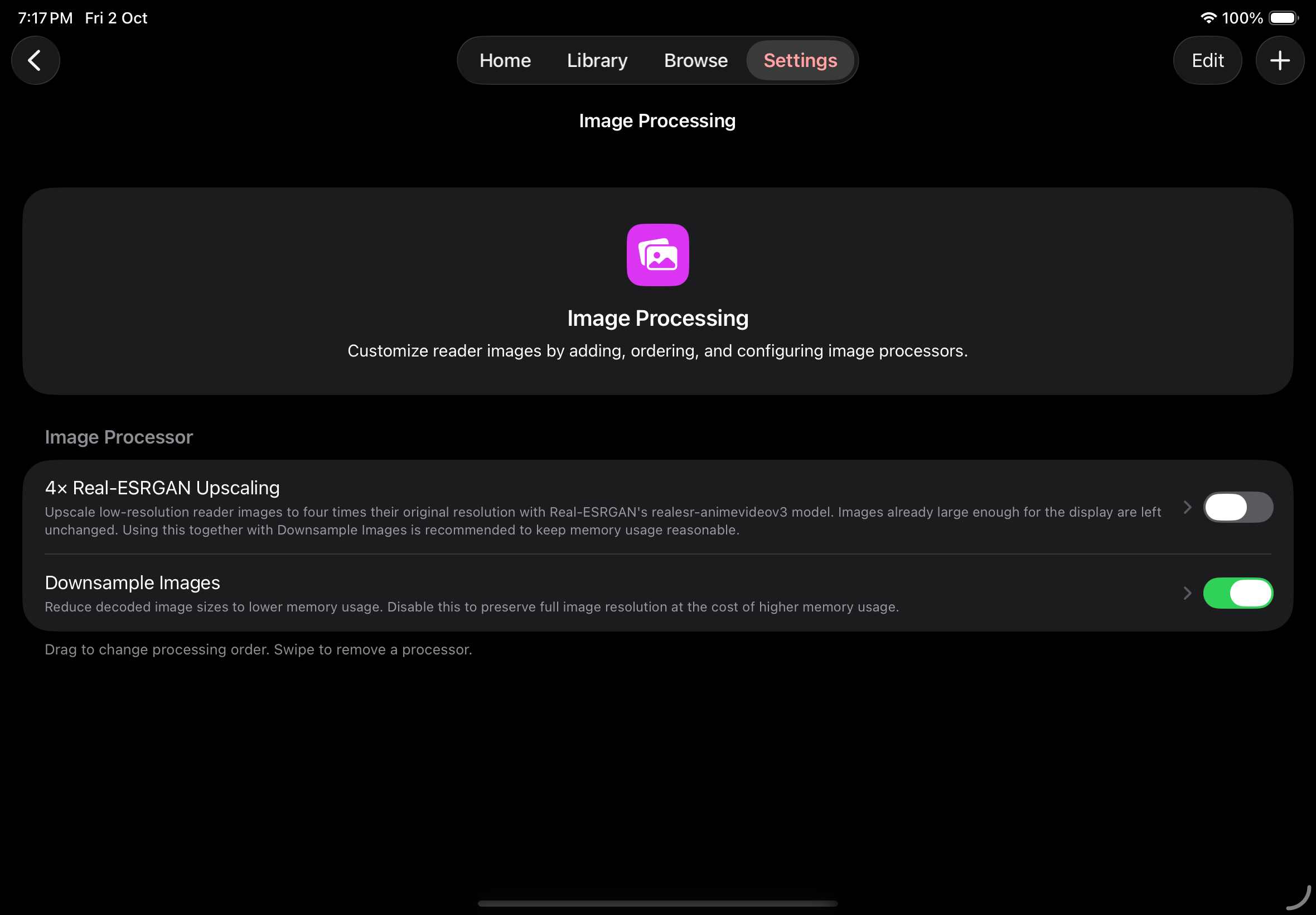
Section titled “Choose a local processor”Local processors run on your device. Mankai starts with 4× Real-ESRGAN Upscaling disabled and Downsample Images enabled.
Manage image processors
| Processor | Use it to | Settings |
|---|---|---|
| 4× Real-ESRGAN Upscaling | Enlarge low-resolution pages with the realesr-animevideov3 model. Images already large enough for the display are left unchanged. | Upscaling Sensitivity controls how many images qualify for upscaling. Higher sensitivity includes larger images and uses more processing power and memory. |
| Downsample Images | Reduce image resolution to lower memory usage. Turning it off preserves full resolution at the cost of higher memory usage. | Memory Savings offers Low, Balanced, and High. Higher savings use lower-resolution images. |
| Monochrome Tone | Give pages a custom color tone while preserving linework and contrast. | Choose Tone Color and adjust Tone Strength. |
- Open Settings → Image Processing and tap +.
- Under Local, tap the processor you want to add. The new processor is enabled automatically.
- Tap its row to open Configuration and adjust the available settings. Changes are saved automatically.
- Use the switch beside a processor to enable or disable it without removing its settings.
Start with Balanced for Upscaling Sensitivity and Memory Savings. When using upscaling, keep Downsample Images enabled after it to keep the final image size and memory usage reasonable.
Change the processing order
Section titled “Change the processing order”Enabled processors run from top to bottom. Each processor receives the image produced by the previous one, so changing the order can change the result.
- Tap Edit in Image Processing.
- Drag the reorder handles to arrange the processors.
- Tap Done when you finish.
For upscaling followed by memory savings, place 4× Real-ESRGAN Upscaling above Downsample Images. Add Monochrome Tone after them if you want to adjust the final page color.
Add a remote image processor
Section titled “Add a remote image processor”A remote processor sends reader images to a server and uses the returned images in the reader. You need a compatible Mankai image processing service and a server URL reachable from your iPhone or iPad.
- Open Settings → Image Processing and tap +.
- Under Remote, choose Remote Image Processor.
- Enter the service’s base URL in Server URL, then tap Add. Mankai reads the server’s name and configuration fields.
- Tap the new processor’s row and adjust its Configuration. If the server requires authentication, enter the supplied Username and Password.
- Check that its switch is enabled and place it in the processing order you want.
Remote processors receive the image at their position in the processing order. For example, placing one after Monochrome Tone sends the toned image to the server. Available settings and effects depend on the service.
If you are building a compatible server, see the Image processor API.
Reset or remove a processor
Section titled “Reset or remove a processor”Tap a processor’s row, tap Reset Configuration, then tap Reset to restore its default settings.
To remove a processor, swipe its row and confirm Remove, or use Remove in its configuration screen. To pause an effect while keeping its configuration, turn off its switch instead.
If processing is slow or has no effect
Section titled “If processing is slow or has no effect”- Check that the processor is enabled and review its position in the list.
- Upscaling skips images that are already large enough for the display. Try a lower-resolution page before increasing Upscaling Sensitivity.
- If upscaling is slow, lower Upscaling Sensitivity or disable the processor. Keep Downsample Images enabled to reduce memory usage.
- For a remote processor, check the base URL, server availability, connection, and any required credentials.
For page layout and navigation, see Reading and reader settings.