Sync across devices
Sync is optional and shares supported sources and their settings, share connections, bookmarks, and reading progress across devices.
You need a compatible custom server or a configured Supabase project. Use the connection details for your service.
Choose a sync service
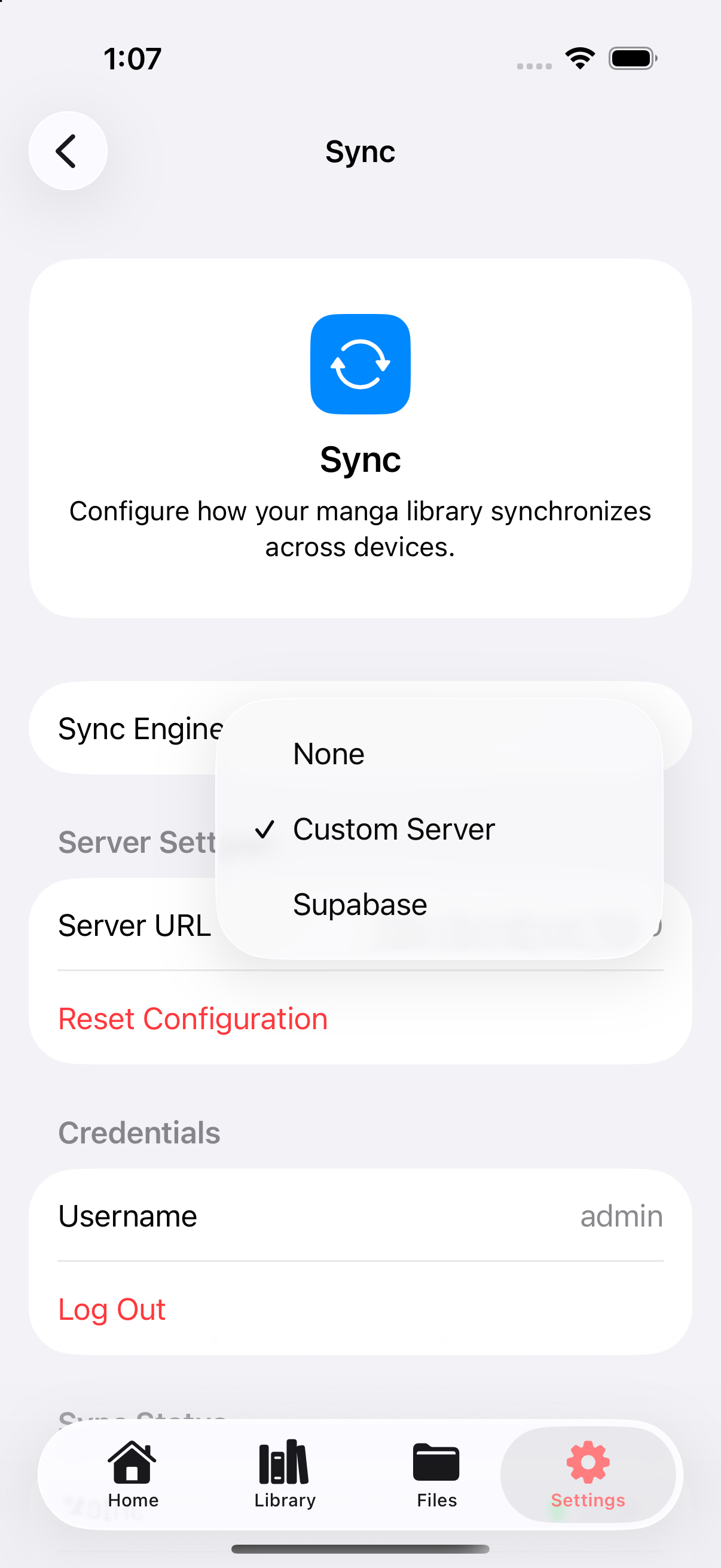
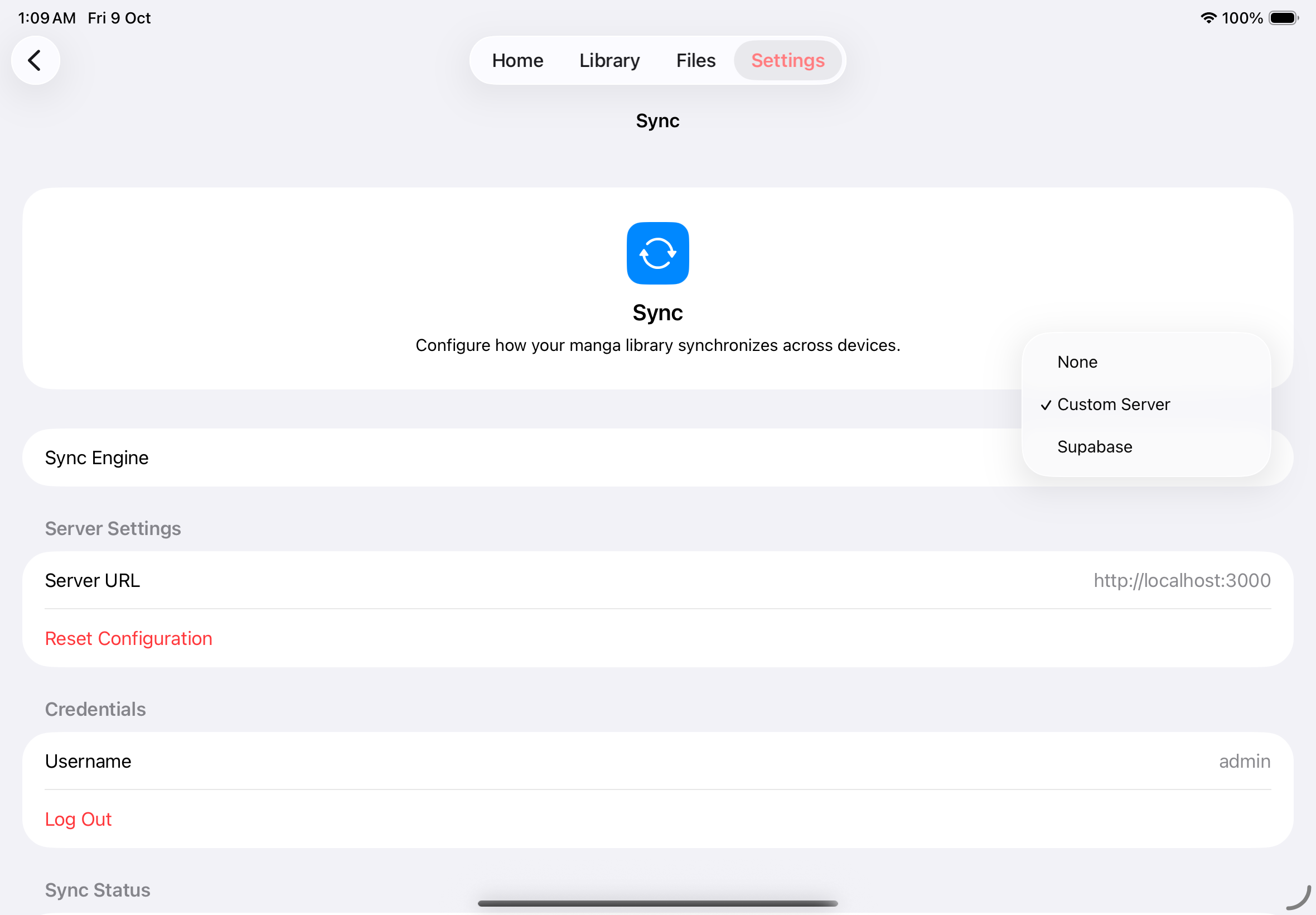
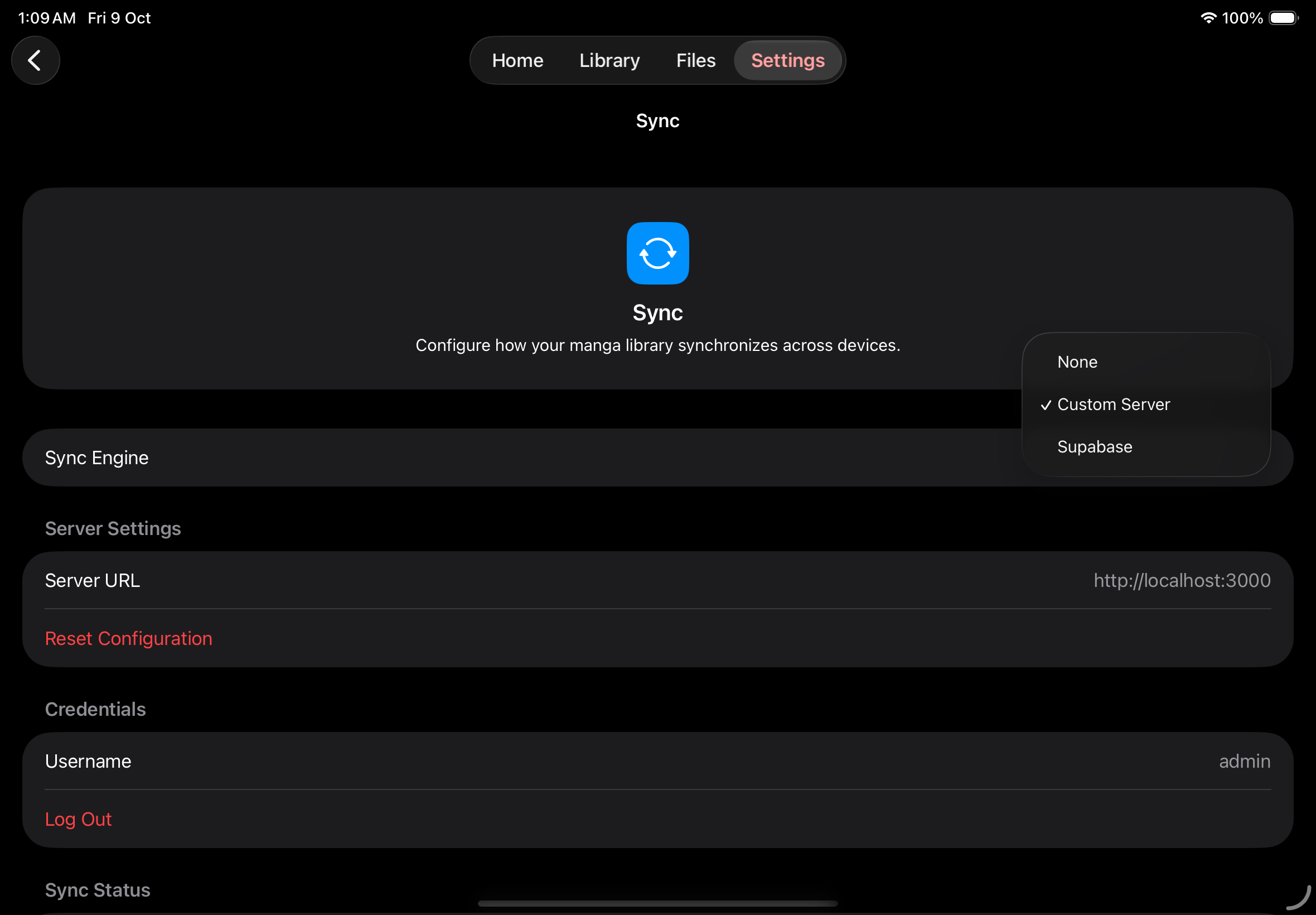
Section titled “Choose a sync service”- Open Settings → Sync.
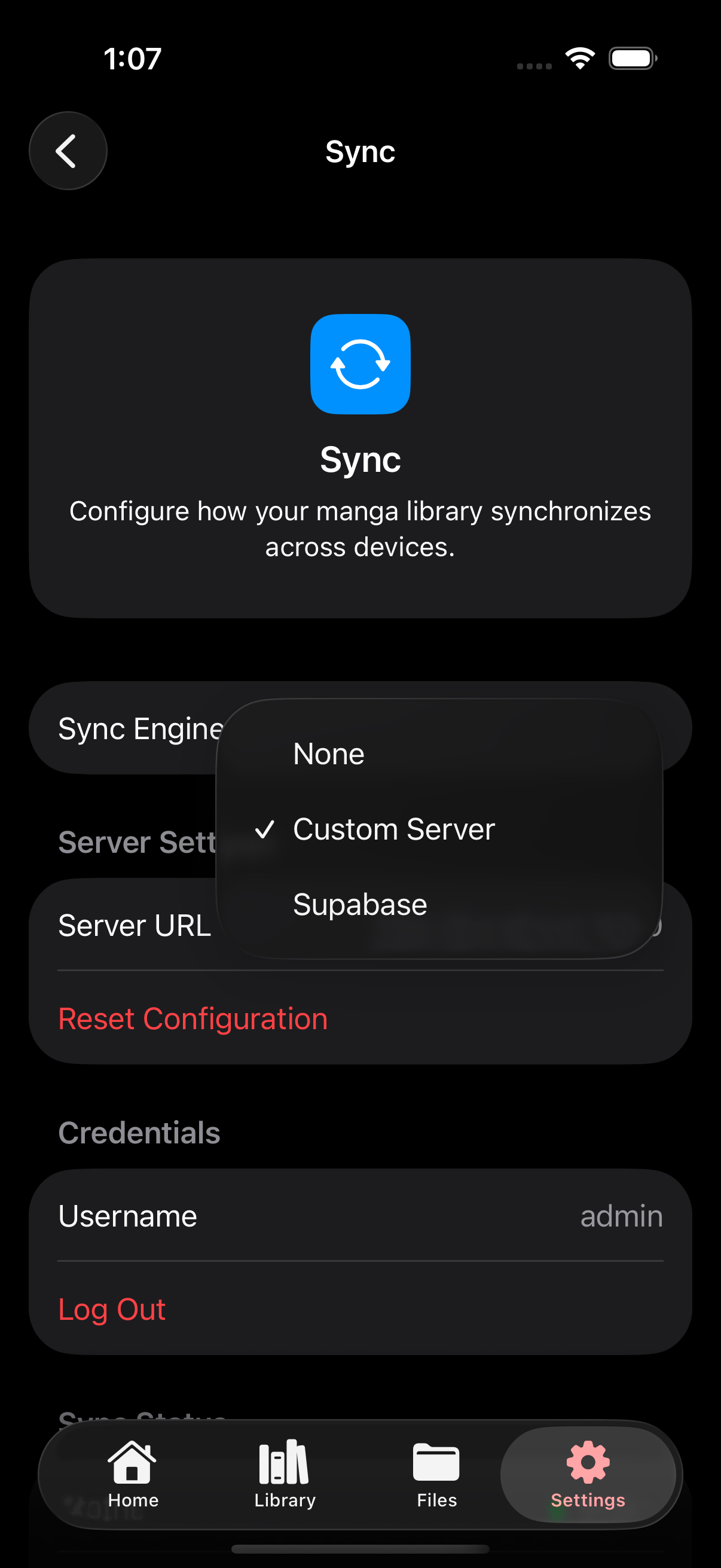
- Choose Custom Server or Supabase as the Sync Engine. Leave it at None if you do not need sync.
- Complete the appropriate setup below.
Choose a sync engine
iCloud (coming soon)
Section titled “iCloud (coming soon)”Custom Server
Section titled “Custom Server”Before using Custom Server sync, set up a compatible server using either of these repositories:
- Mankai Sync: A dedicated sync server with user accounts defined in
config.json. - Mankai Server: A manga library server that also supports bookmarks and reading progress sync.
Follow the setup instructions in your chosen repository.
Use the username and password for an account on that server. If you use an existing service, ask its administrator for these details.
- Select Custom Server and enter the appropriate URL in Server URL.
- Tap Save Configuration.
- Enter your username and password under Credentials.
- Tap Log In.
Supabase
Section titled “Supabase”You can use Mankai’s Supabase project with these connection details:
- Project URL: https://wblemlisleehqgikztlm.supabase.co
- Publishable key:
sb_publishable_-Cw5SX-GcpvRd17ikISEMw_Zb4Y5UW1
- Select Supabase and enter the project URL and publishable key.
- Tap Save Configuration.
- Choose the sign-in provider configured for that project and tap Log In.
- Complete the sign-in flow and return to Mankai.
Check what each source can sync
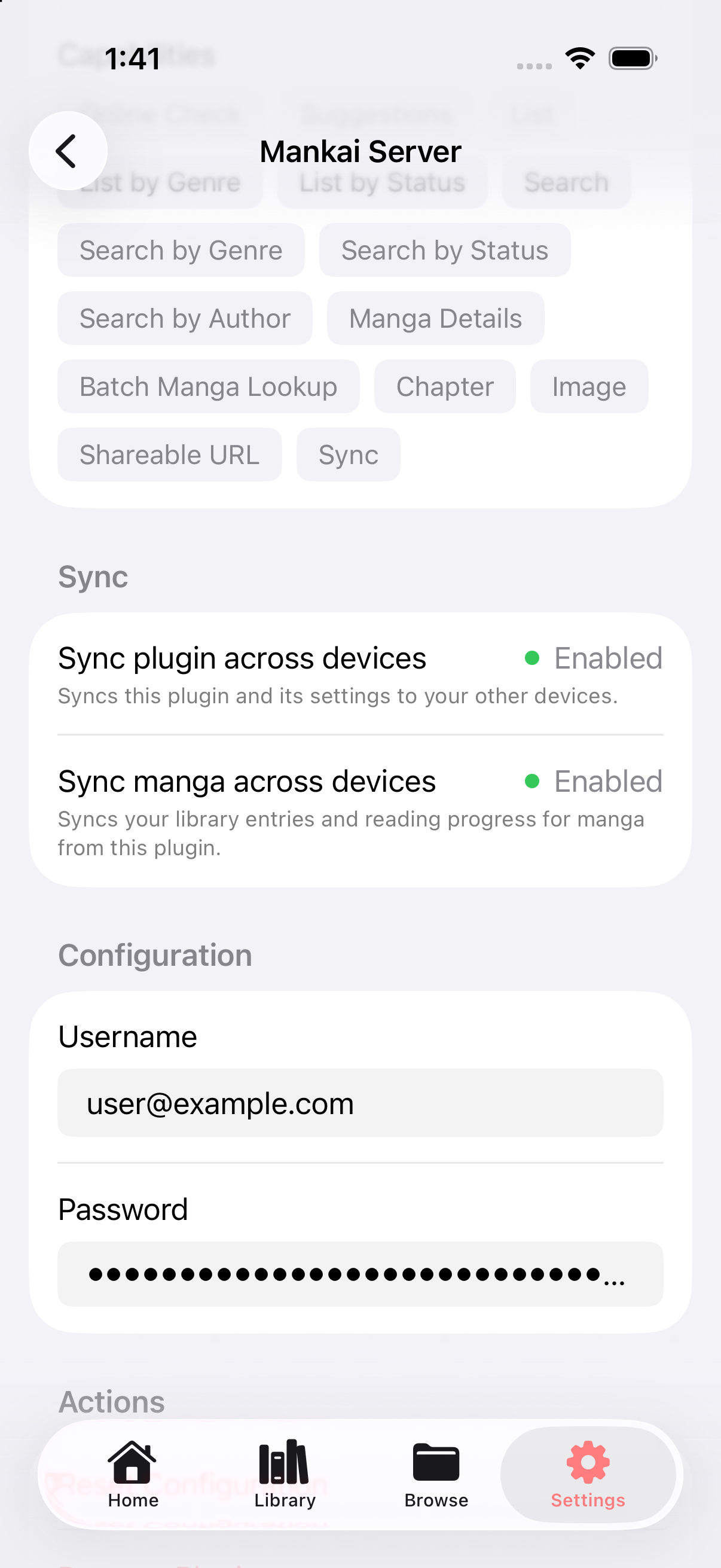
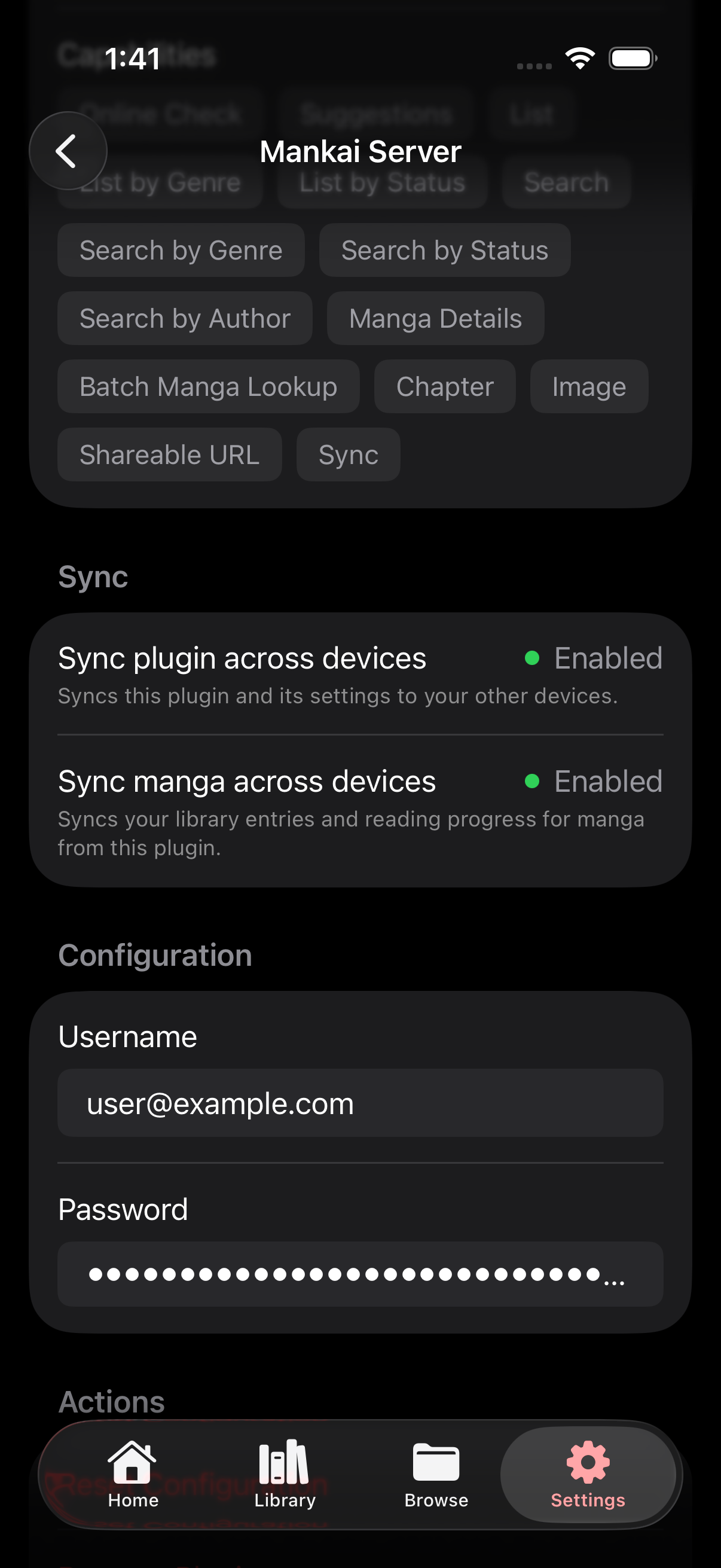
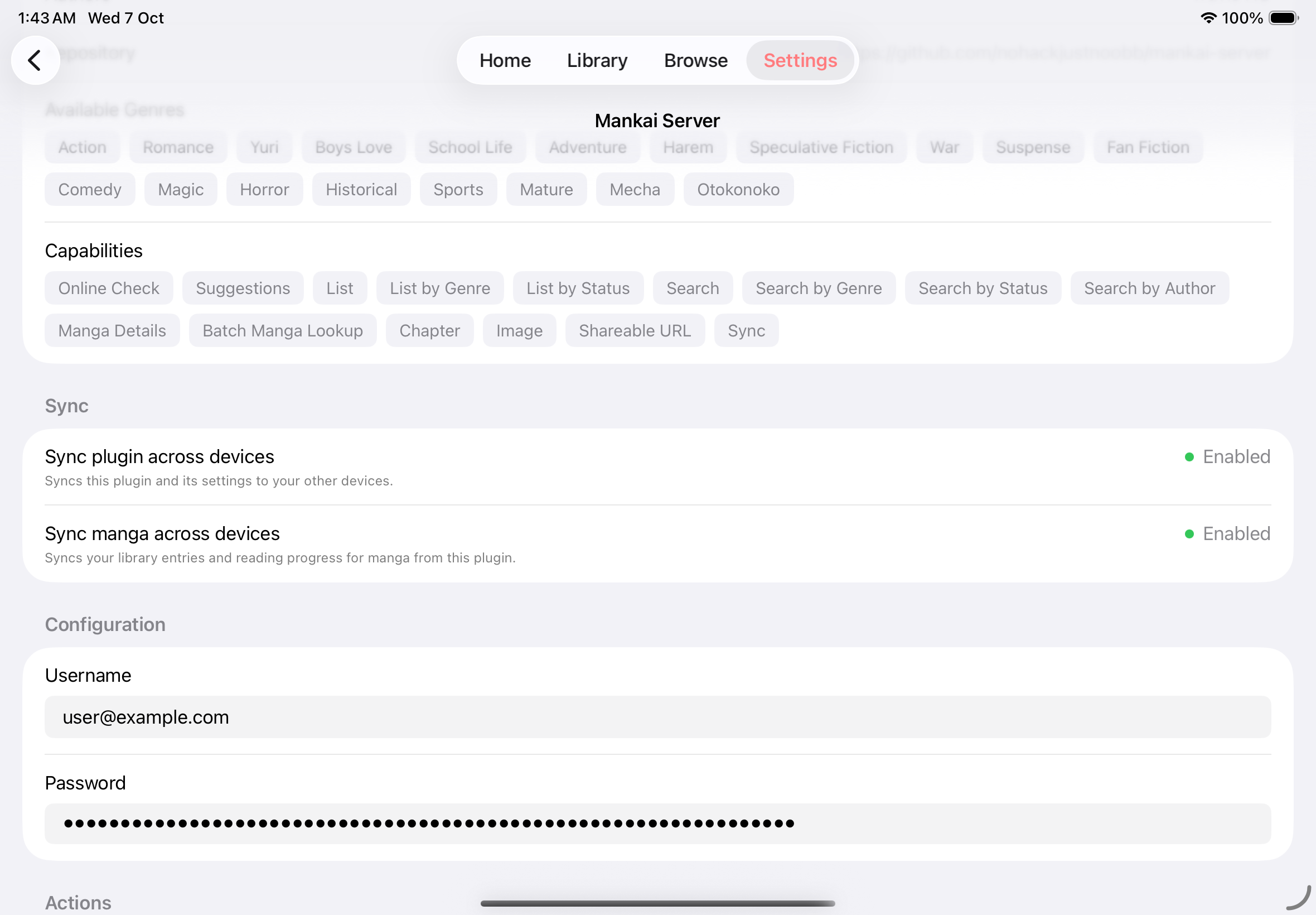
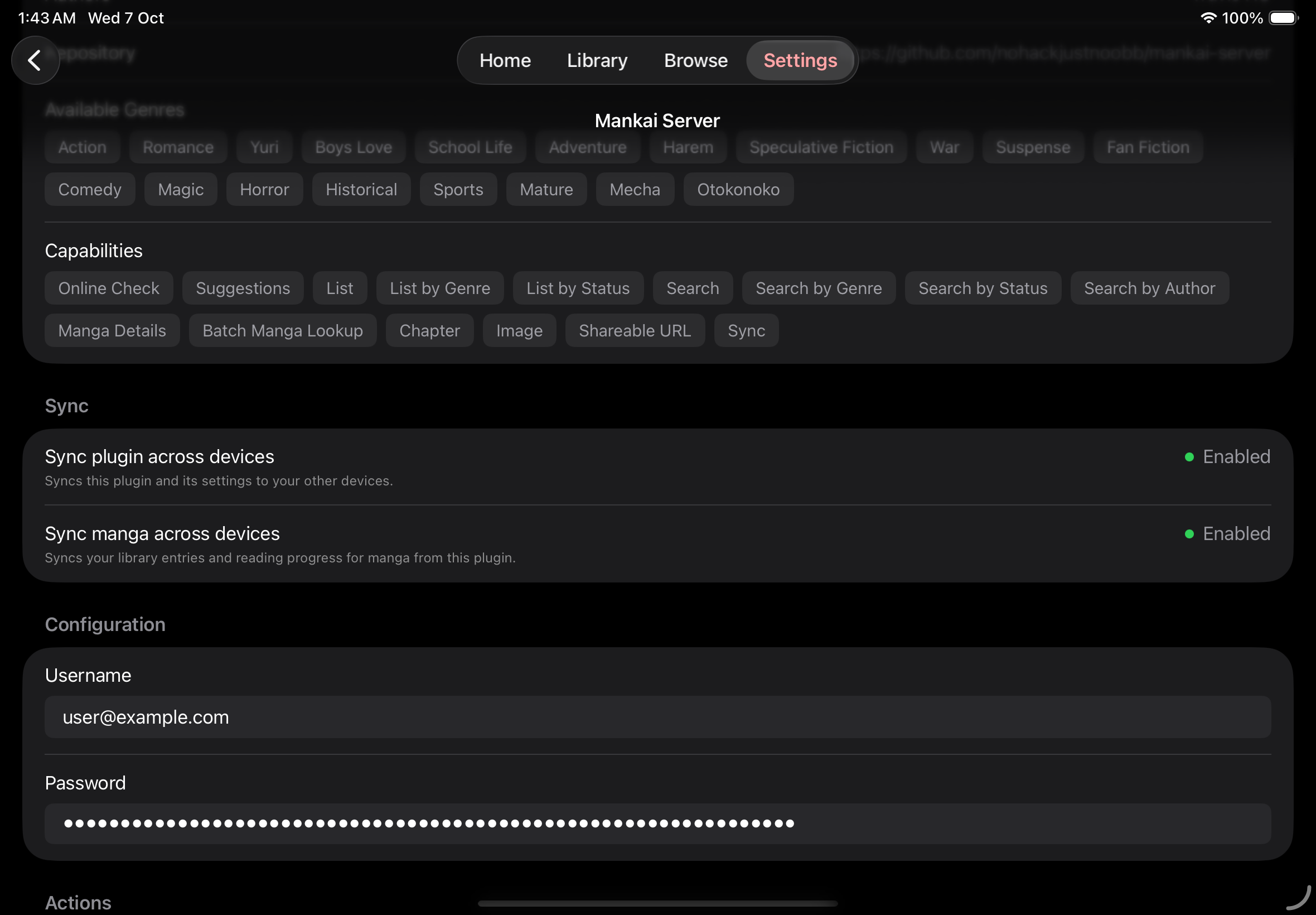
Section titled “Check what each source can sync”Open Settings → Sources and select a source, or Settings → Shares and select a share. The Sync section shows separate statuses for the source’s settings and its manga records:
| Status | When Enabled |
|---|---|
| Sync source across devices | Installs the source and syncs its settings on your other devices. |
| Sync share across devices | Syncs the share’s connection settings to your other devices. |
| Sync manga across devices | Syncs library entries (bookmarks) and reading progress for manga from that source. |
Check source sync support
Sync both devices
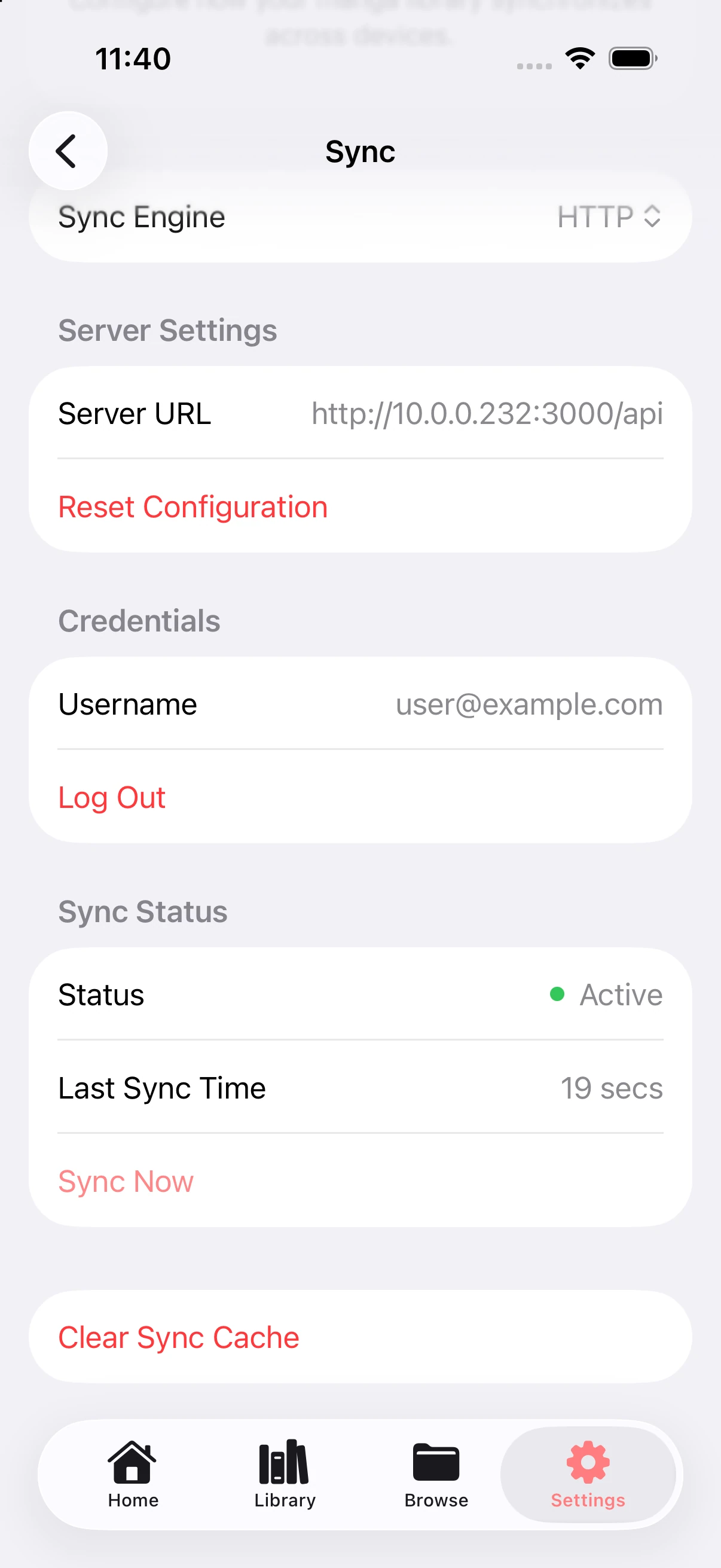
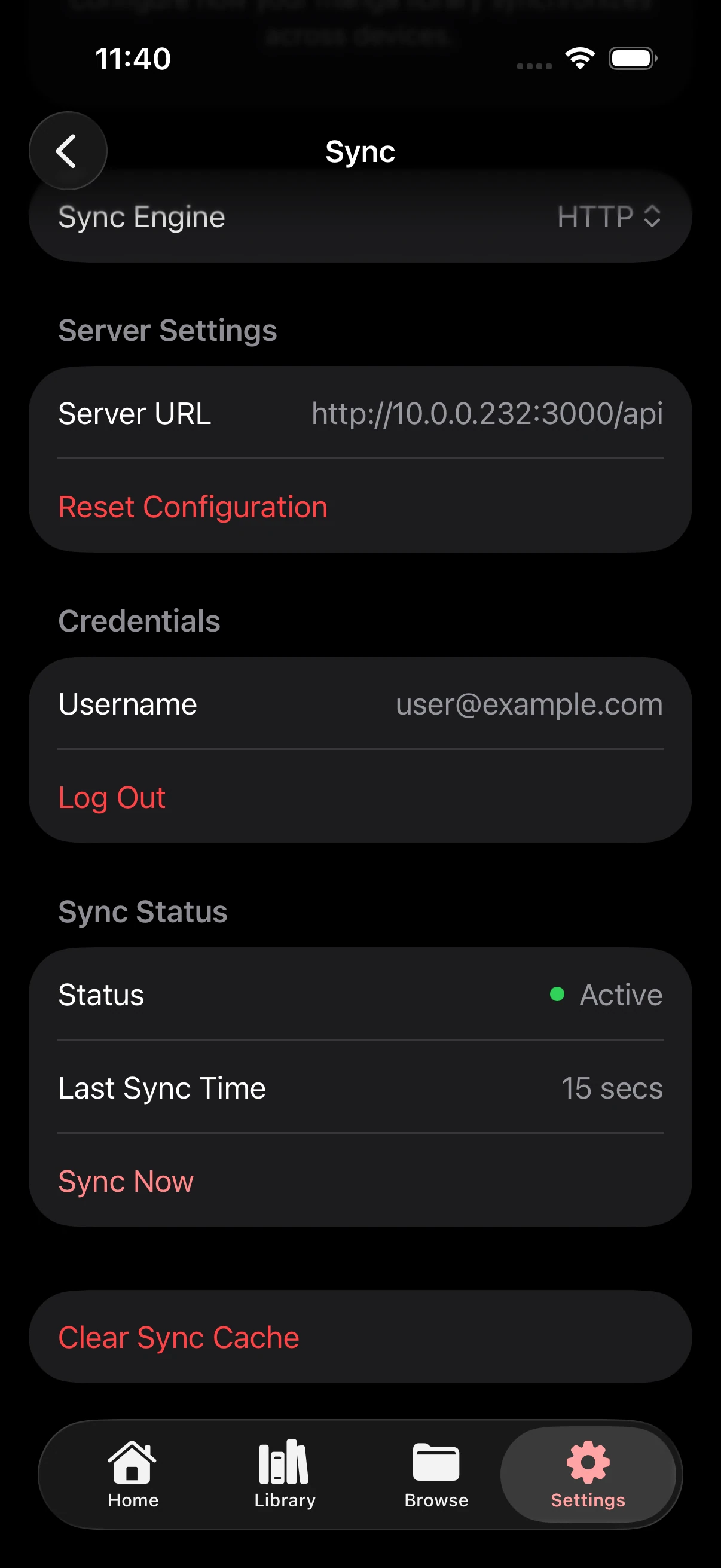
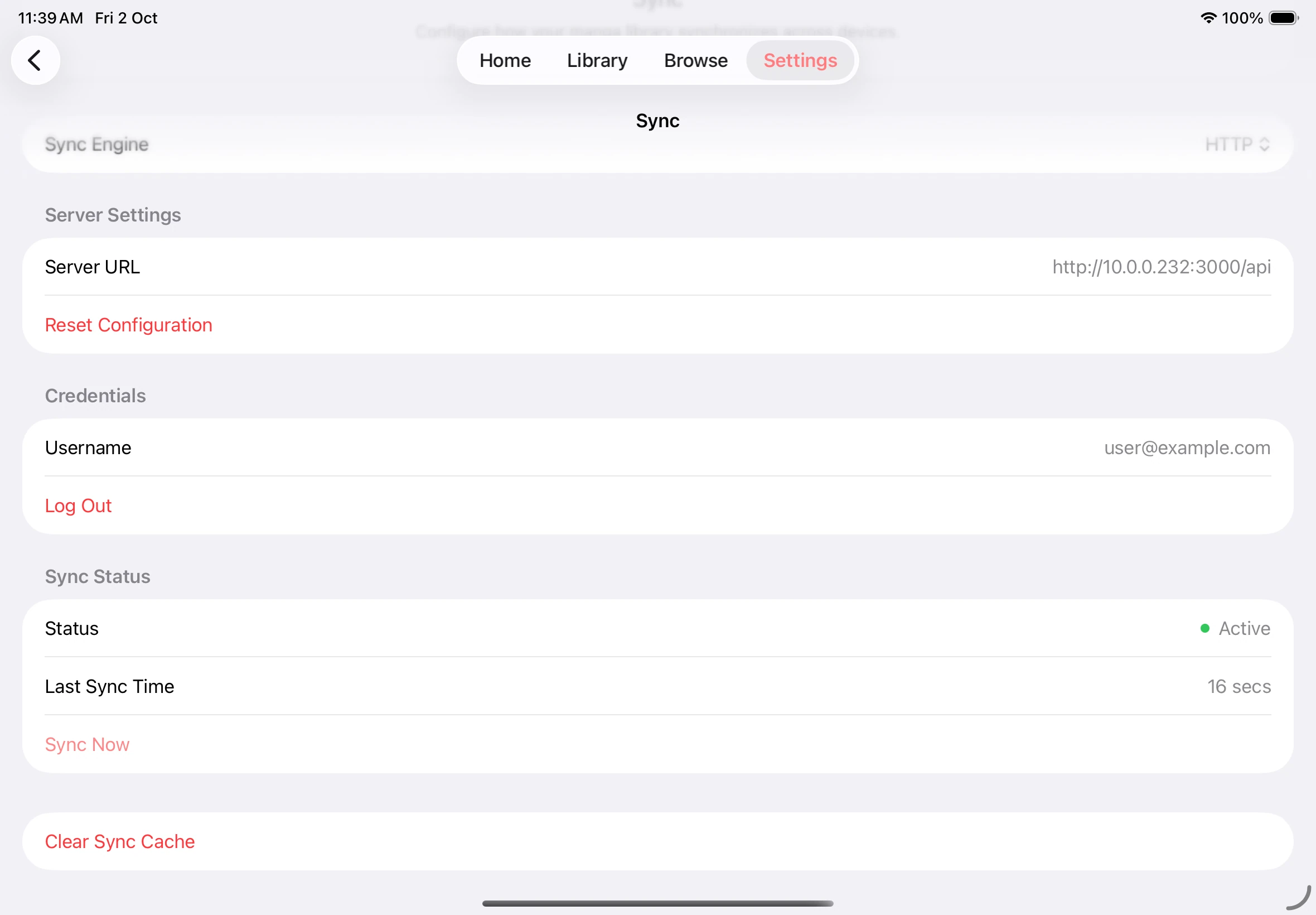
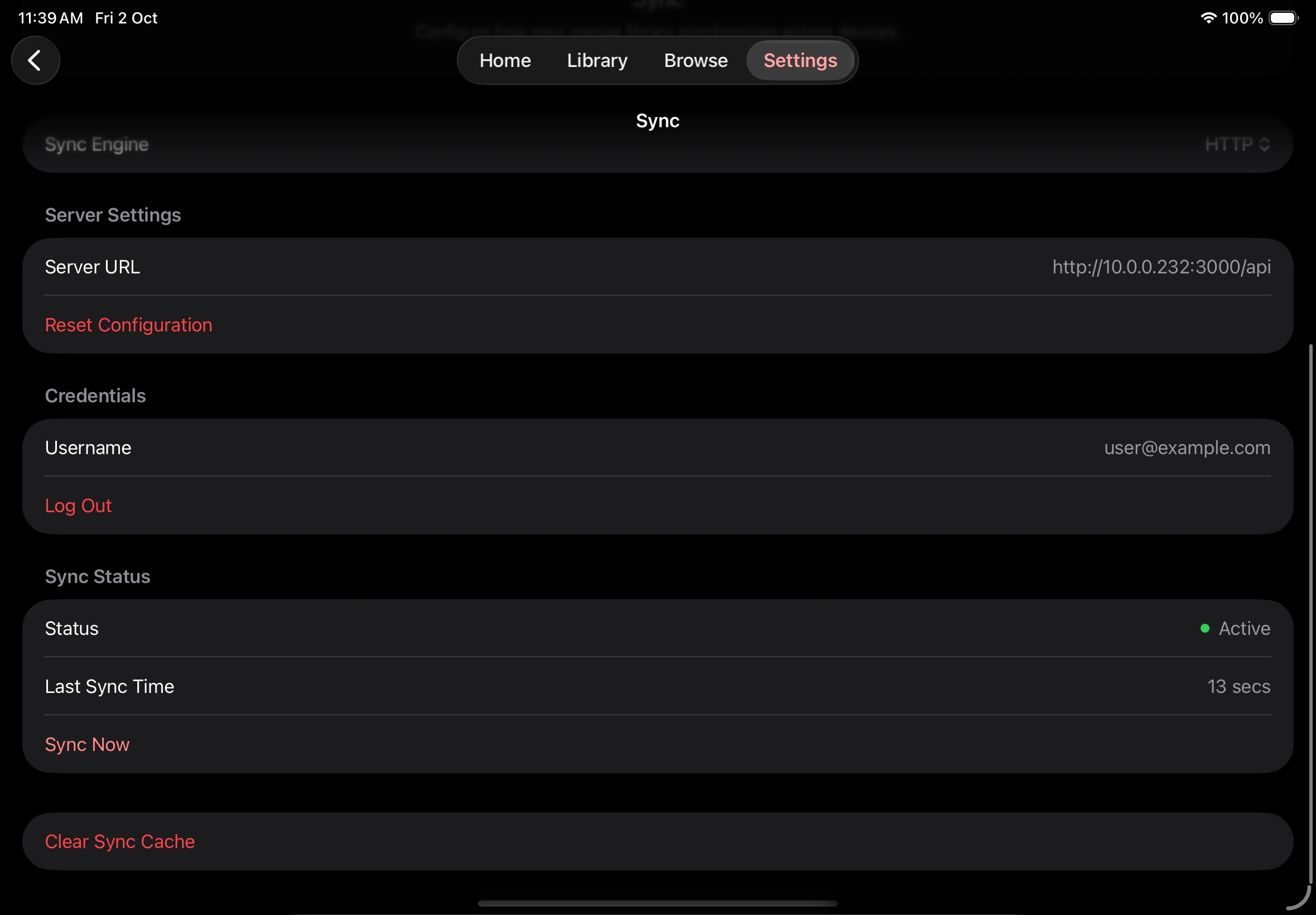
Section titled “Sync both devices”- Once the status is Active, tap Sync Now.
- Check that the last sync time updates successfully.
- Configure the same service and account on your other device, then tap Sync Now there too.
- Check Settings → Sources and Settings → Shares for the supported sources and share connections restored by sync.
- Add any File System sources or sources without a usable download URL manually, and confirm that the other device can open the same books.
- Open a supported book and tap Continue to pick up where you left off.
Check sync status
Keep source identities consistent
Section titled “Keep source identities consistent”Shares use a .mankai file to identify the same source across devices.
When a source or reading progress does not appear
Section titled “When a source or reading progress does not appear”Confirm that both devices use the same account and show a successful sync. Check the source’s Sync section for both settings sync and manga sync support. Add File System sources and sources without a usable download URL manually, and make sure the source is reachable on the other device. If only bookmarks or progress are missing, check whether the source uses a local identity. Read Troubleshooting before resetting your connection settings.