Reading and reader settings
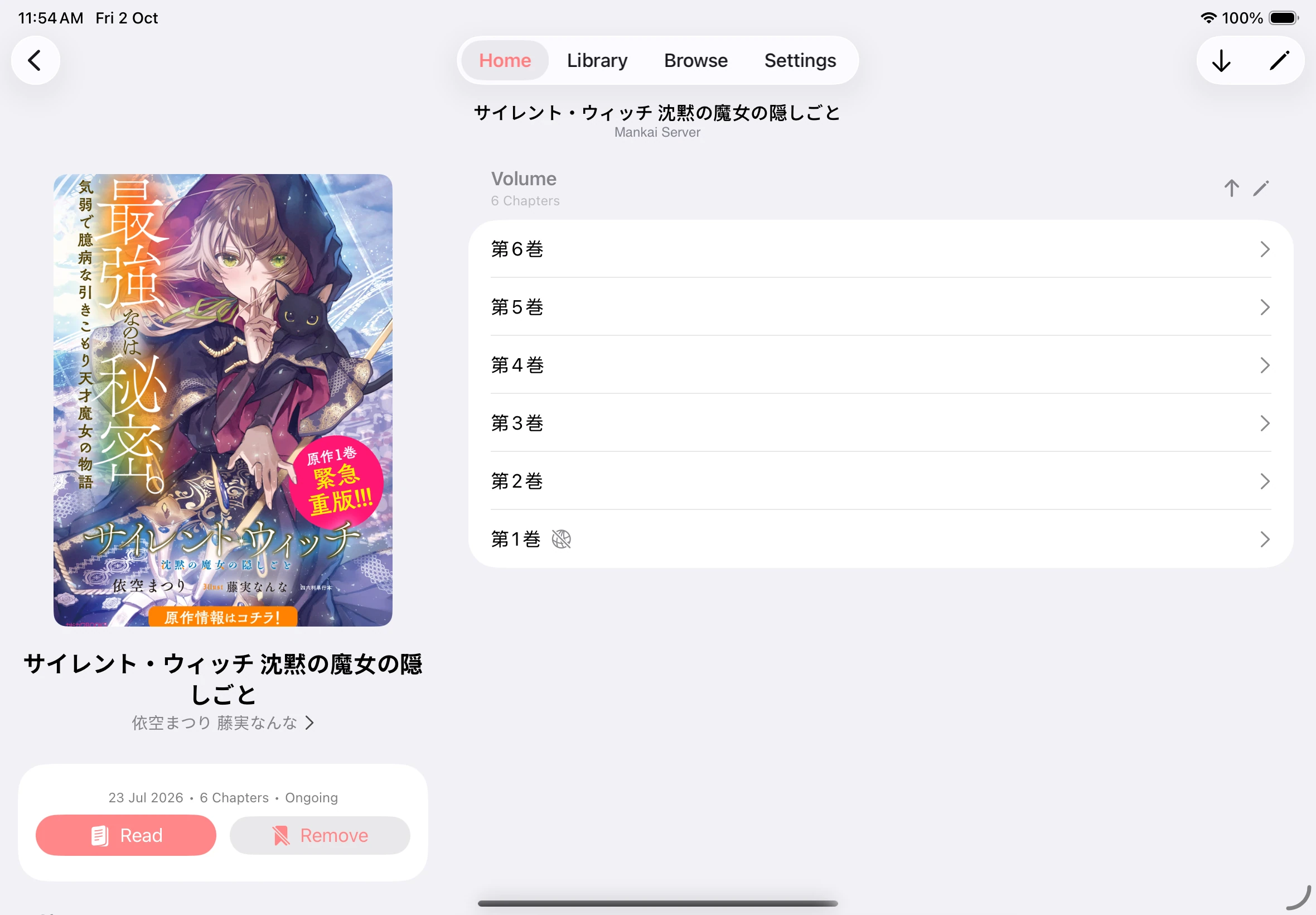
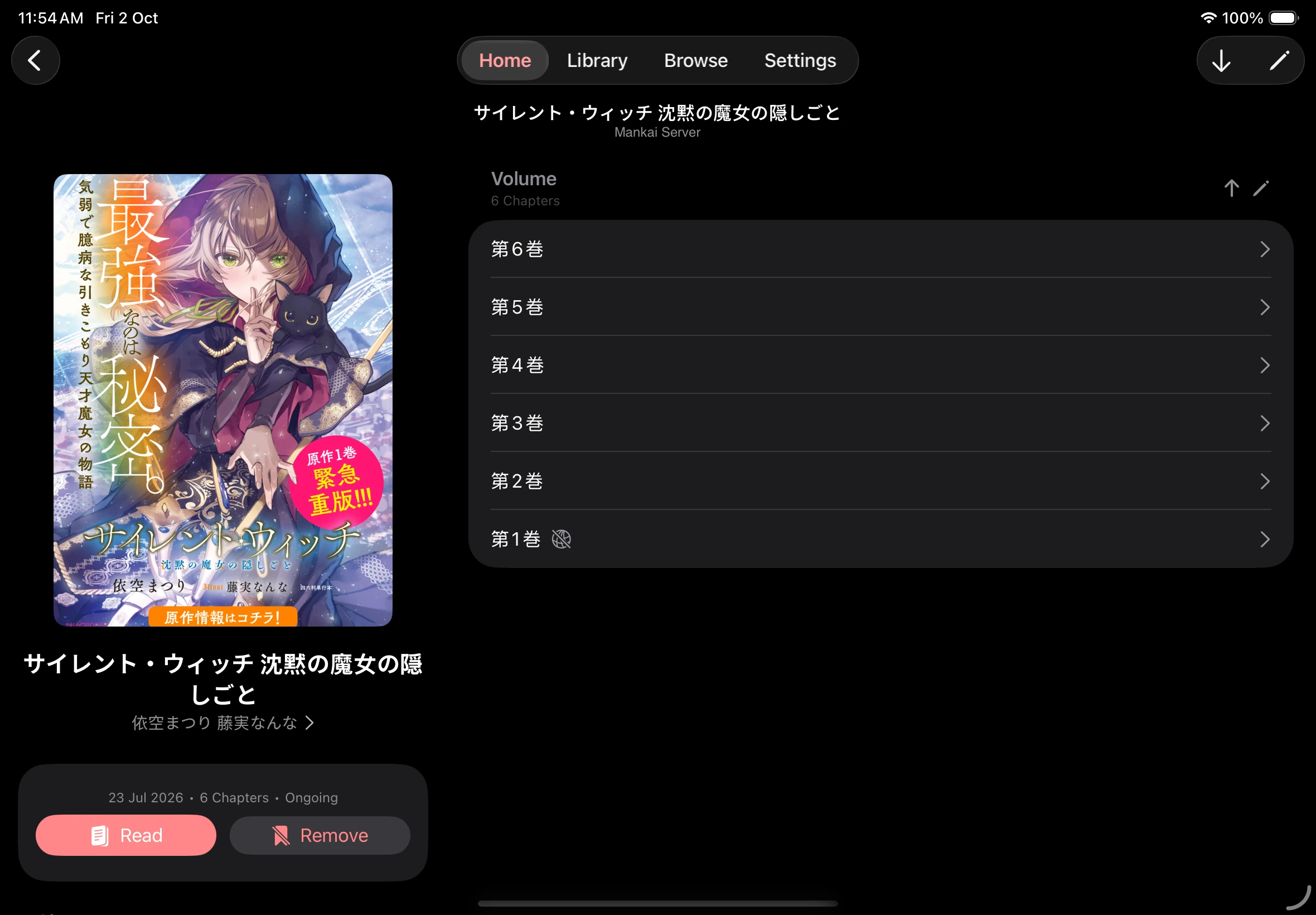
Open a book from Files, Library, Home, or Settings → History. The book details screen shows its description, chapters, and buttons to start or resume reading.
Start or resume a chapter
Section titled “Start or resume a chapter”- Tap Read to start a book, or Continue to pick up where you left off.
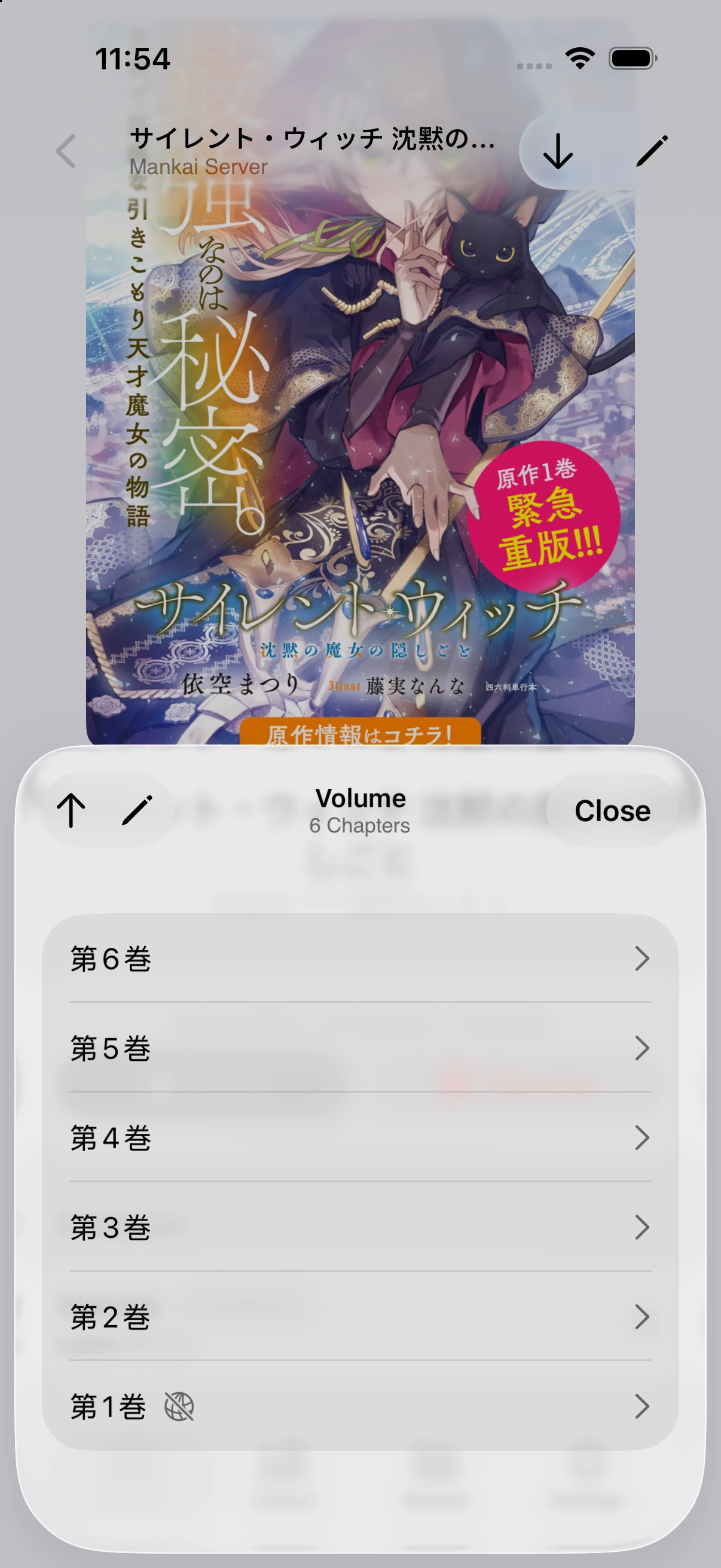
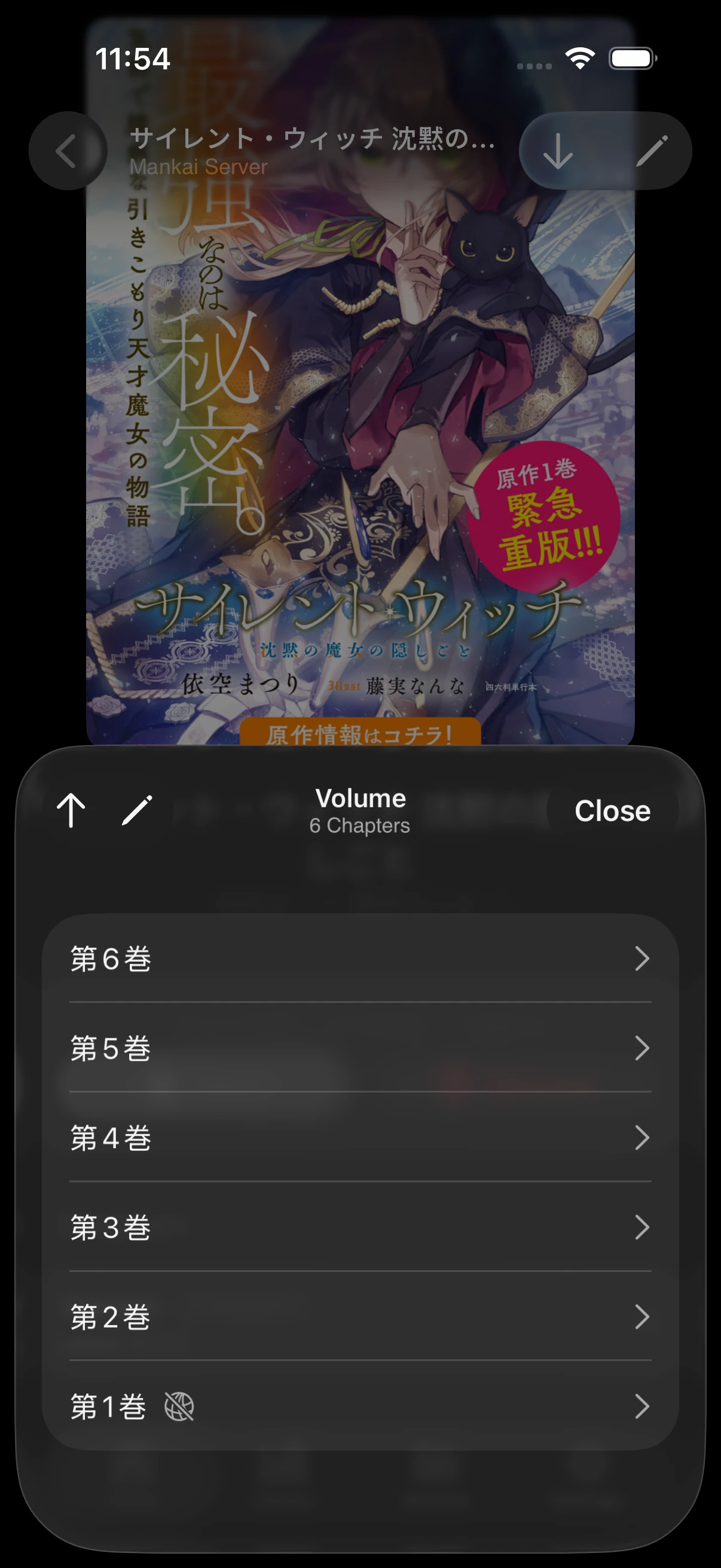
- To choose a specific chapter, open one of the book’s chapter groups and tap a chapter.
- Tap the sort button to reverse the chapter order.
The chapter groups and information shown depend on the book and its source.
Choose a chapter
Move through the book
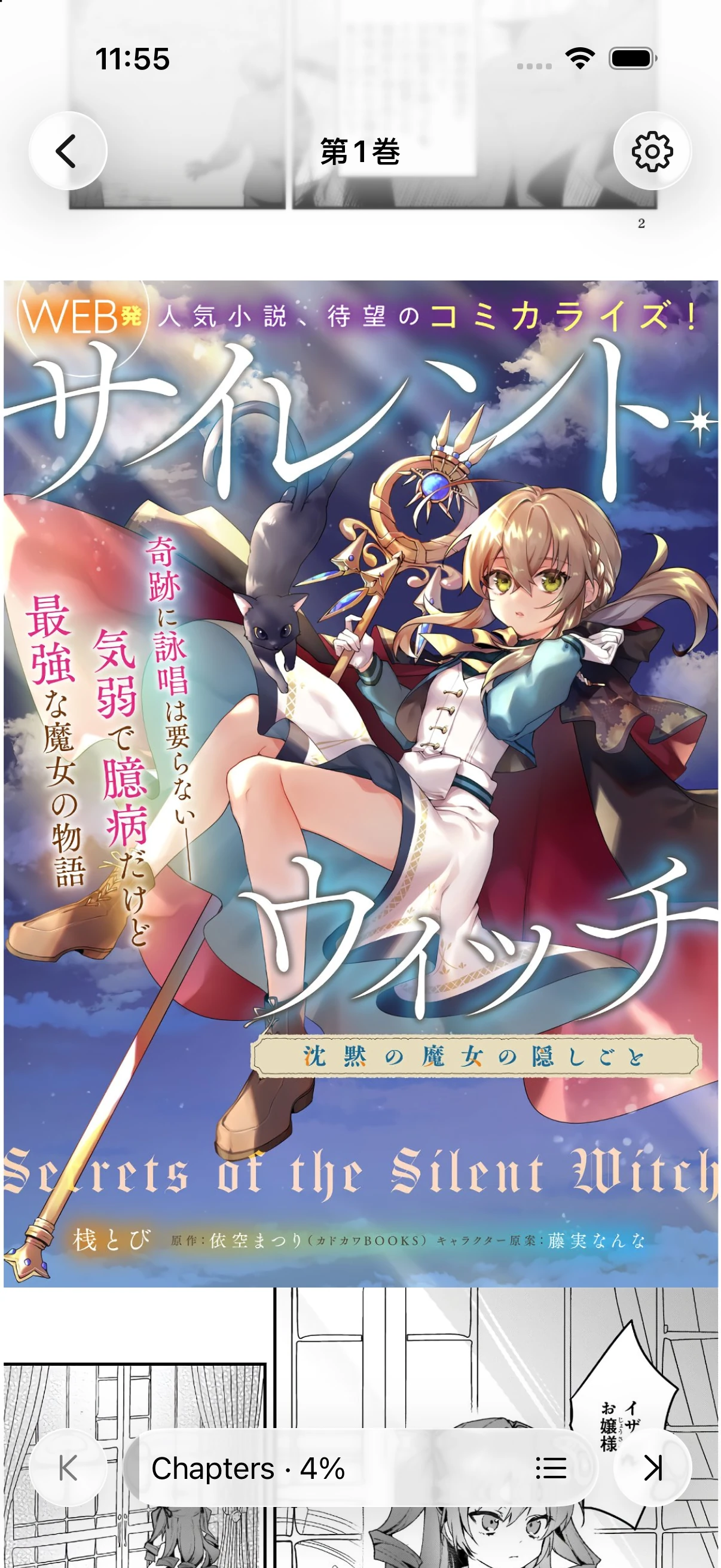
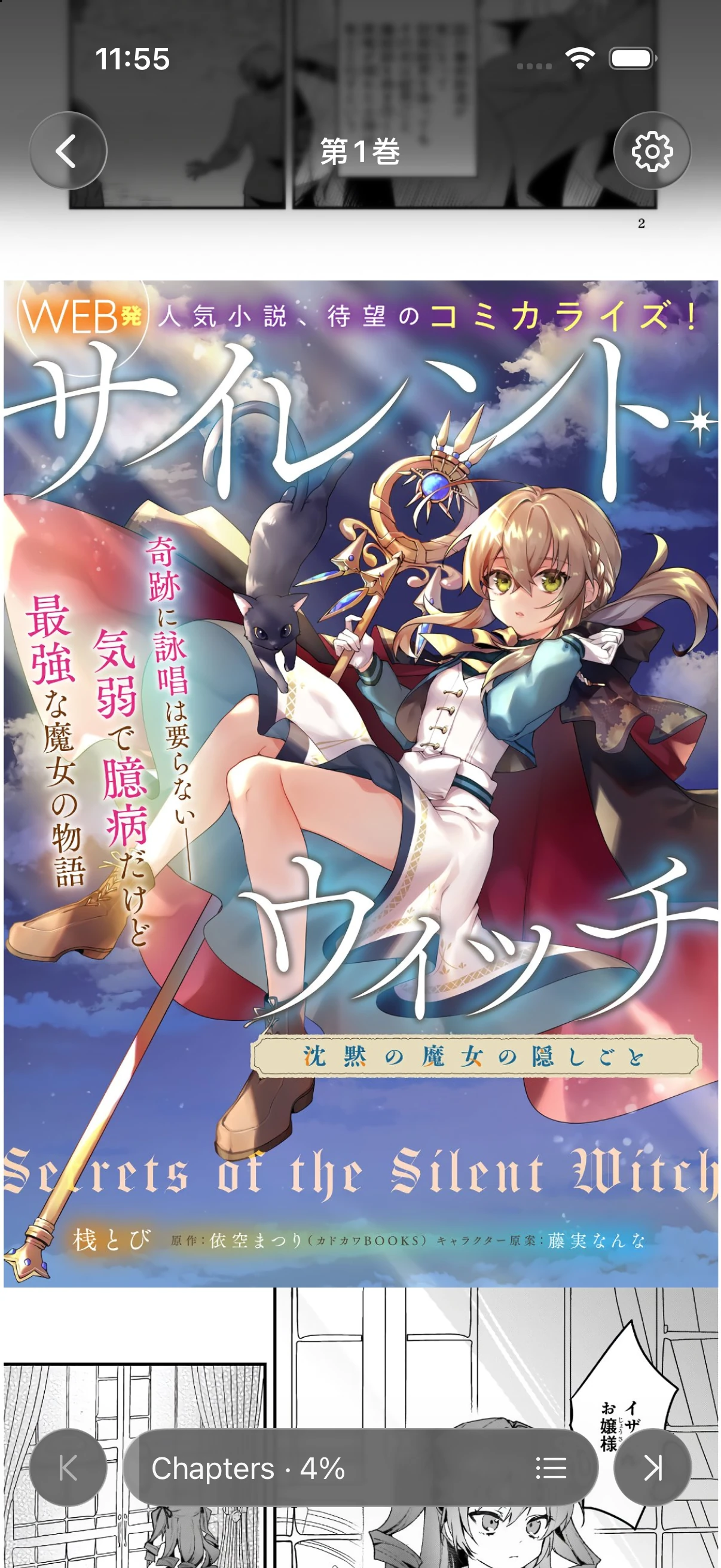
Section titled “Move through the book”- Swipe to turn pages in Paged mode, or scroll through pages in Continuous mode.
- Tap near the center of a page to show or hide the controls.
- Drag the page slider at the bottom to move to another page.
- Use the previous and next chapter buttons beside the slider to move between available chapters.
The swipe direction and tap behavior depend on your reader preferences.
Reader controls
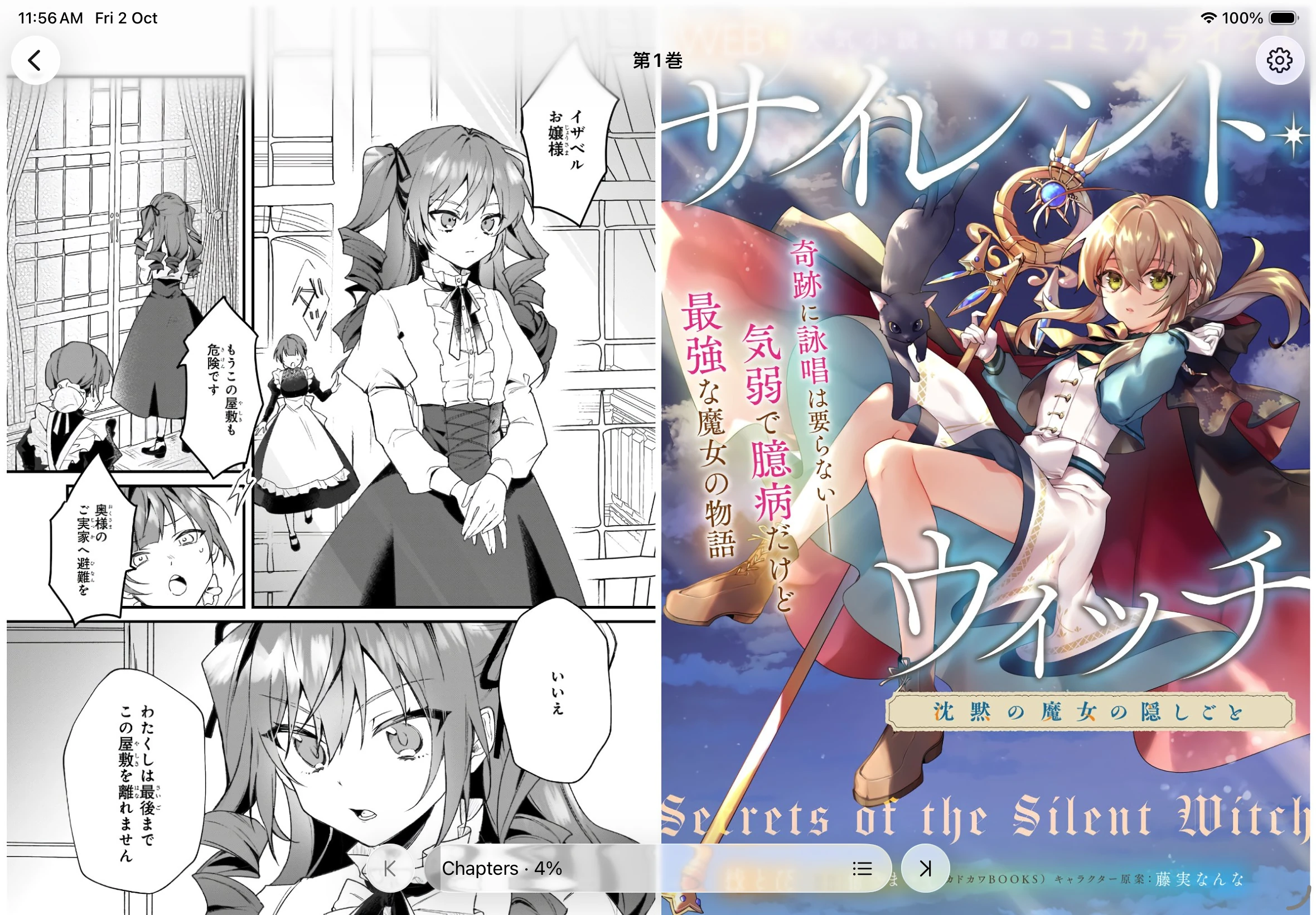
Choose a comfortable layout
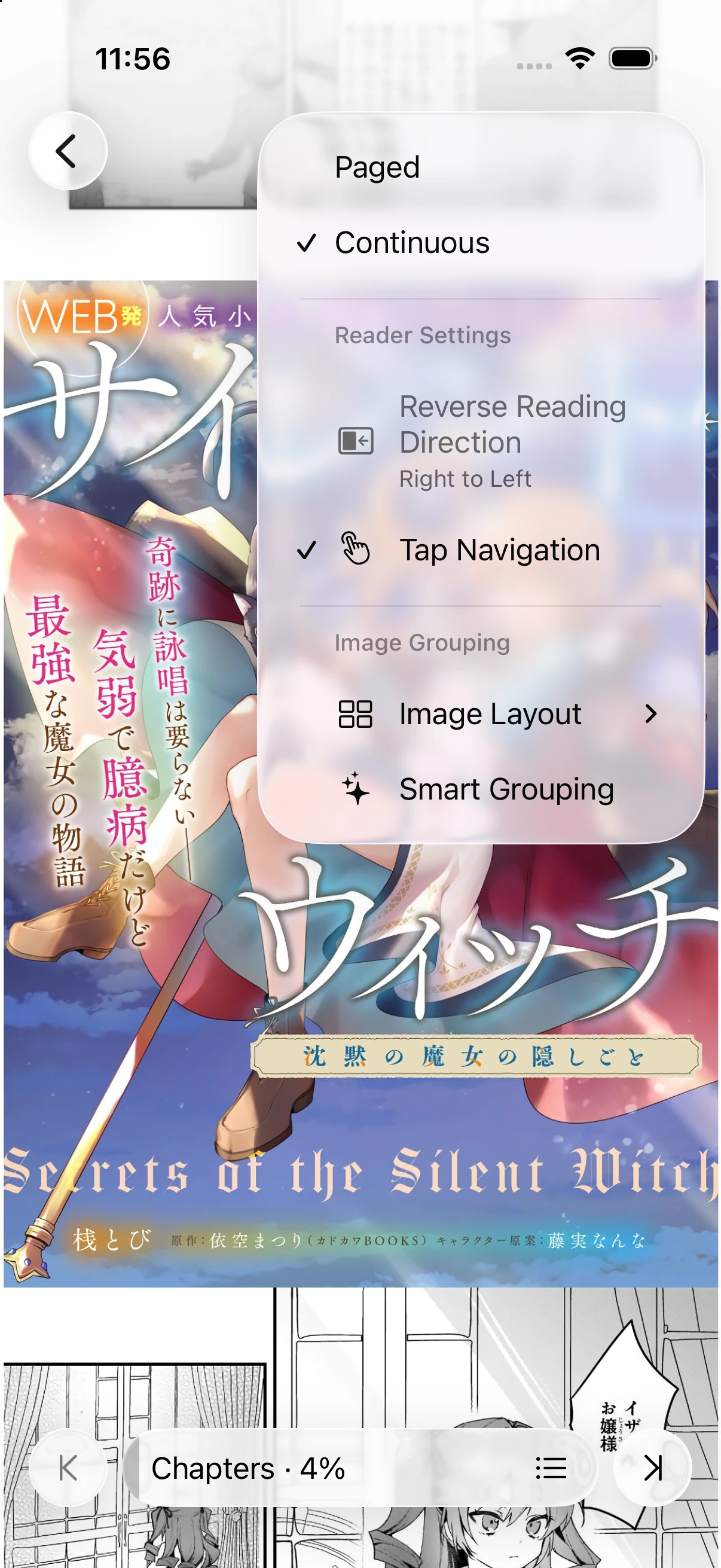
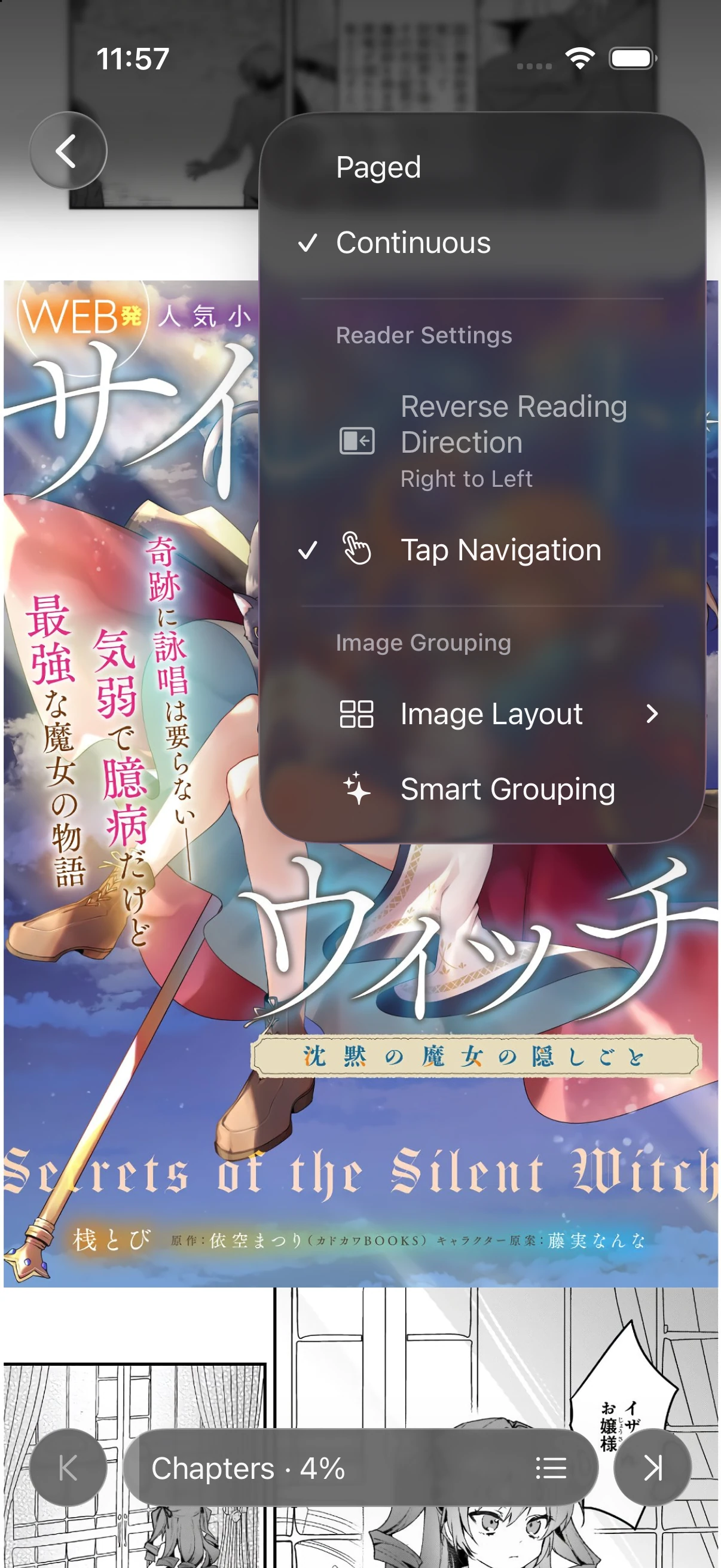
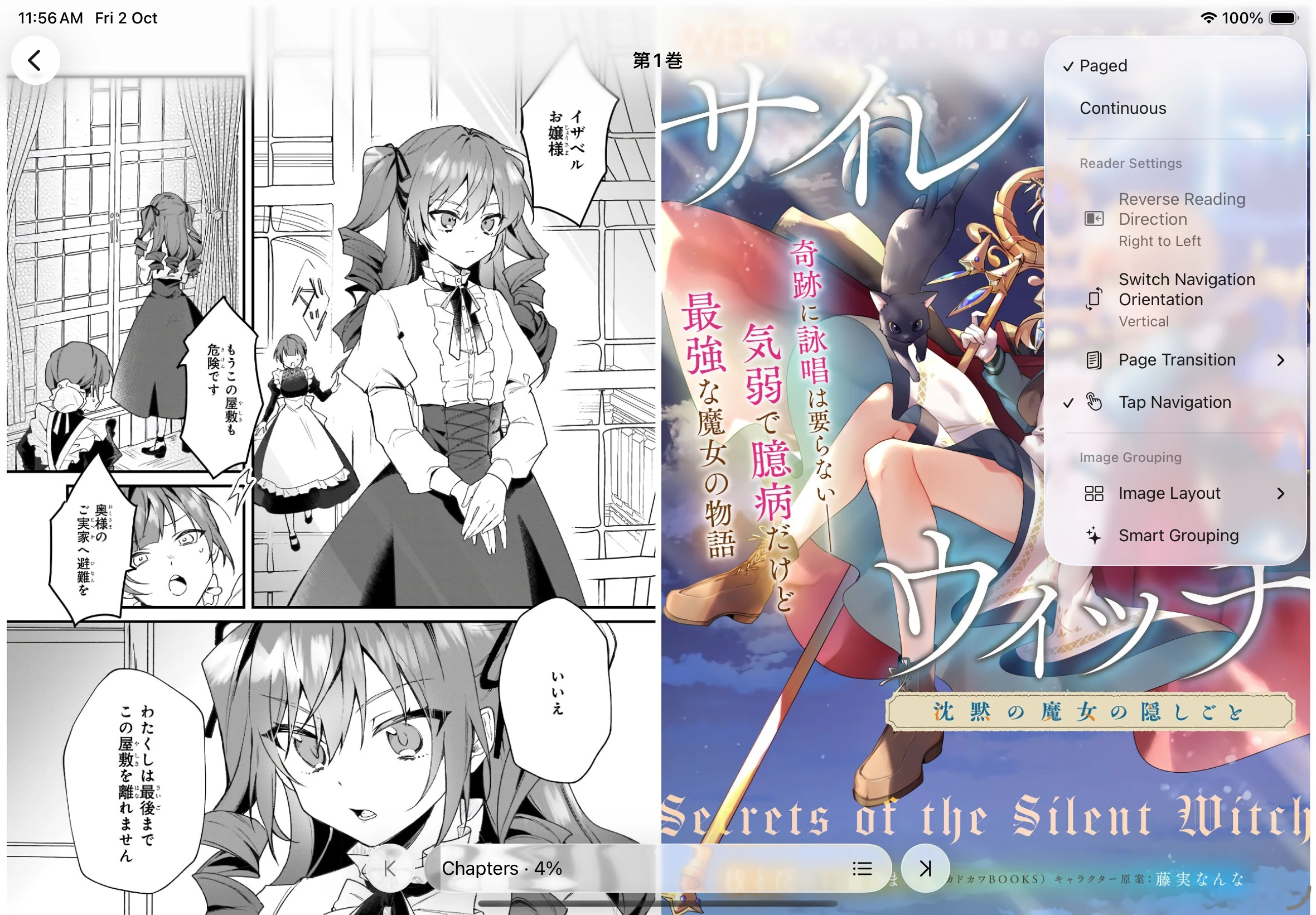
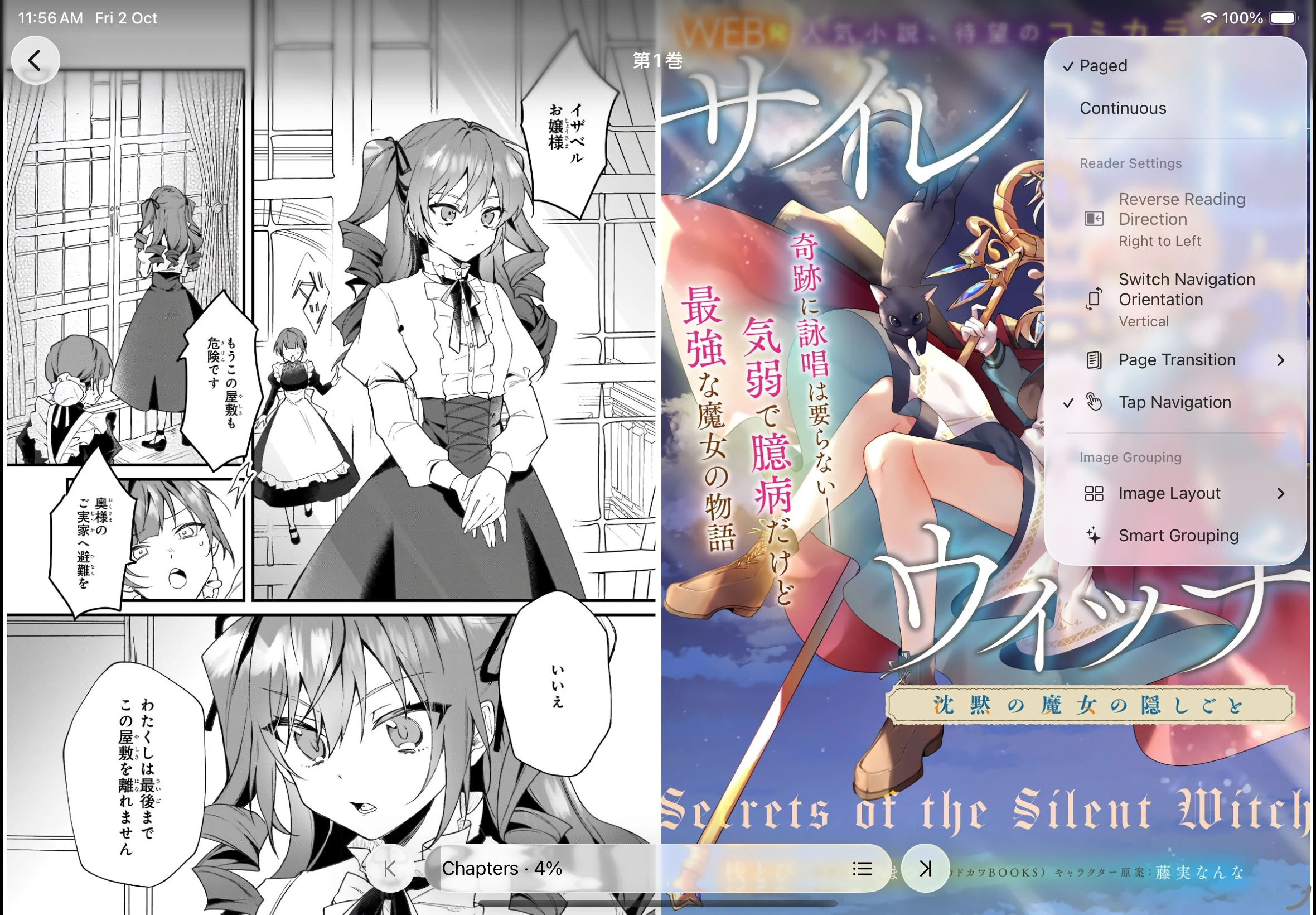
Section titled “Choose a comfortable layout”Tap the settings button in the reader to adjust the reading layout and controls.
| Setting | Use it to |
|---|---|
| Reader Type | Switch between Paged and Continuous |
| Reverse Reading Direction | Switch between left-to-right and right-to-left reading |
| Tap Navigation | Turn pages by tapping page regions |
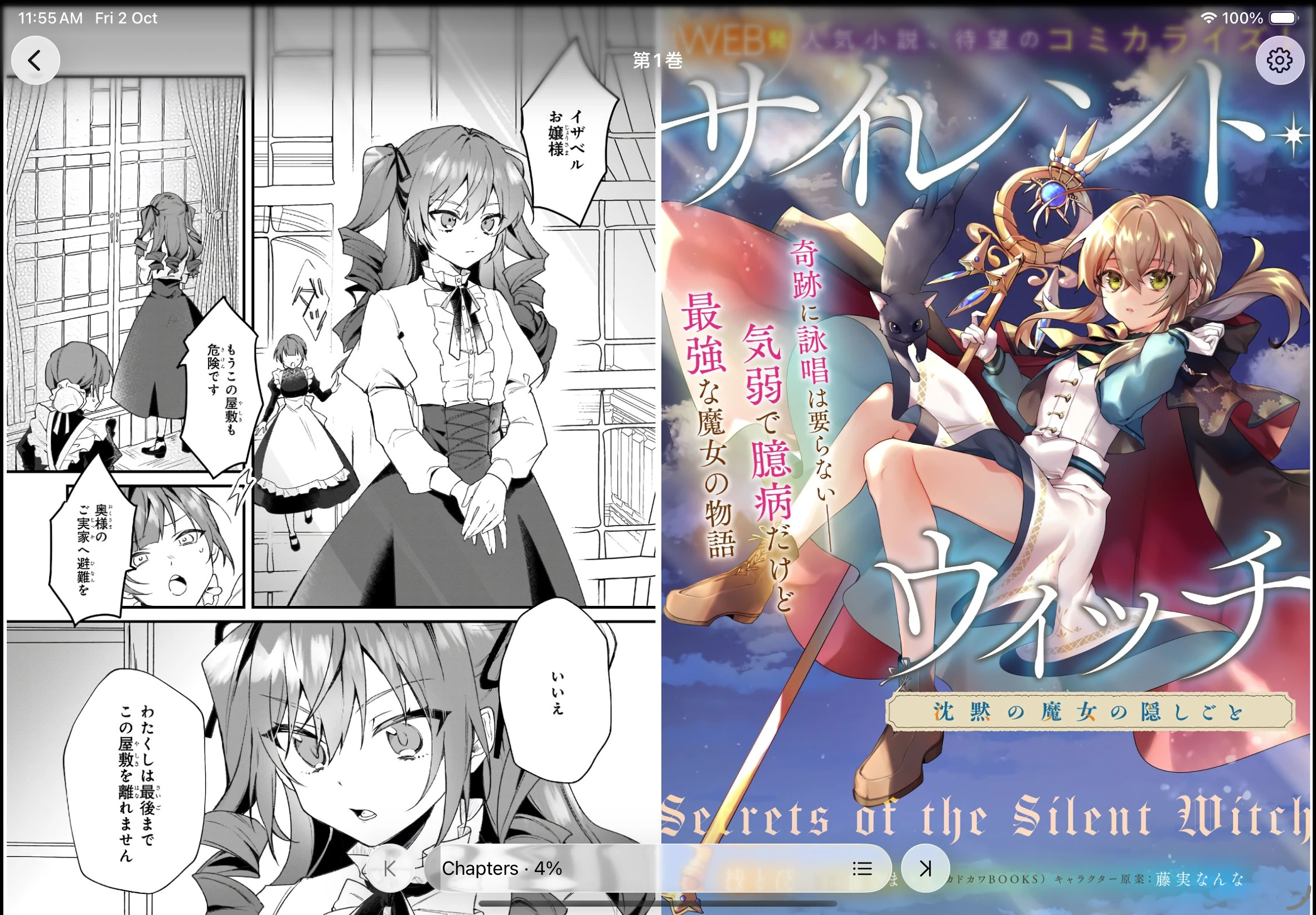
| Image Layout | Choose Auto, One Per Row, or Two Per Row |
| Smart Grouping | Automatically group pages based on similarities in their content |
Paged mode also offers horizontal or vertical navigation and page transition options.
Choose your reading layout
To set your default preferences, open Settings → Reader. You can set the default reader type, decide whether to respect a book’s reading direction, and adjust each reading mode. On iPad, try Two Per Row when you want paired pages. On iPhone, One Per Row gives each page more space.
Pick up where you left off
Section titled “Pick up where you left off”Return to the book’s details and use Continue. You can also find recently read books under Settings → History. Add a bookmark to keep a title on Home even when it is no longer near the top of your history.
See Collections and downloads to prepare for offline reading.
To upscale pages, reduce memory usage, or adjust page colors, see Image processing.