
Add books and sources
Mankai supports two main source types:
| Source type | How it works | Where to use it |
|---|---|---|
| Stream-based (recommended) | A source connects Mankai to an external library. | Add it in Settings → Sources, then open Library. |
| File-based | Open supported book files from local folders, network shares, or OPDS catalogs. | Open Files to connect a share or import files. |
Stream-based sources (recommended)
Section titled “Stream-based sources (recommended)”A stream-based source connects Mankai to an external library. This is the recommended approach when a compatible source is available: you can browse, search, and read directly from the library, and automatically check saved titles for new chapters when the source supports updates. Available features depend on the source and library. See Collections and downloads for saving titles and reading offline.
Add a source
Section titled “Add a source”Add a source manually, or use an add-source link or QR code from your provider.
Add manually
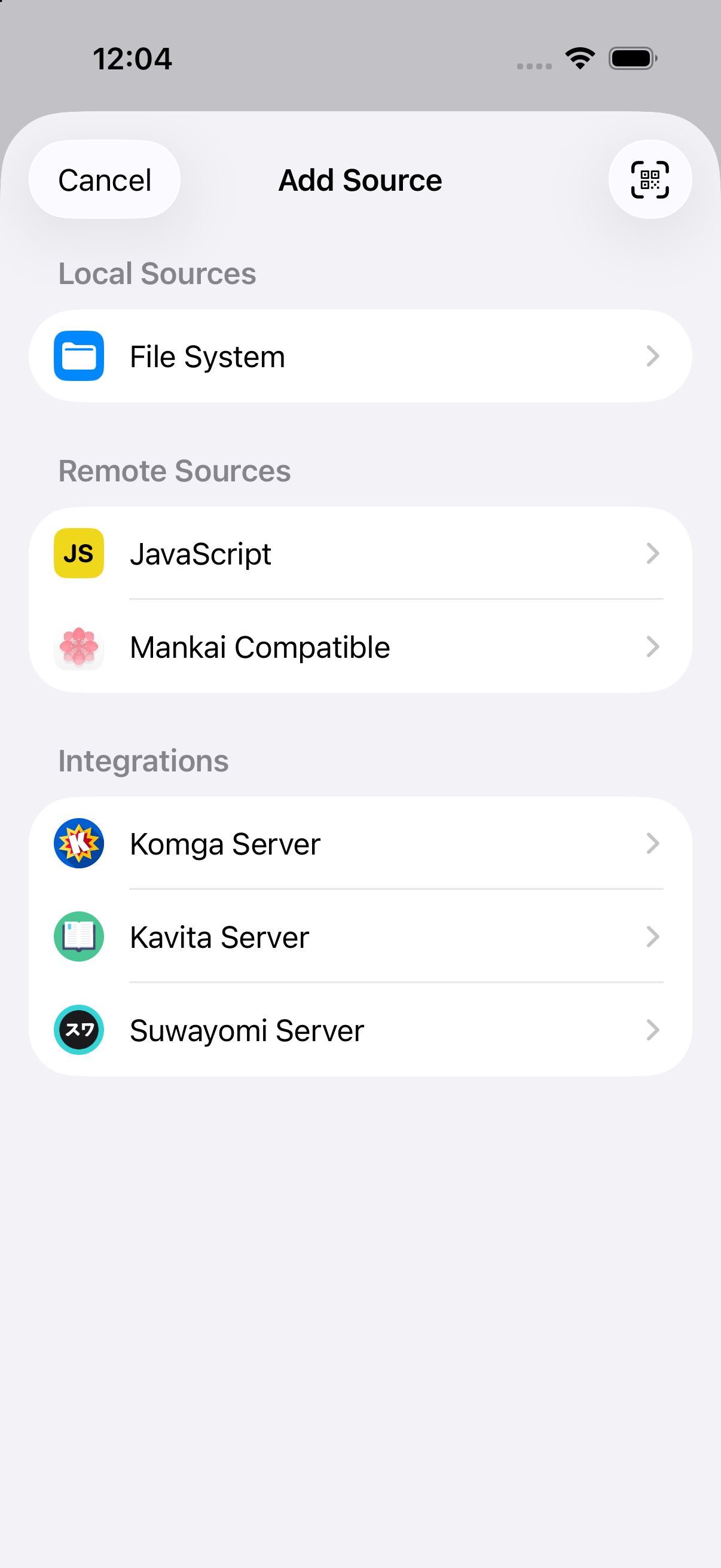
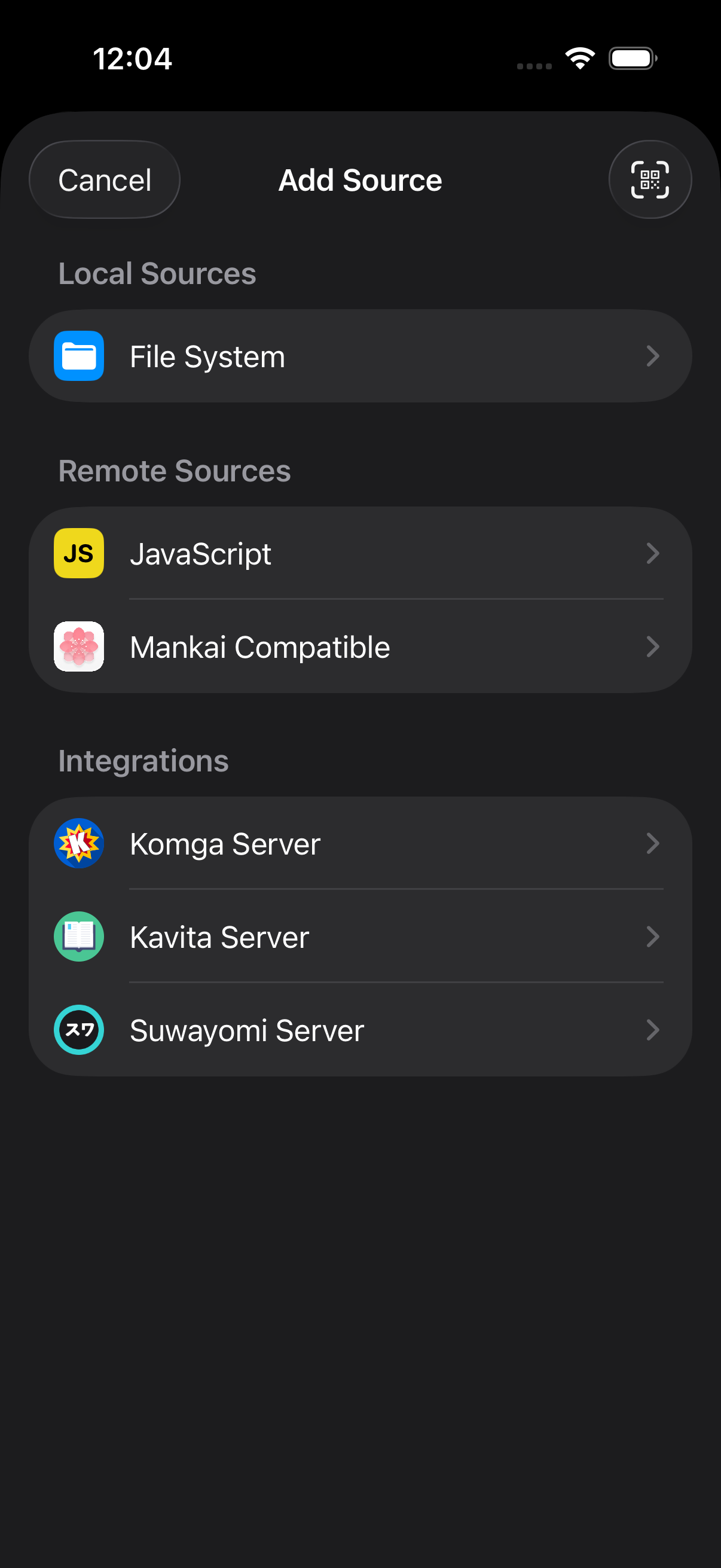
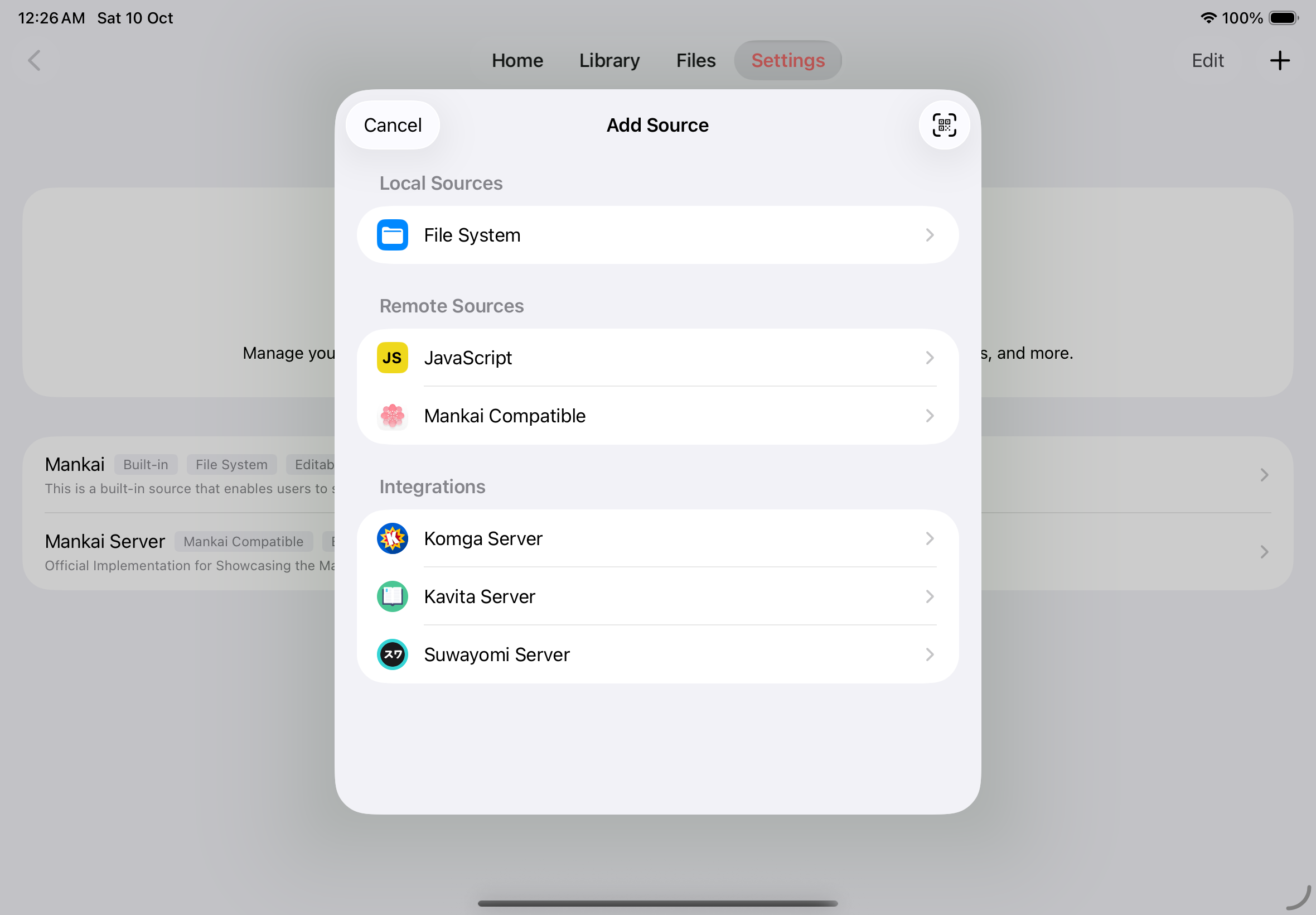
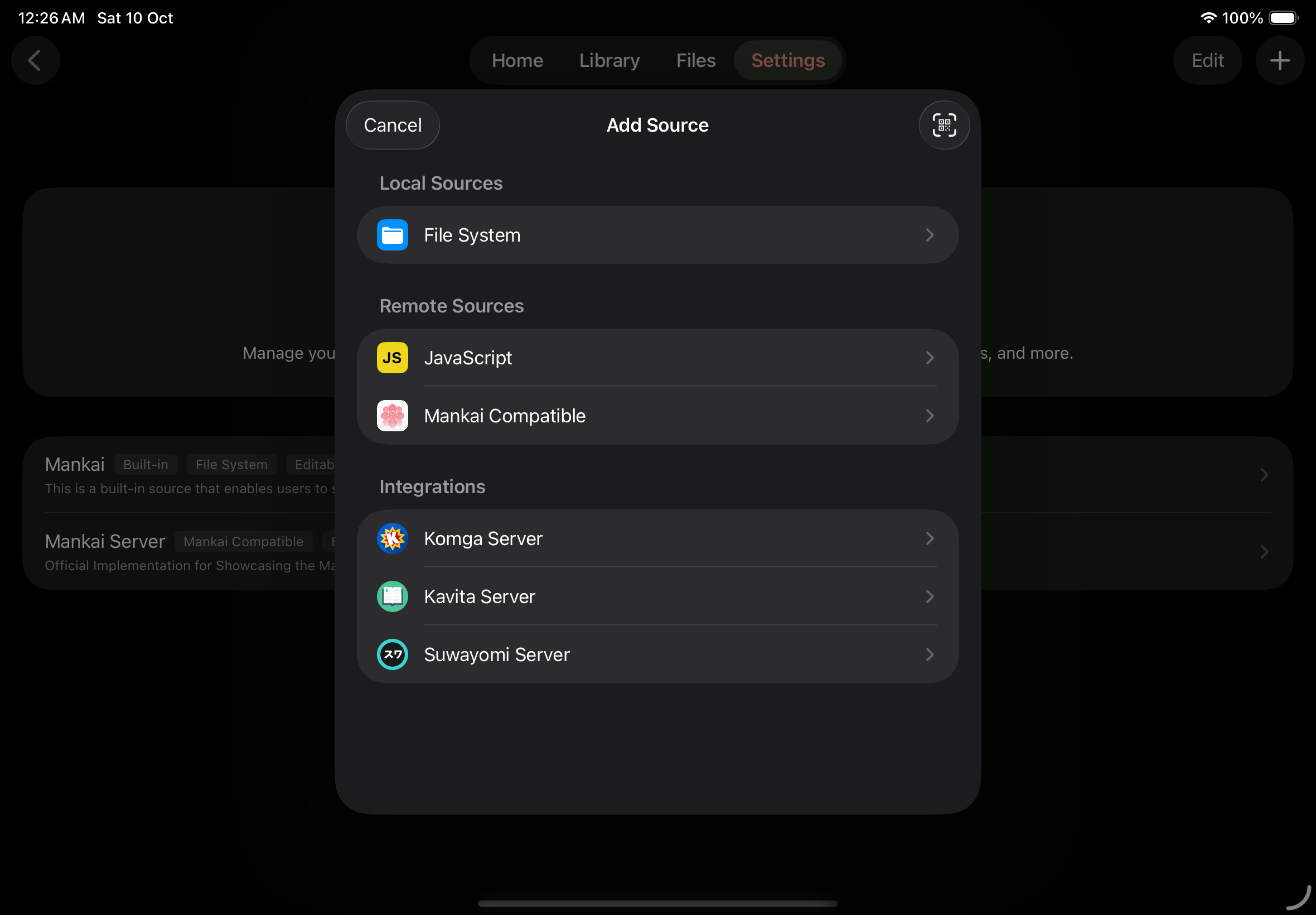
Section titled “Add manually”The picker groups File System under Local Sources, JavaScript and Mankai Compatible under Remote Sources, and Komga Server, Kavita Server, and Suwayomi Server under Integrations.
- Open Settings → Sources and tap the + button.
- In Add Source, choose the type your provider specifies from the relevant section to open its configuration screen.
- Enter the details for your source type using the table below.
- Tap Add. Return to Library to explore the lists and search features the source supports.
| Source | Configuration |
|---|---|
| File System | Tap Select Folder and choose the structured library folder supplied by your provider. Enable Read-Only to prevent editing. |
| JavaScript | Enter the supplied URL, or enable Use JSON and paste the supplied JSON definition. |
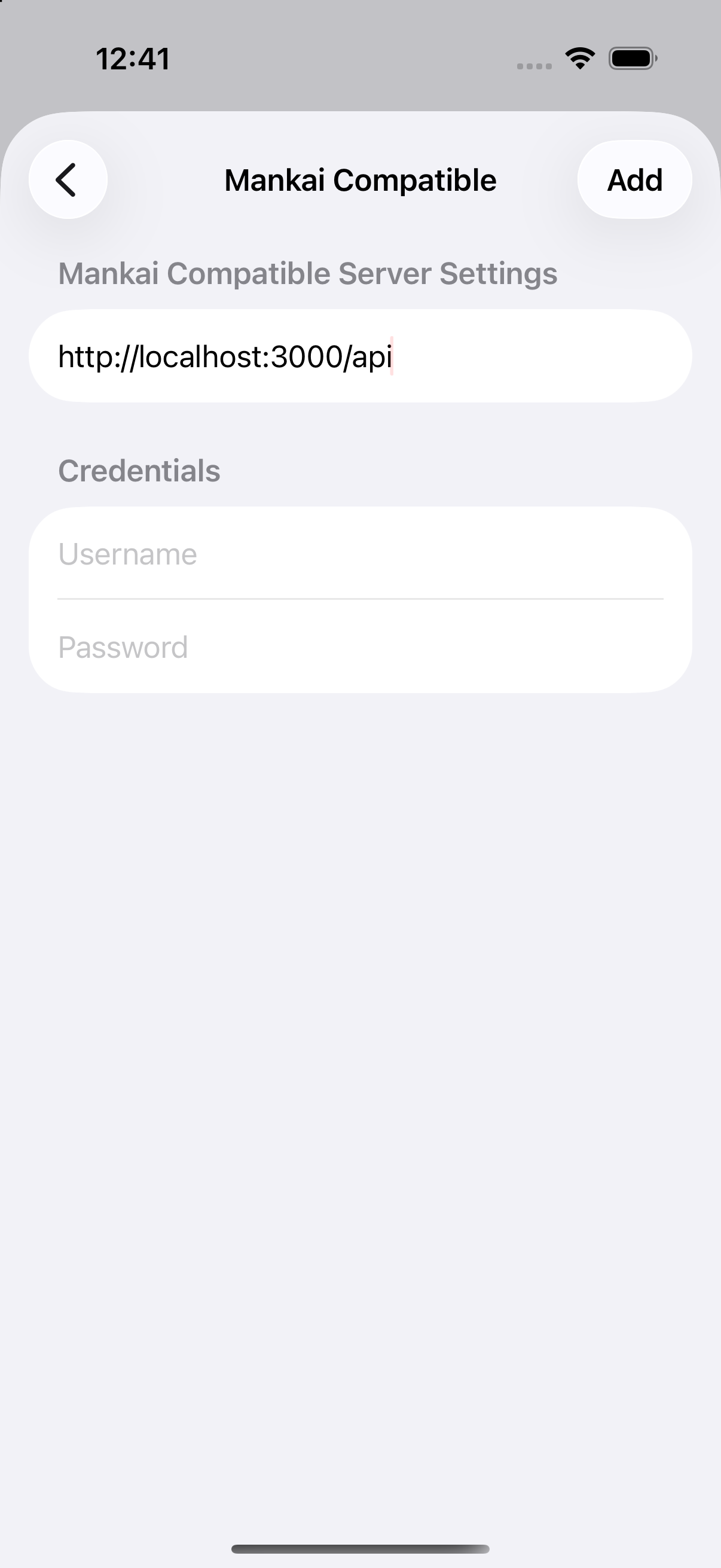
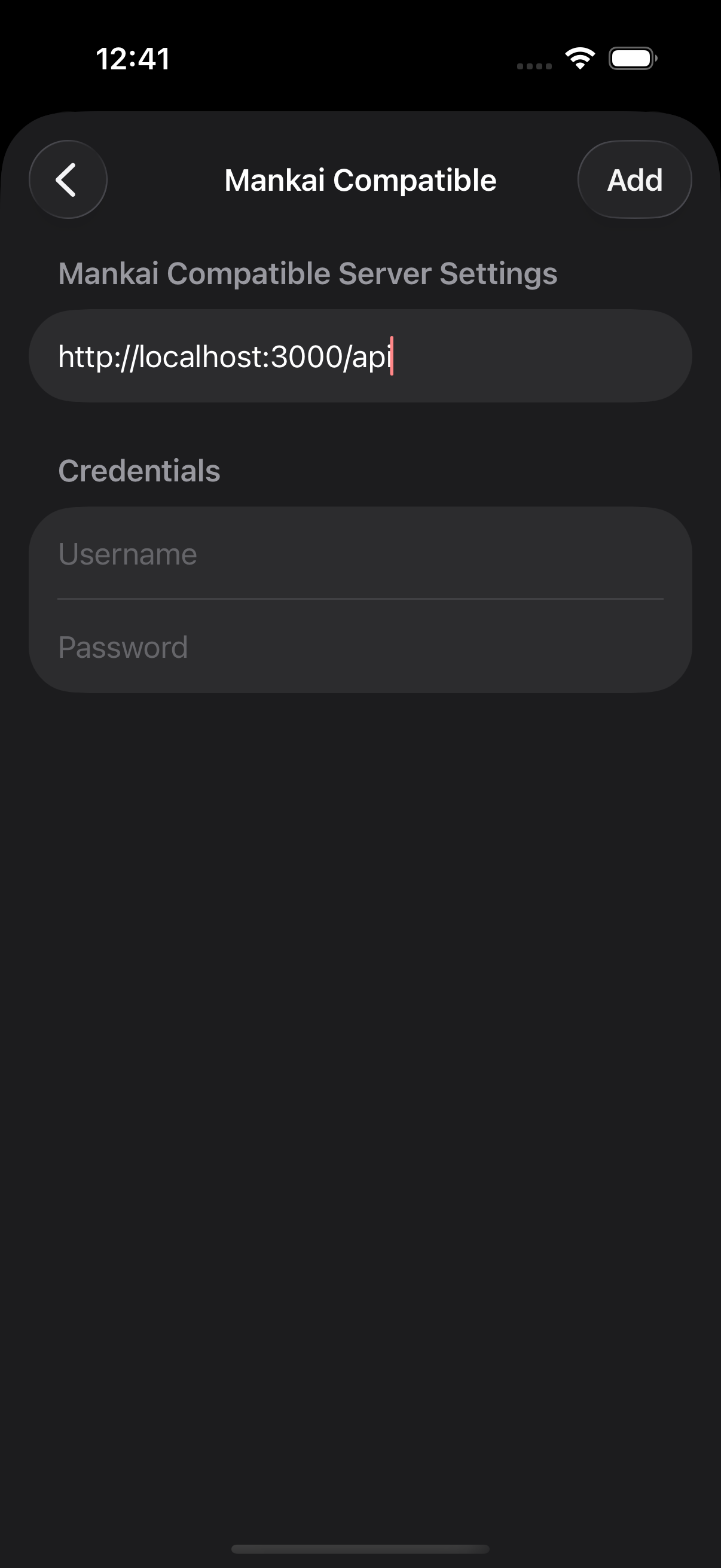
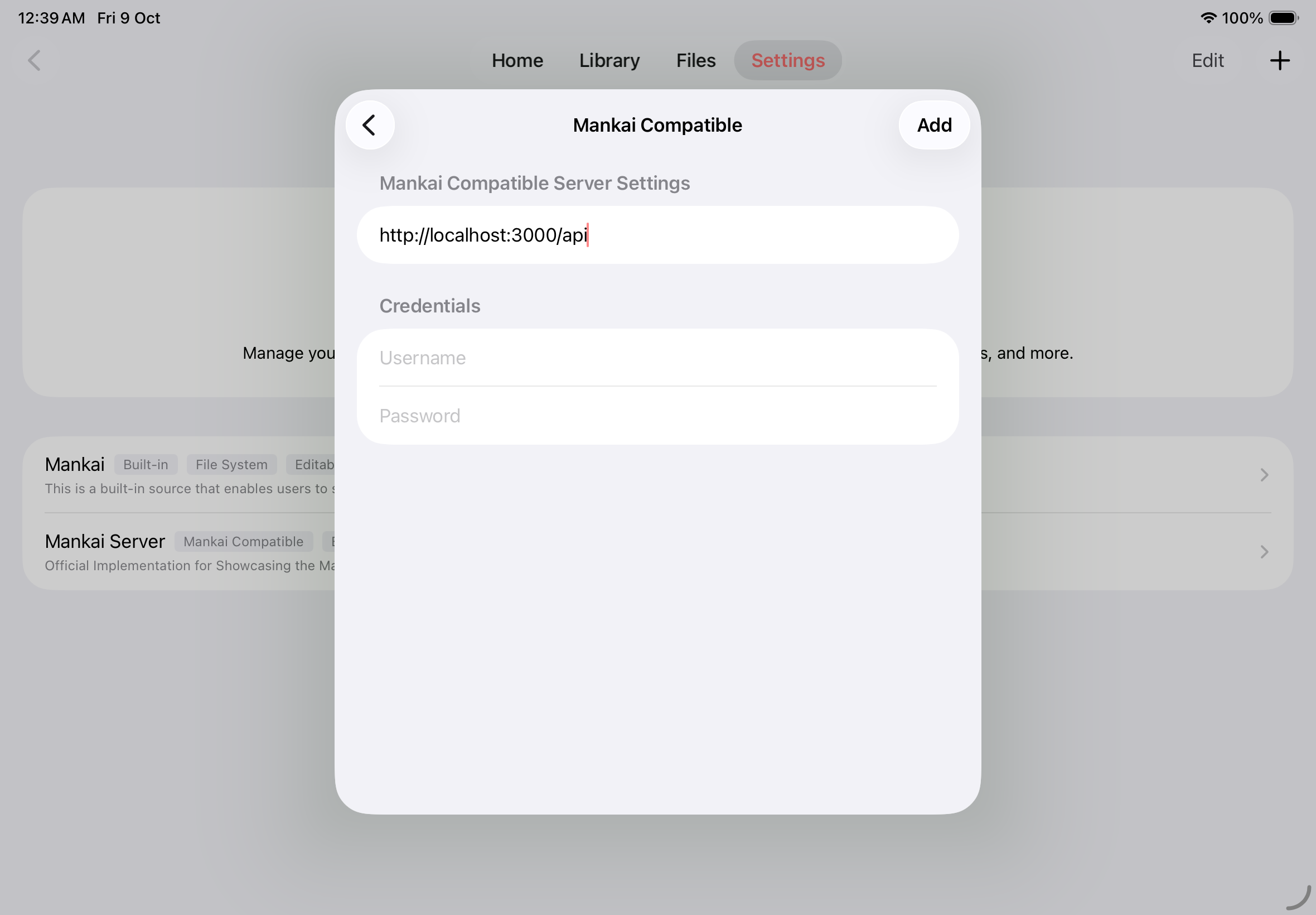
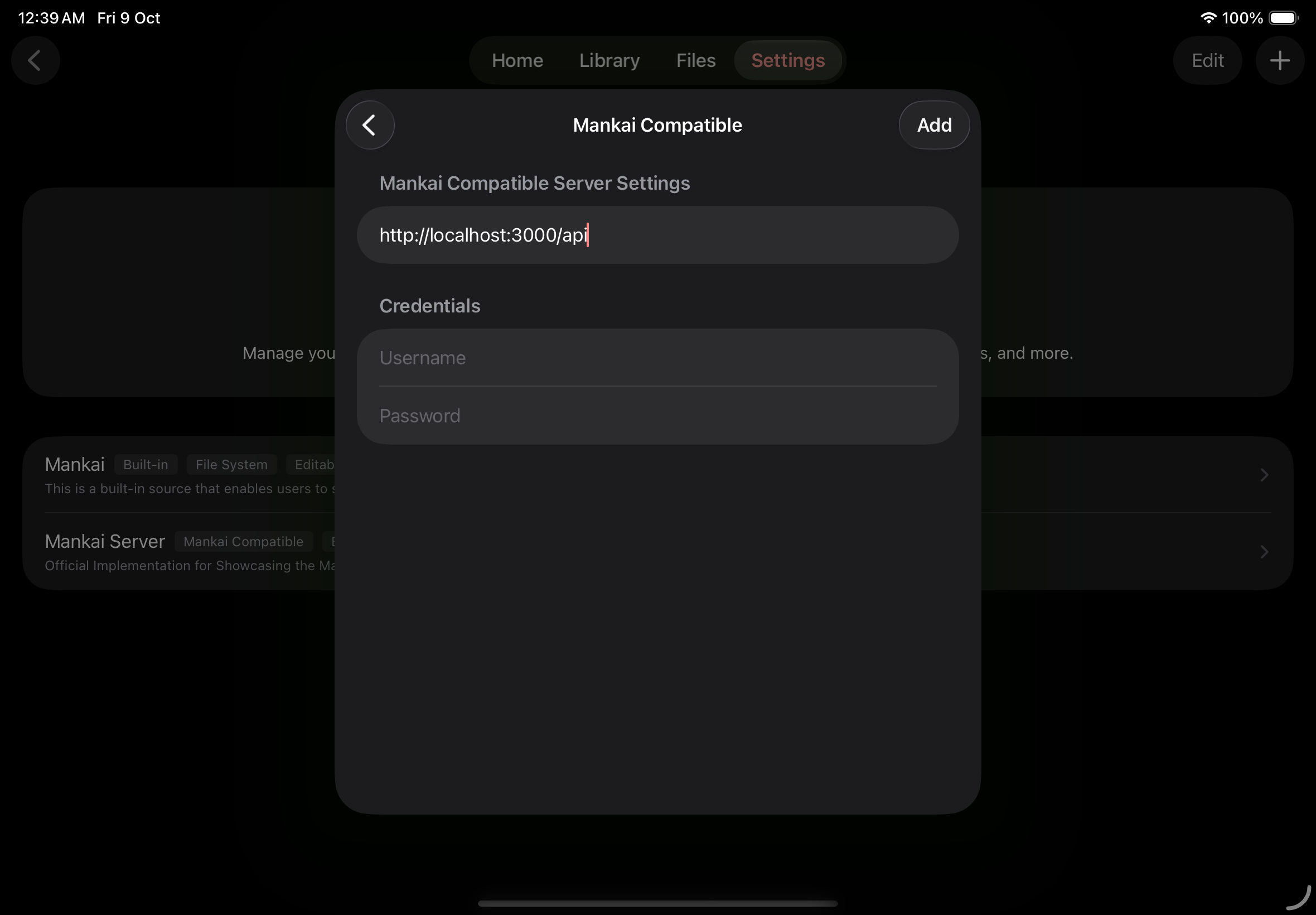
| Mankai Compatible | Enter the server API URL and any required username and password. |
| Komga Server | Enter your server URL and use an API key or your Komga username and password. |
| Kavita Server | Enter your server URL and use your Kavita username and password, or enter a Kavita Auth Key from User Settings → 3rd Party Clients in API Key. |
| Suwayomi Server | Enter your server URL. Set Authentication Mode to match the server: None, Basic Auth, Simple Login, or UI Login. Enter your username and password unless you select None. |
Available search, update, chapter, and download actions depend on the source and library.
Choose a source type
Configure a Mankai Compatible source
Use an add-source link or QR code
Section titled “Use an add-source link or QR code”Open your provider’s Add to Mankai link, or use the QR code button in Settings → Sources → + to scan a code, choose a QR image, or paste a link. Review the sources and tap Add.
Providers can create links using the add-source link reference.
File-based sources
Section titled “File-based sources”File-based sources let you read book files you manage yourself, including CBZ, CBR, EPUB, PDF, and MMA. Connect a local filesystem folder or a network share through SMB, SFTP, NFS, or WebDAV. You can also connect an OPDS catalog to open supported book files or stream pages when available. Open these sources from Files.
Choose a file source
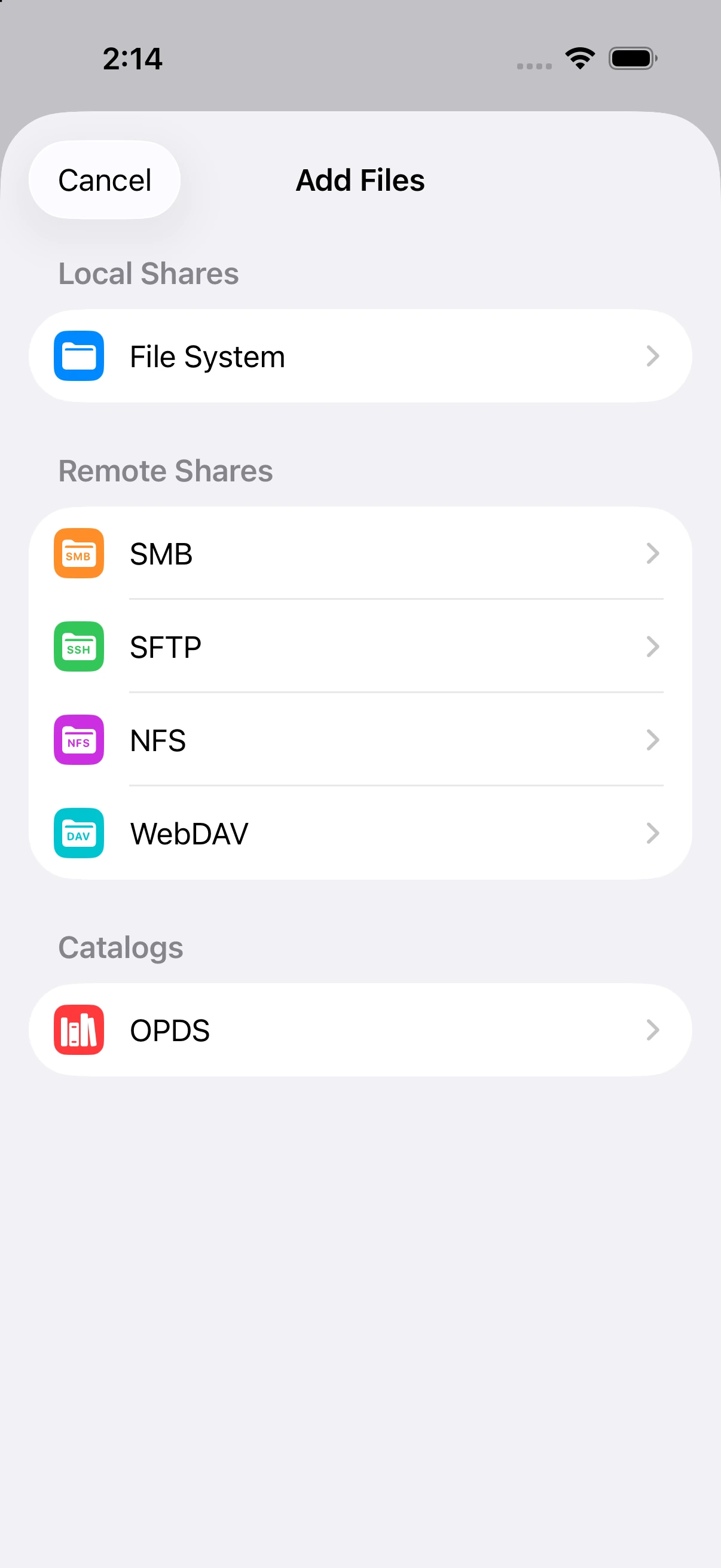
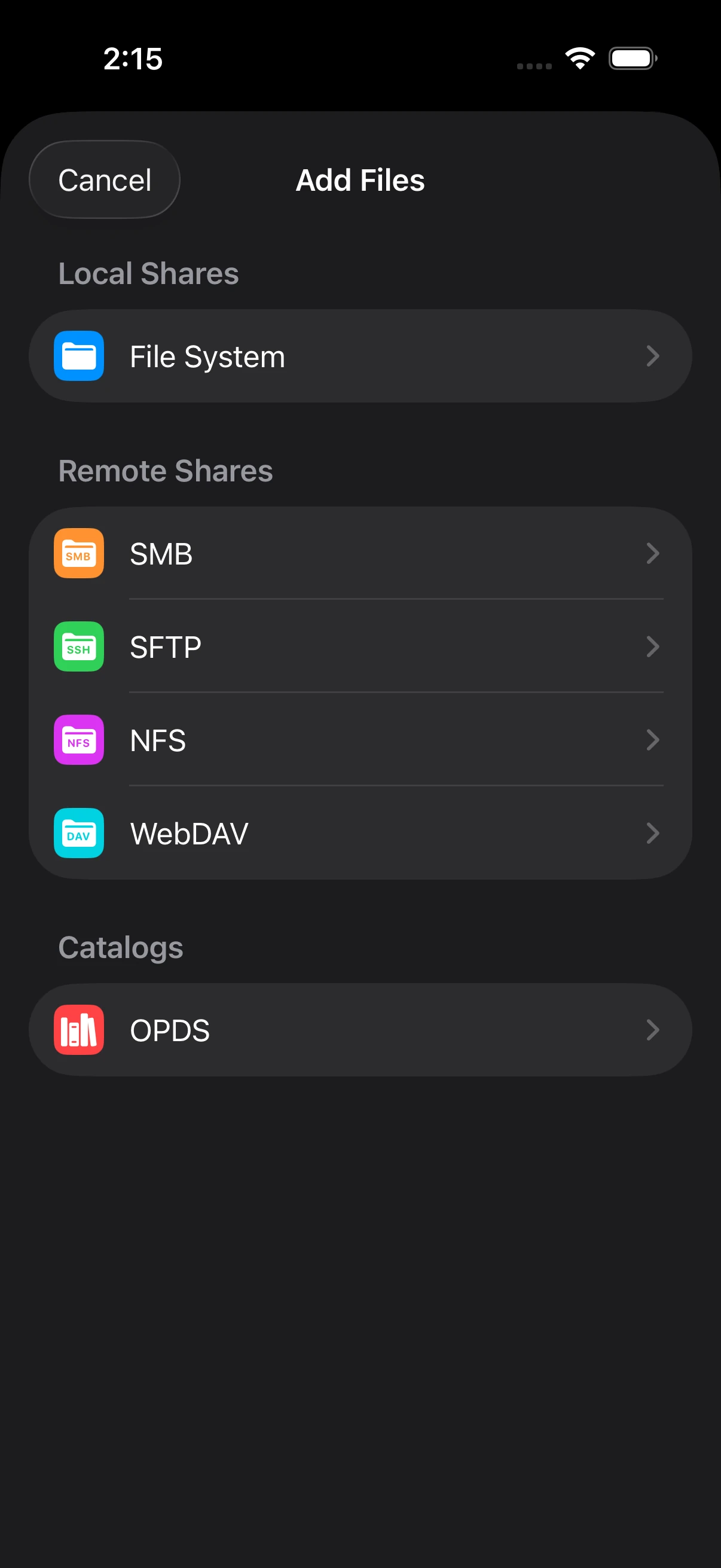
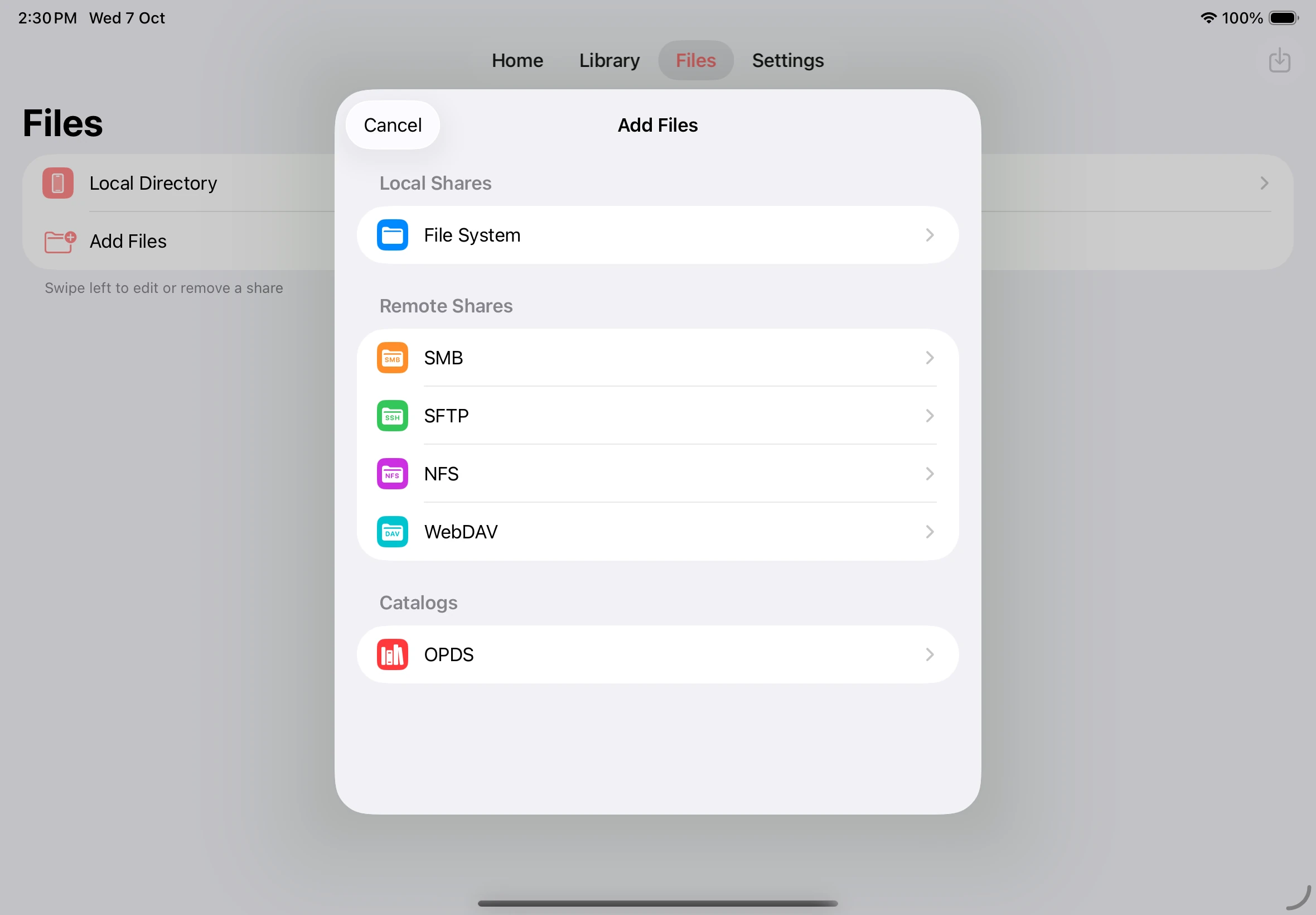
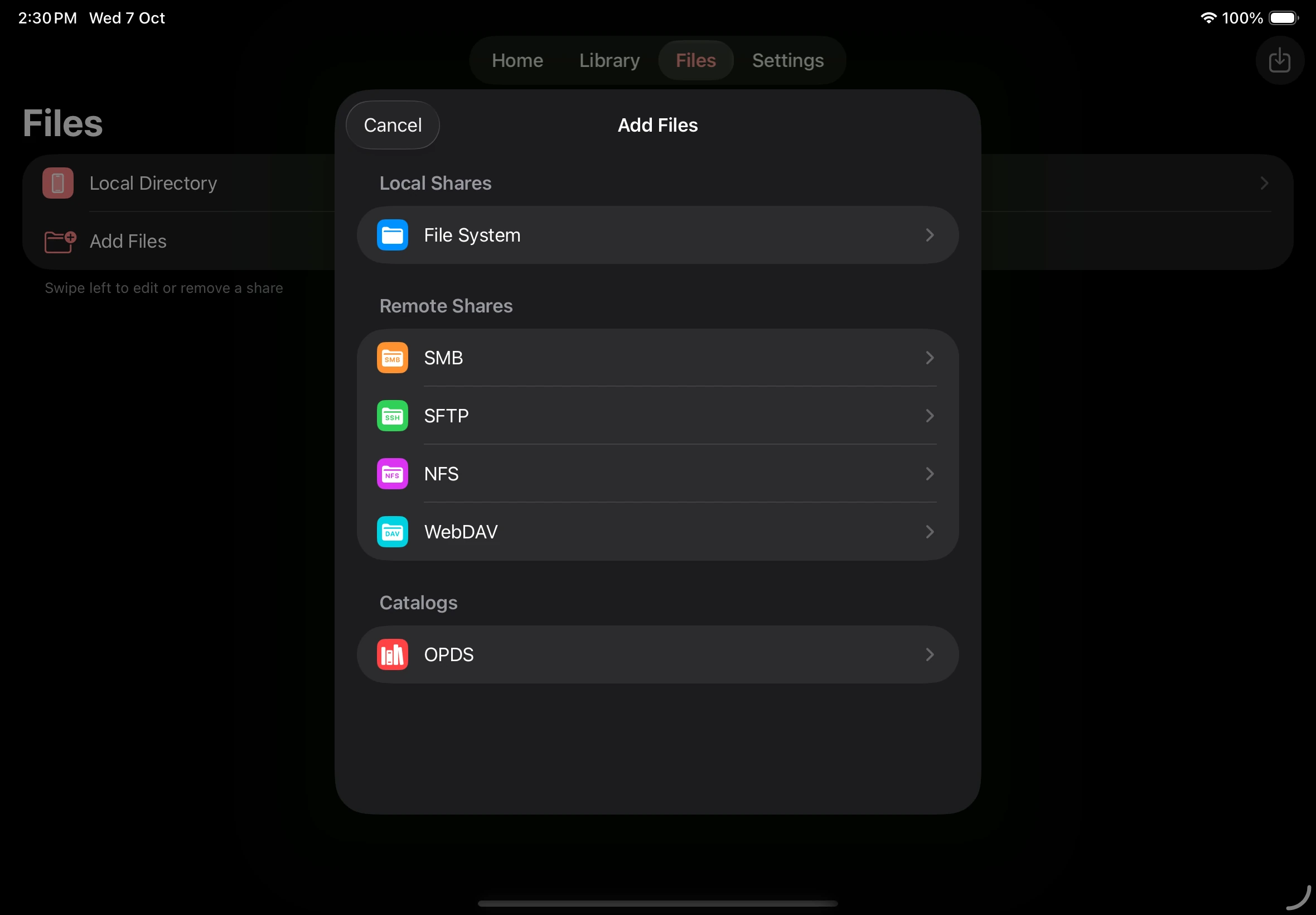
MMA (.mma) stands for Mankai Manga Archive. It packages book metadata, chapter groups, and page images in a ZIP archive. For the archive structure and metadata, see the MMA format reference.
Import a book file
Section titled “Import a book file”- Open Files and tap the Imports button, shown as an arrow entering a tray.
- Tap Select Files and choose a book in Files. Supported book formats include CBZ, CBR, EPUB, PDF, and MMA.
- Under Import To, set Share to Local Directory for a copy stored inside Mankai. Other destinations appear when you have added a share that supports imports.
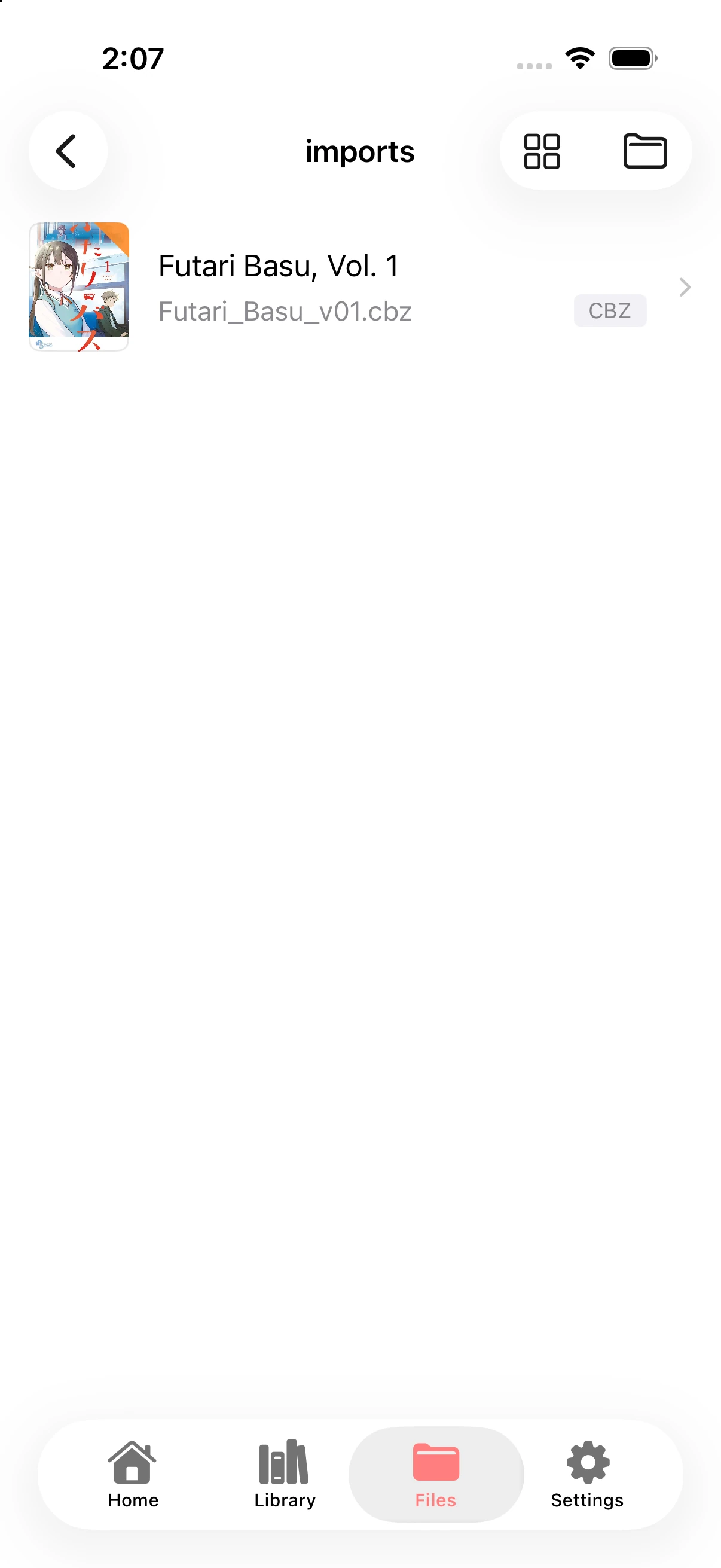
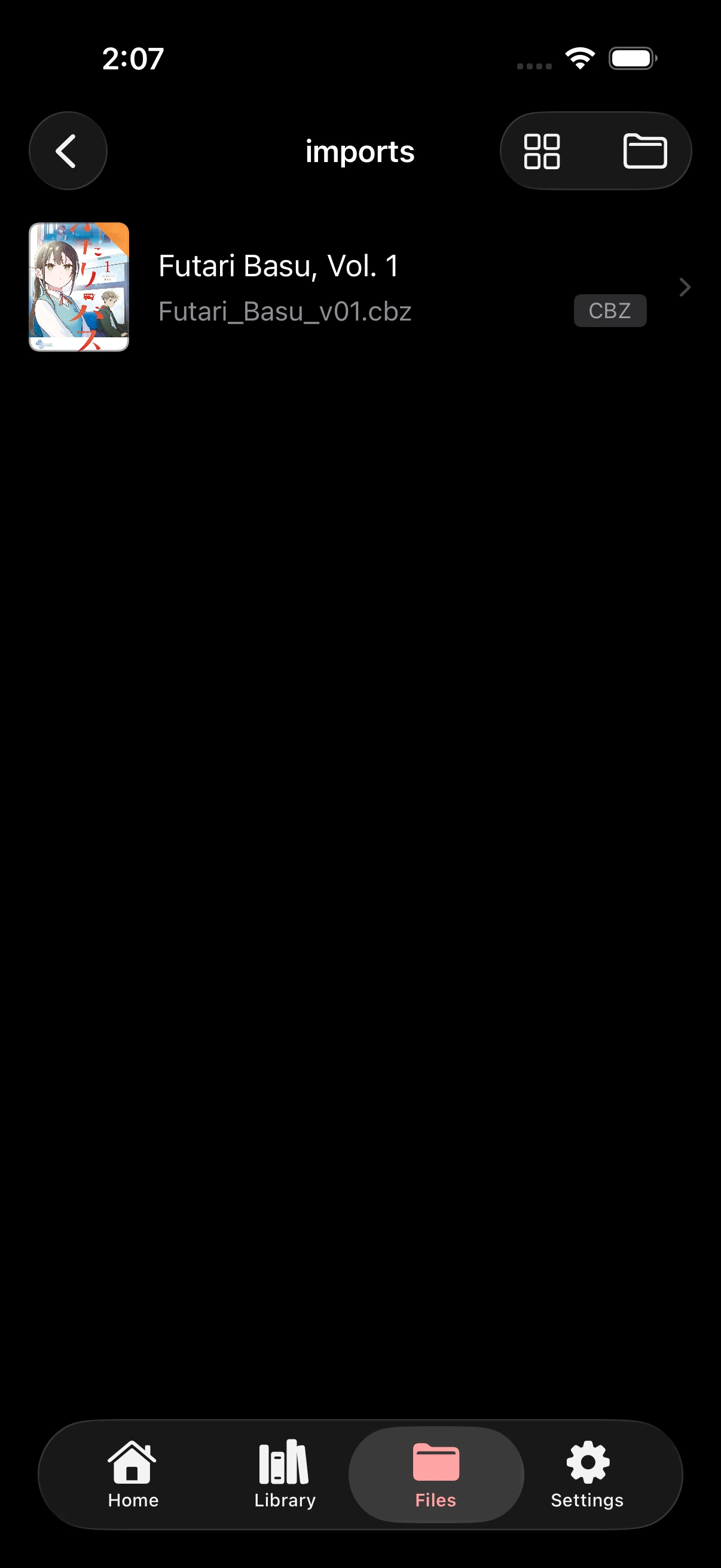
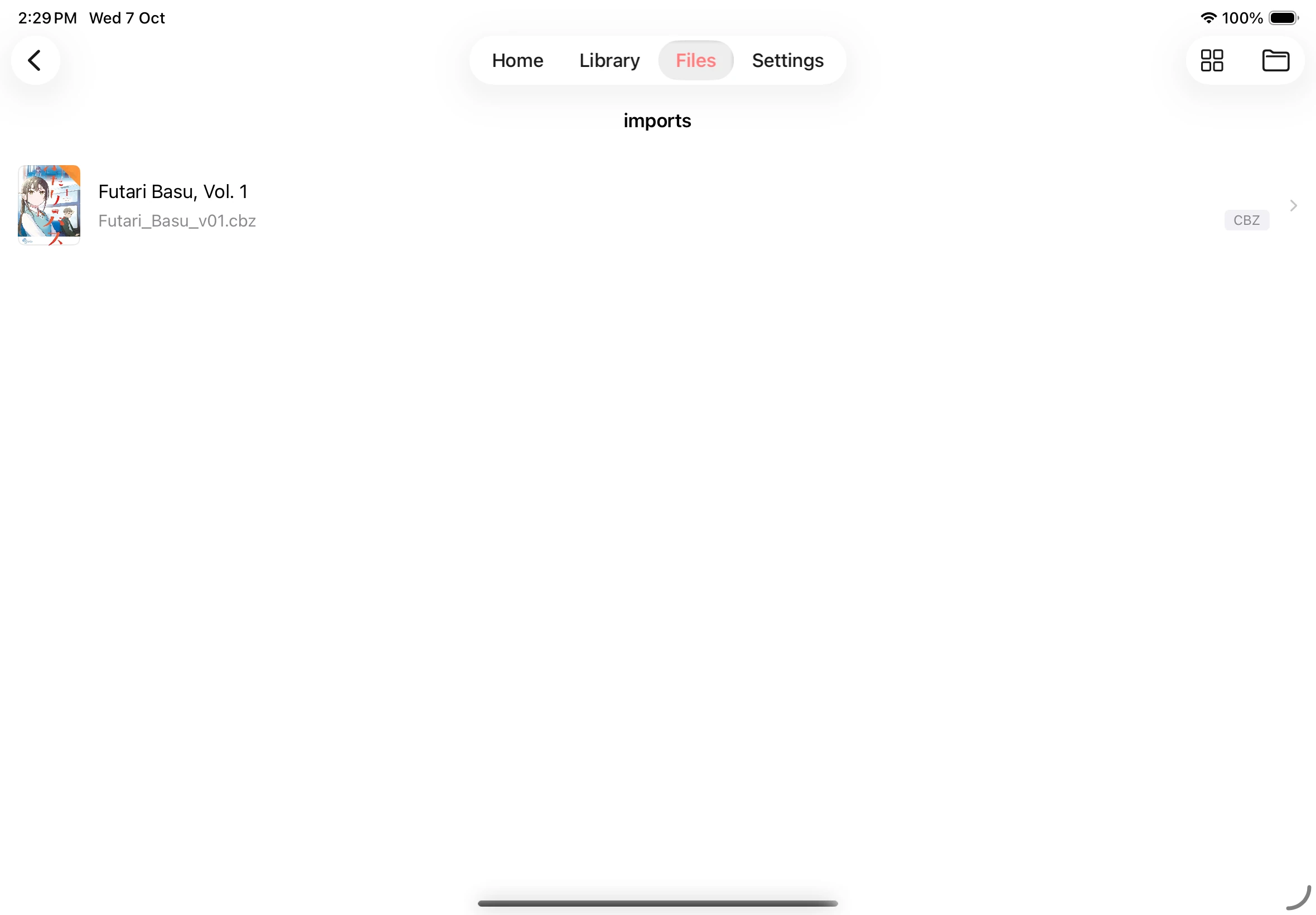
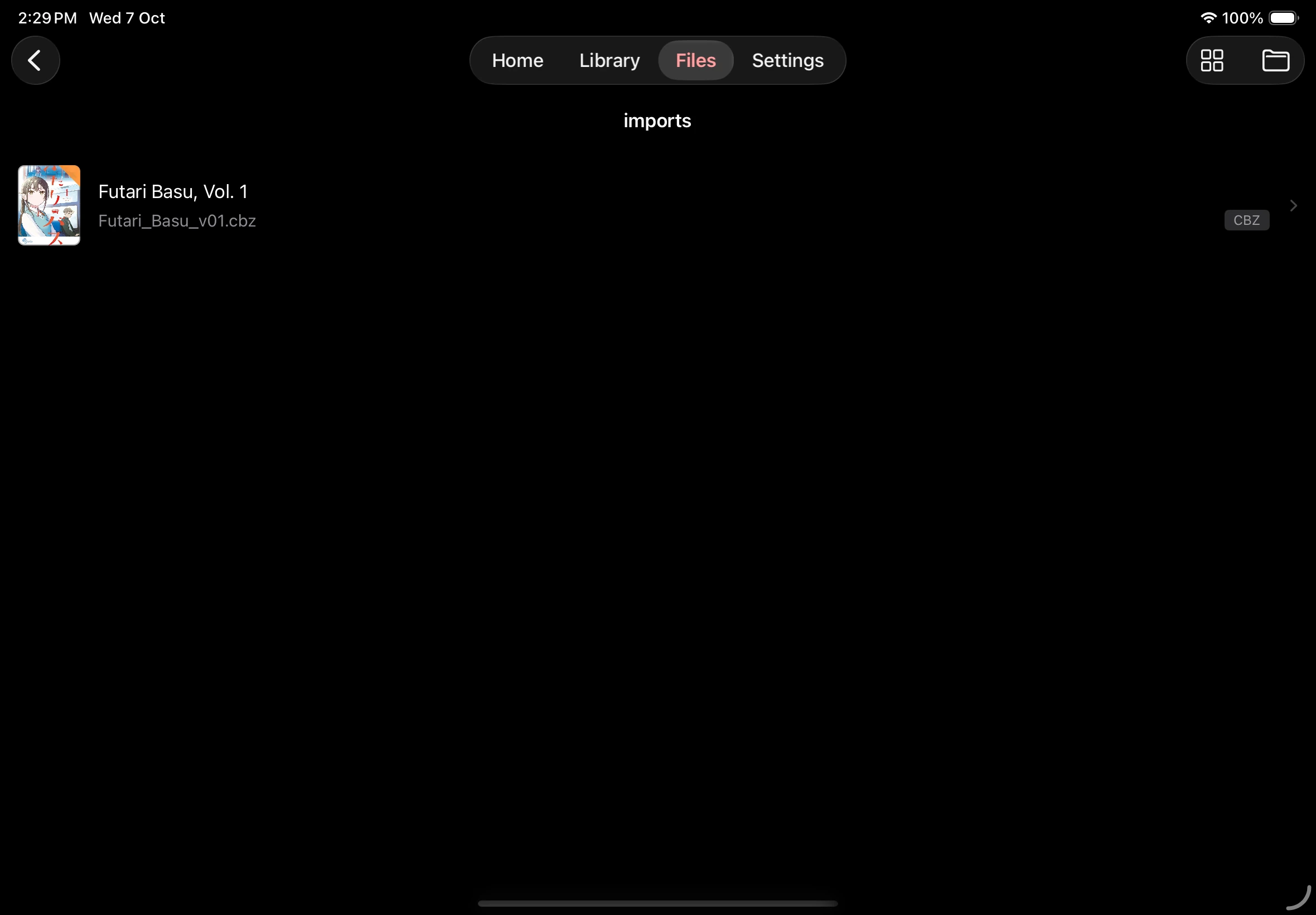
- Tap Import. Mankai opens the destination’s imports folder when the import succeeds.
Import a book
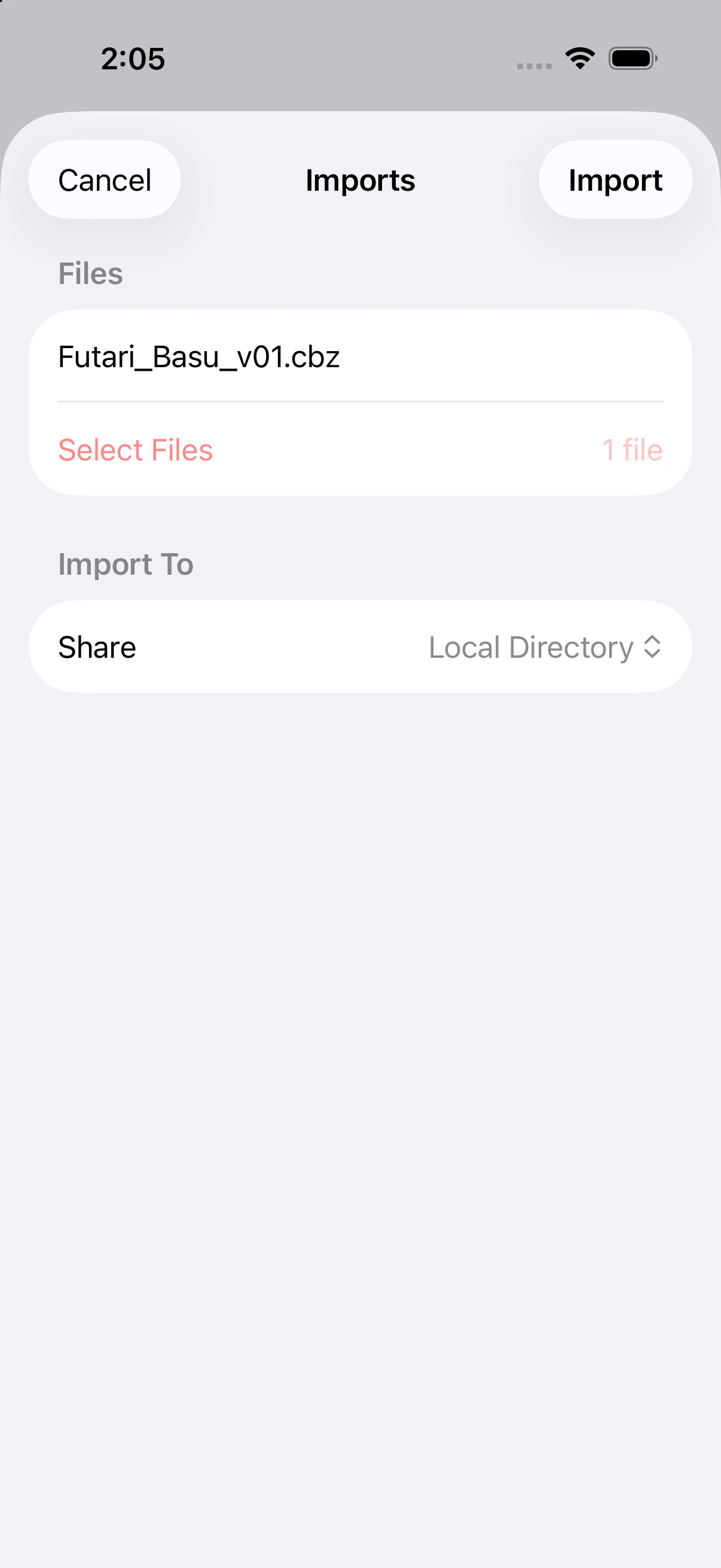
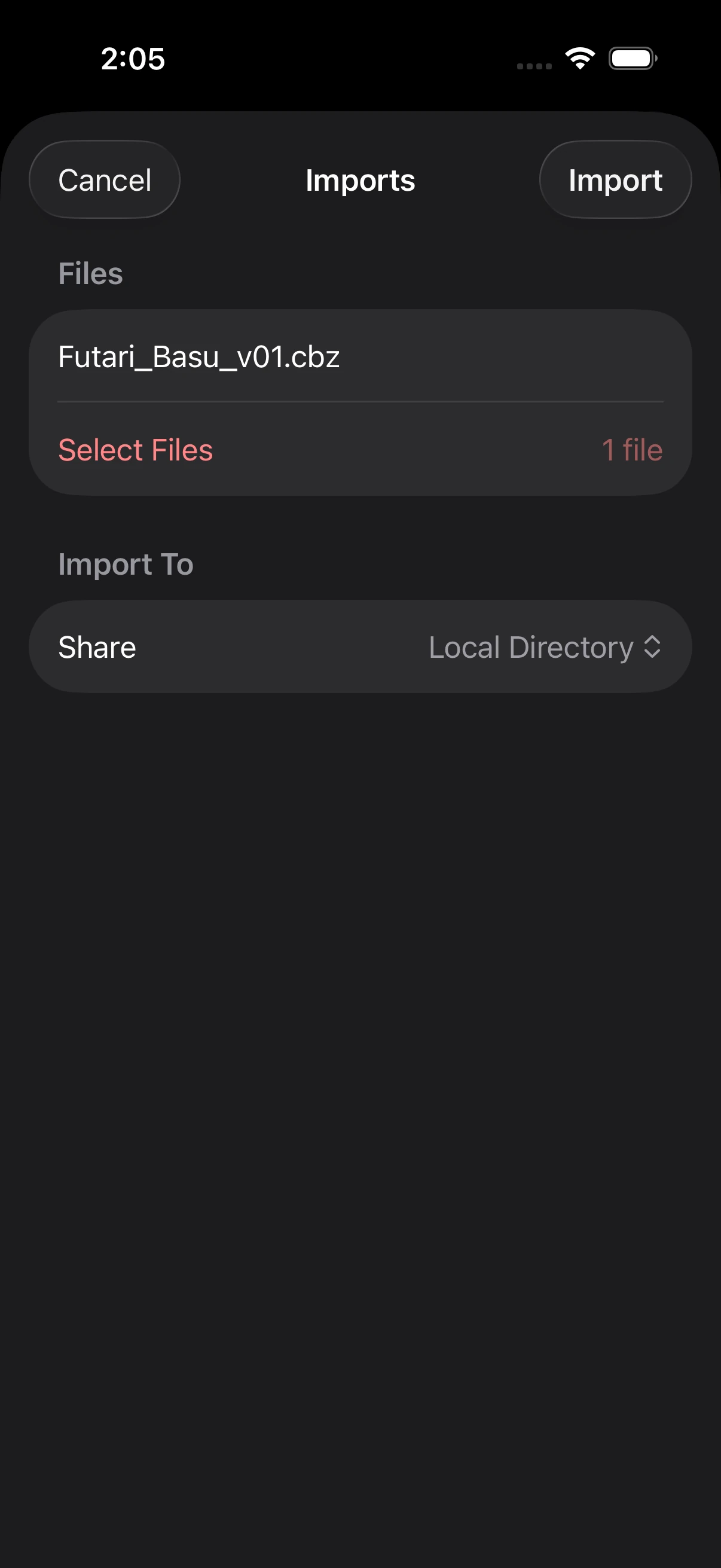
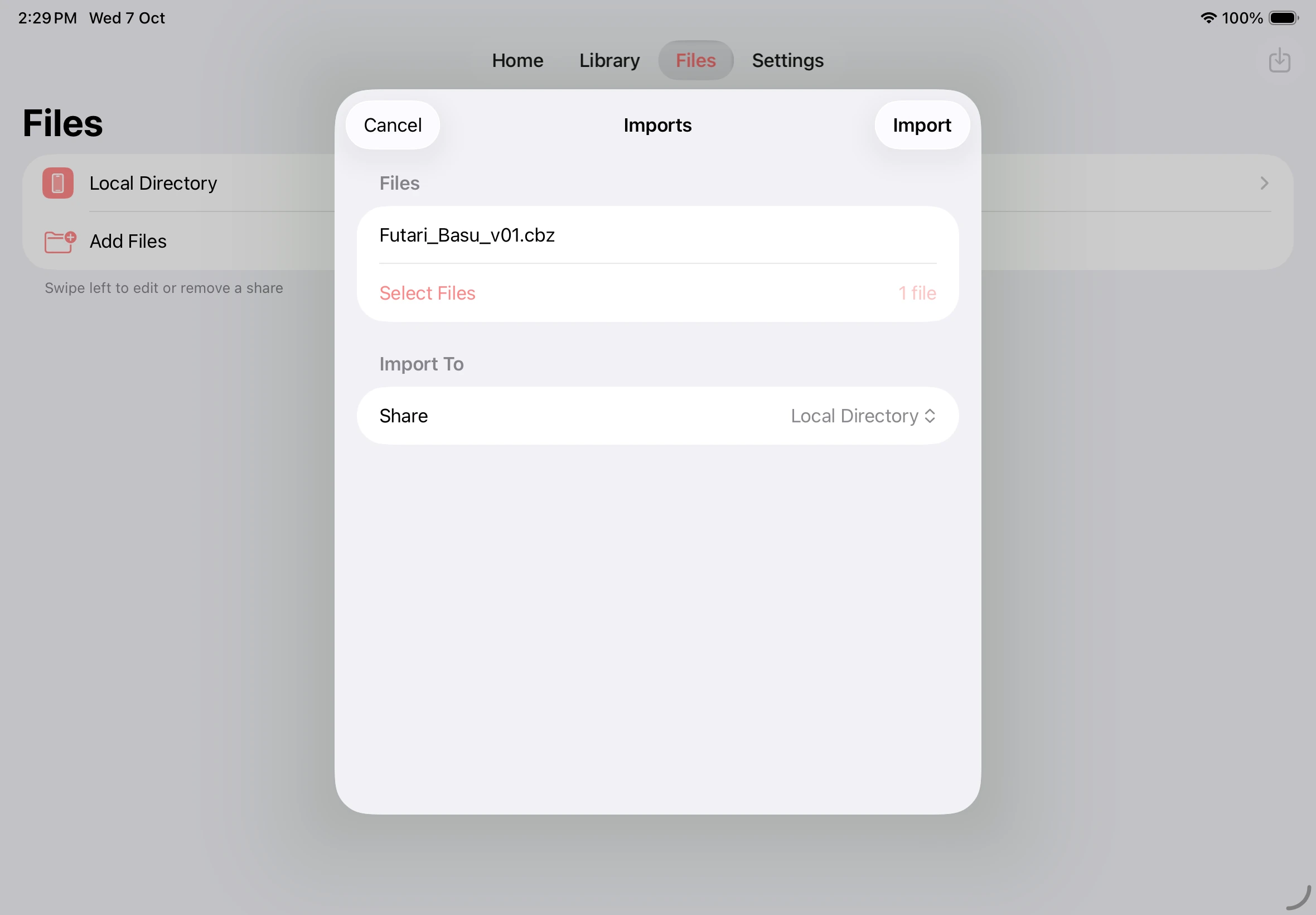
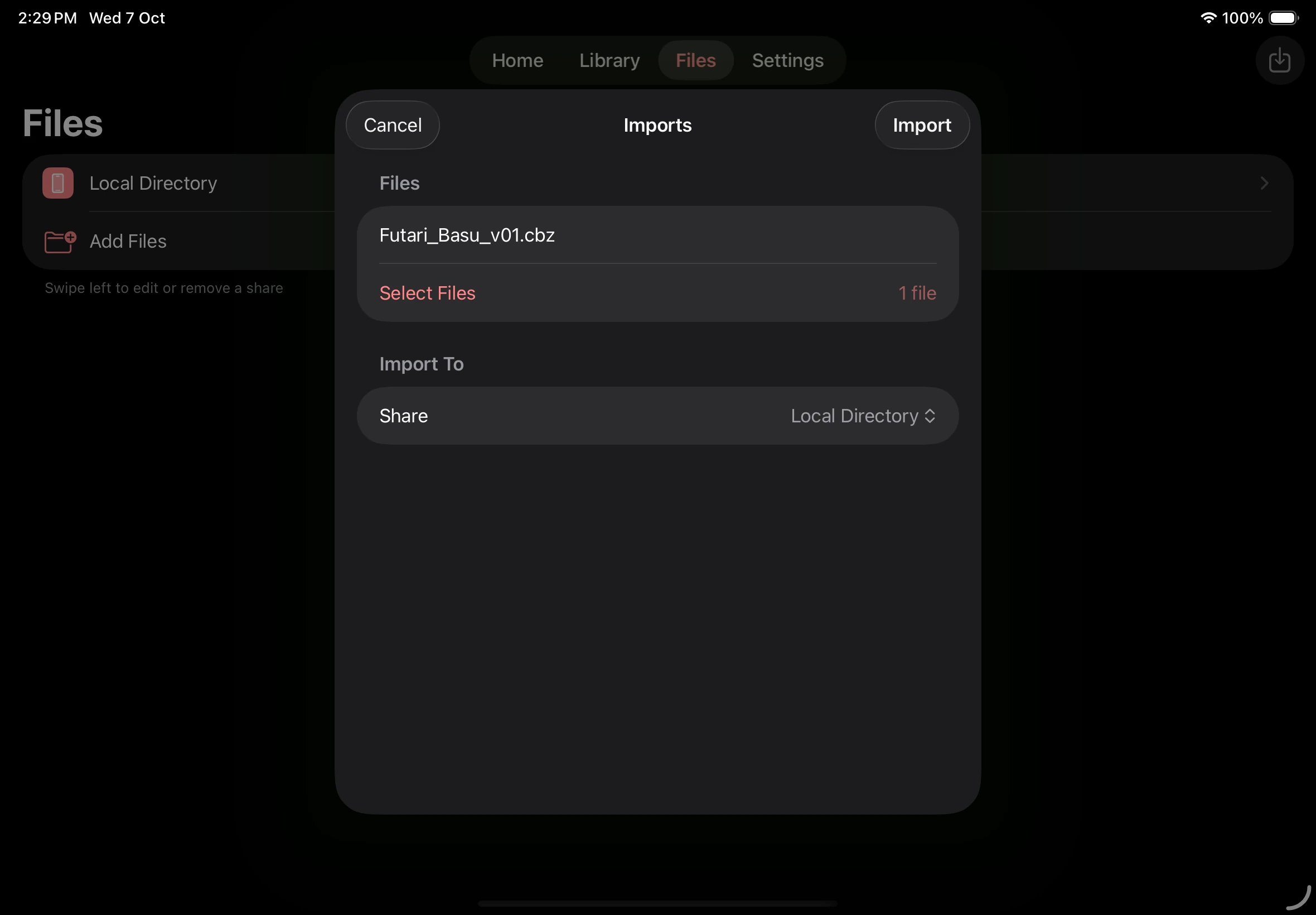
Your imported book
Connect a local folder
Section titled “Connect a local folder”- Open Files → Add Files.
- Under Local Shares, tap File System to open its configuration screen. Add a Display Name if you want one.
- Tap Select Folder and choose the folder in the system picker.
- Tap Add, then open the new share in Files.
- Open a subfolder or tap a supported book to see its details.
Connecting a folder lets Mankai browse that location. Use Imports to copy selected files into Mankai or another source that supports imports.
Connect a network share
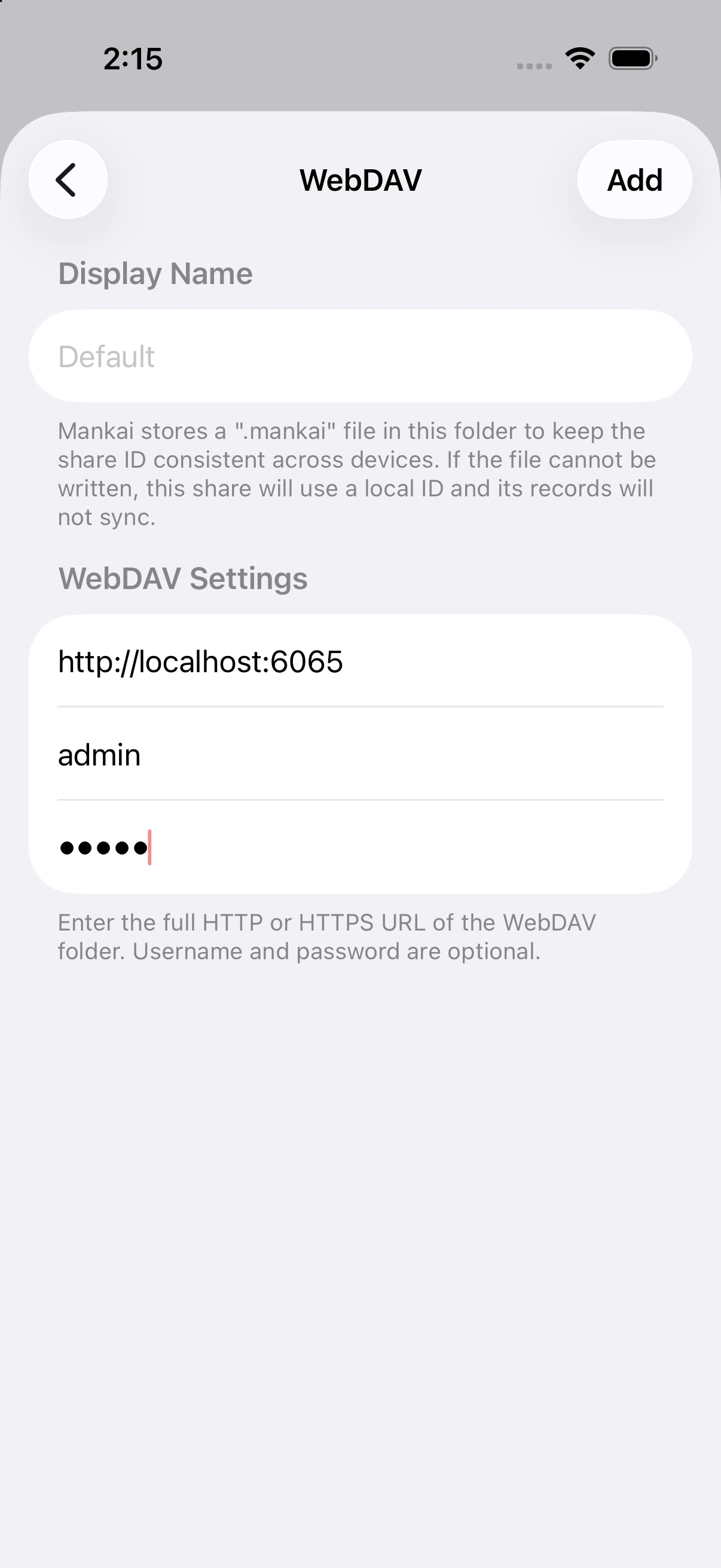
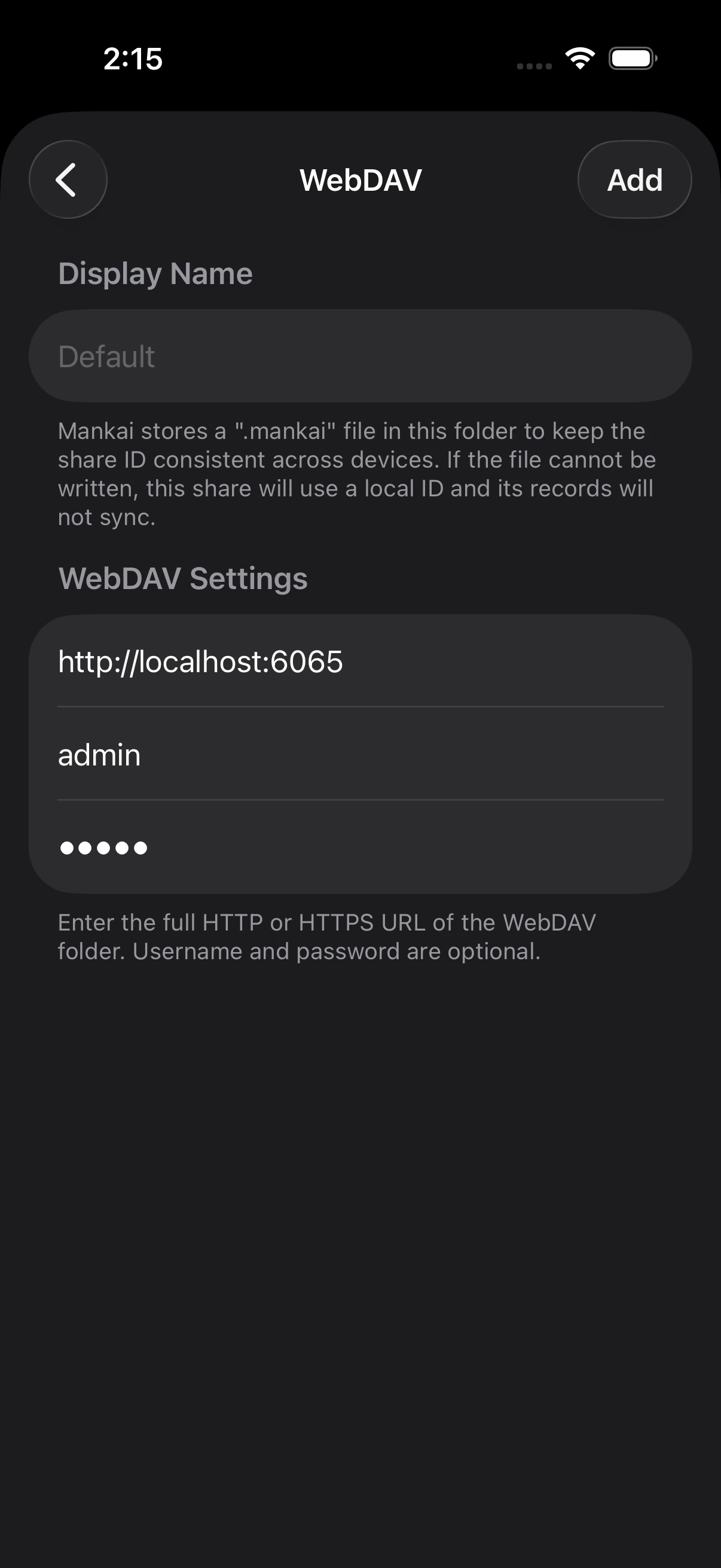
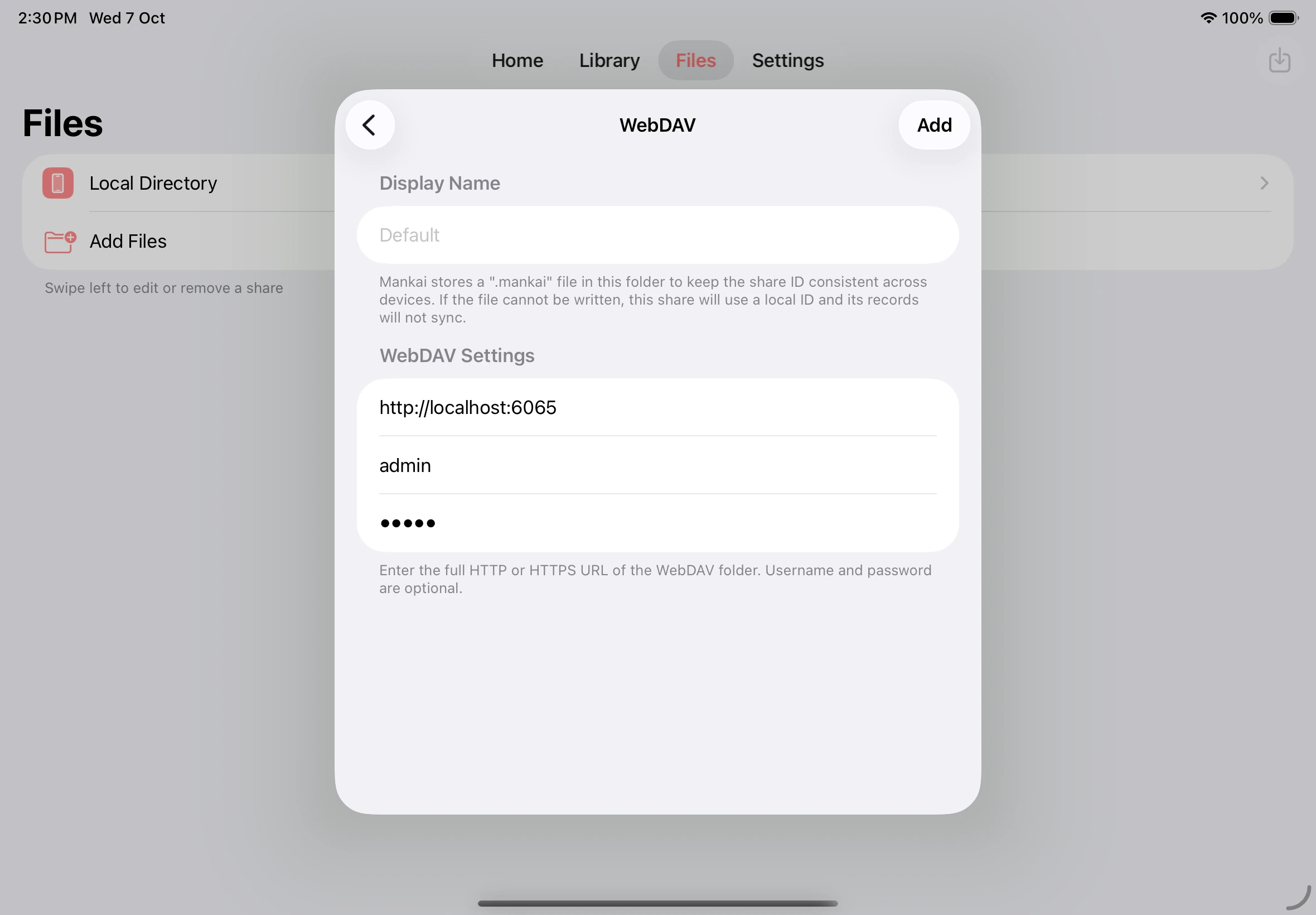
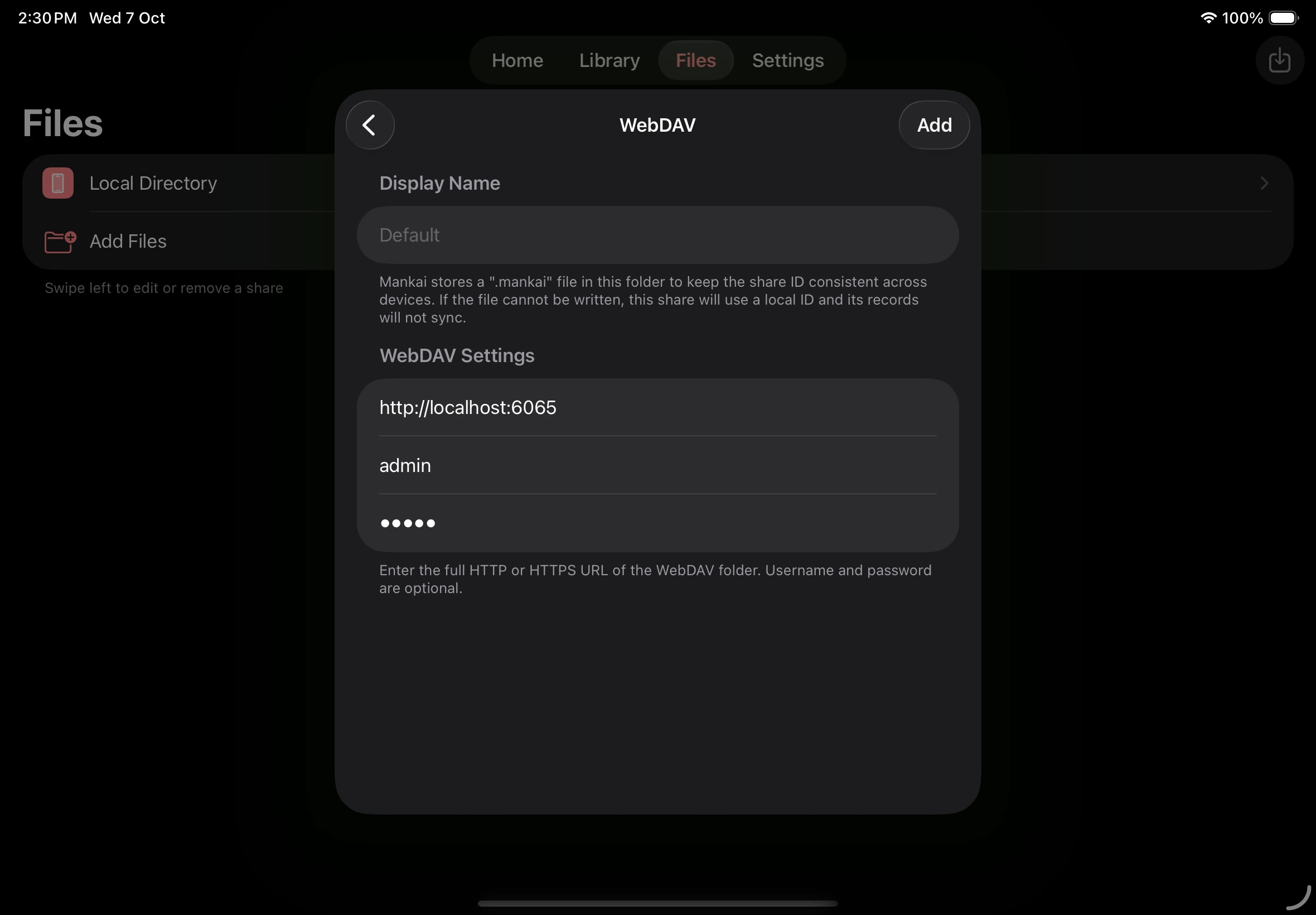
Section titled “Connect a network share”- Open Files → Add Files and choose SMB, SFTP, NFS, or WebDAV under Remote Shares.
- Enter the connection details supplied by your server administrator.
- Follow the steps for your source type below.
| Source | Details to enter | Finish |
|---|---|---|
| SMB | Host, port, and any required username and password | Tap Select Share, choose a share if prompted, then tap Add |
| SFTP | Host, port, username, and password | Tap Add |
| NFS | Host | Tap Select Export, choose an export if prompted, then tap Add |
| WebDAV | Server URL and any required username and password | Tap Add |
Open the new source from Files. Keep the network source reachable while browsing and reading its books.
Configure a network share
Connect an OPDS catalog
Section titled “Connect an OPDS catalog”OPDS catalogs are available from Files. Mankai can open supported book files or stream pages when the catalog supports page streaming.
- Open Files → Add Files and tap OPDS under Catalogs.
- Enter the catalog URL and any required username and password.
- Tap Add, then open the catalog from Files.
Manage a connection
Section titled “Manage a connection”Swipe a share in Files to edit or remove its connection, or manage it in Settings → Shares. Manage installed sources in Settings → Sources.
To sync supported sources, share connections, bookmarks, and reading progress between devices, see Sync across devices. For connection problems, see Troubleshooting.