
Quick start
Choose a source, read your first book, and save your place. Mankai supports recommended stream-based sources and file-based sources for your own books.
If you have not installed Mankai yet, choose a method in Installation.
1. Find your way around
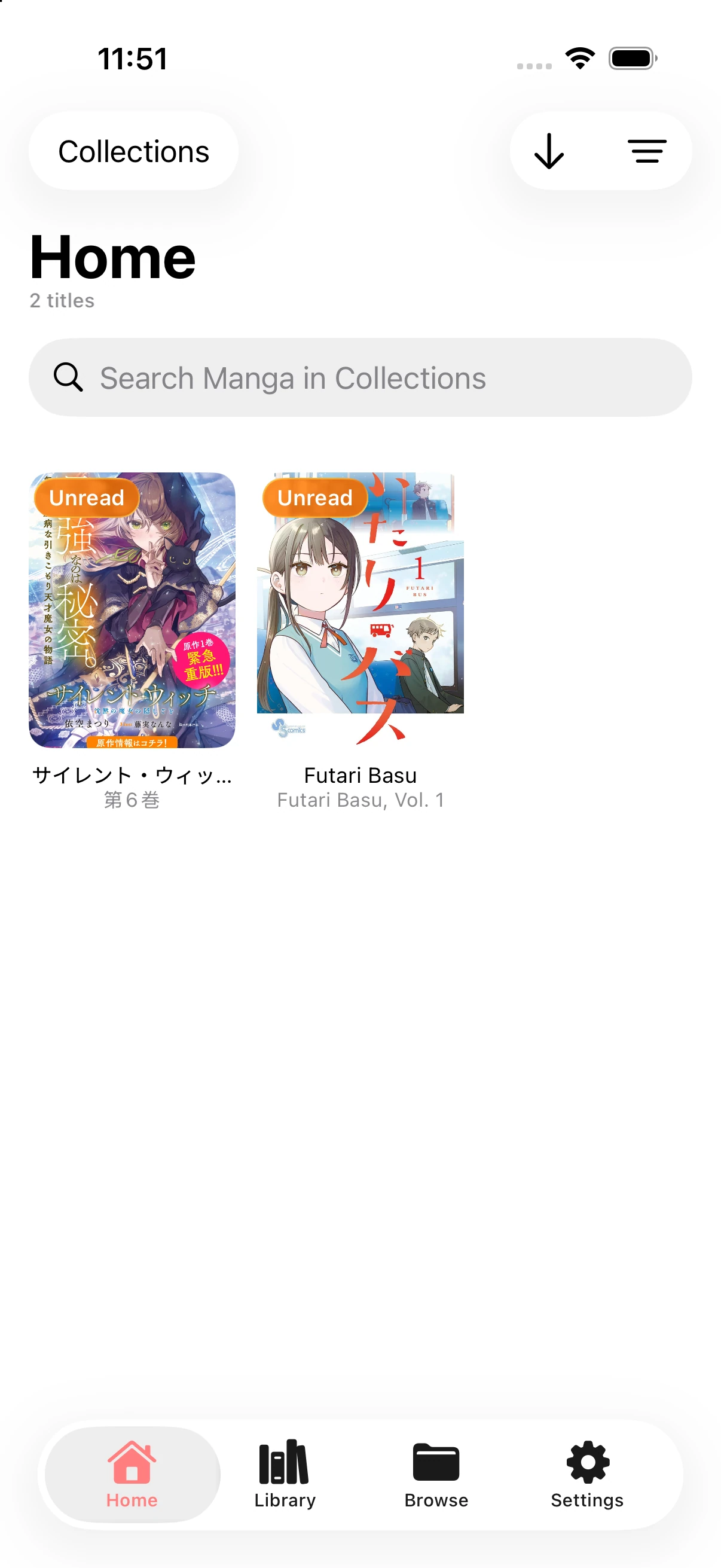
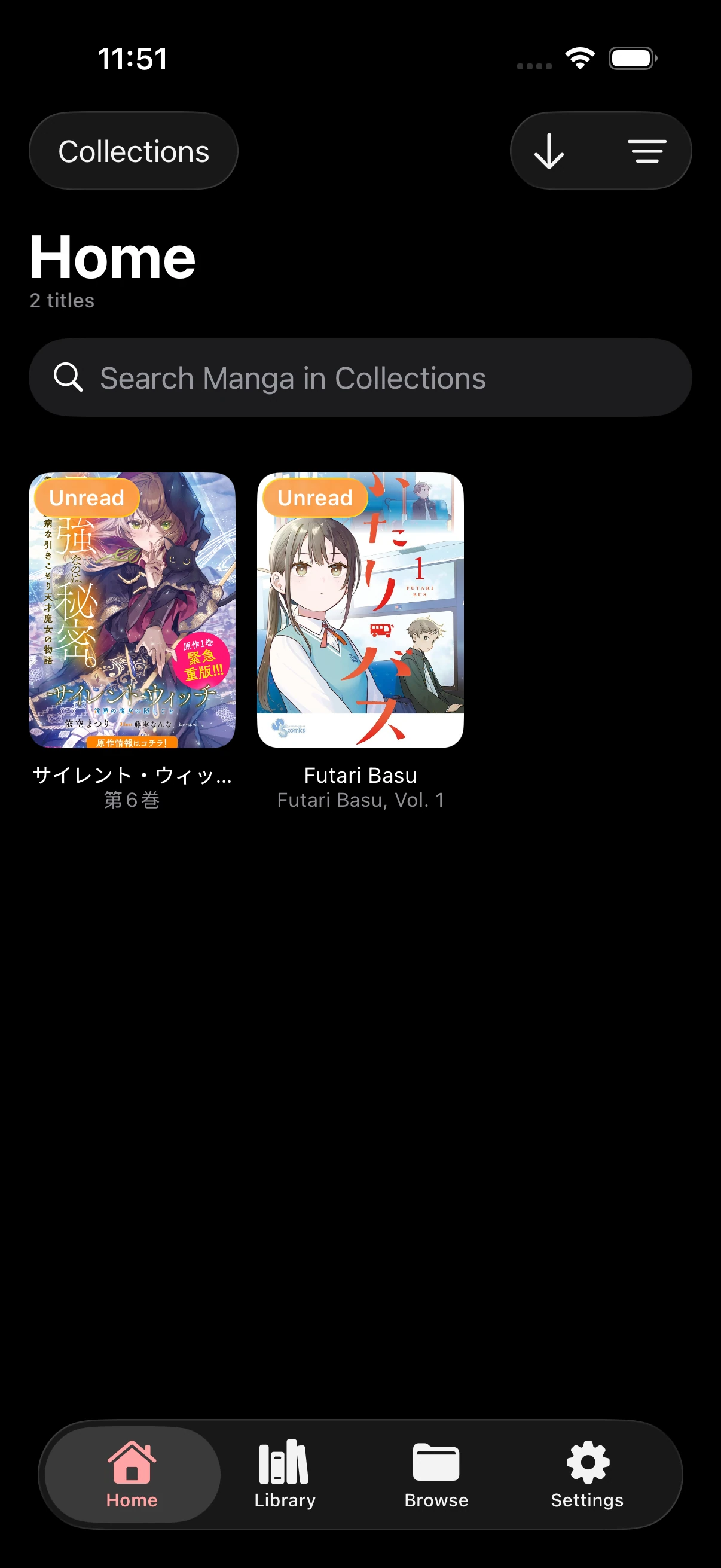
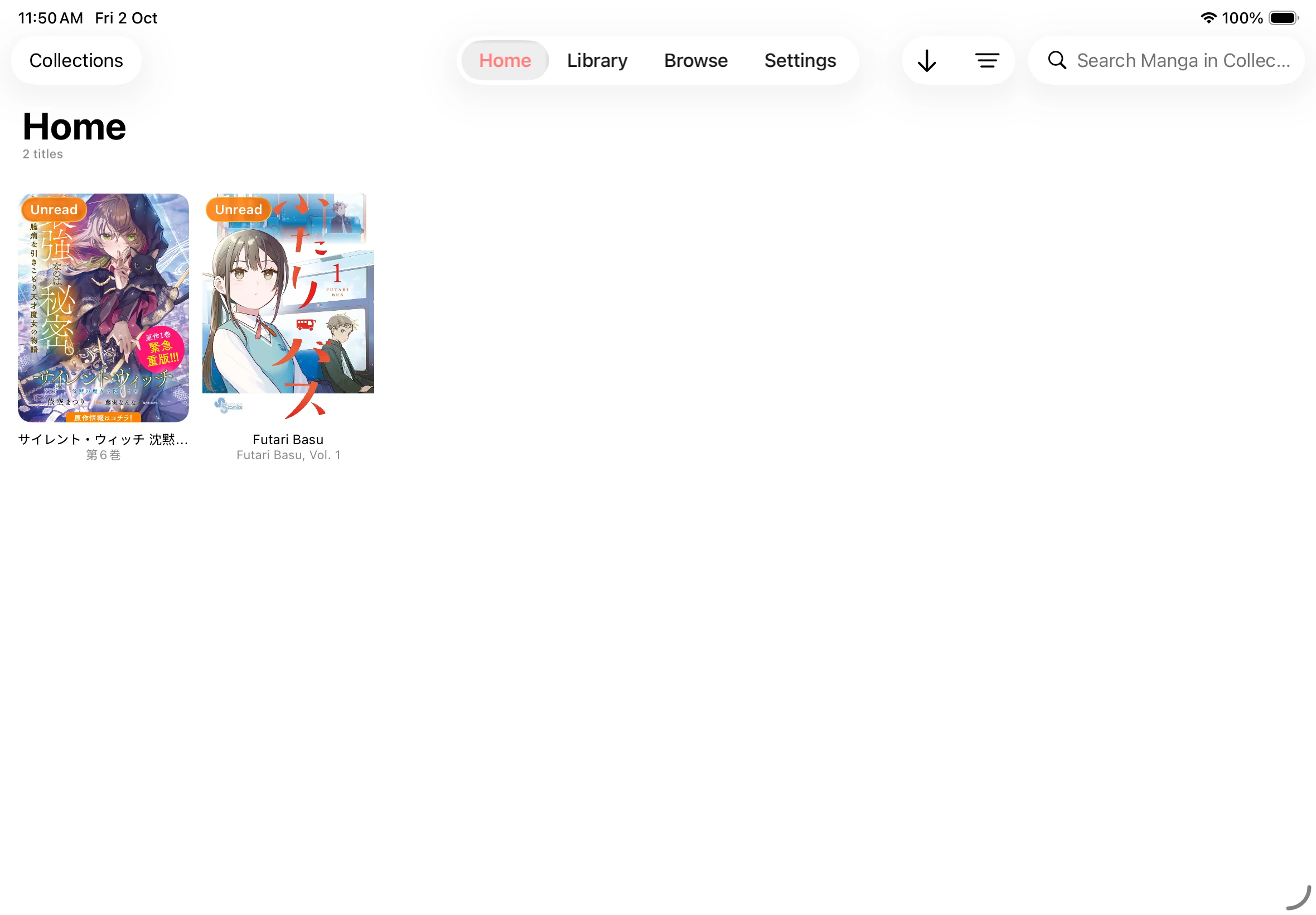
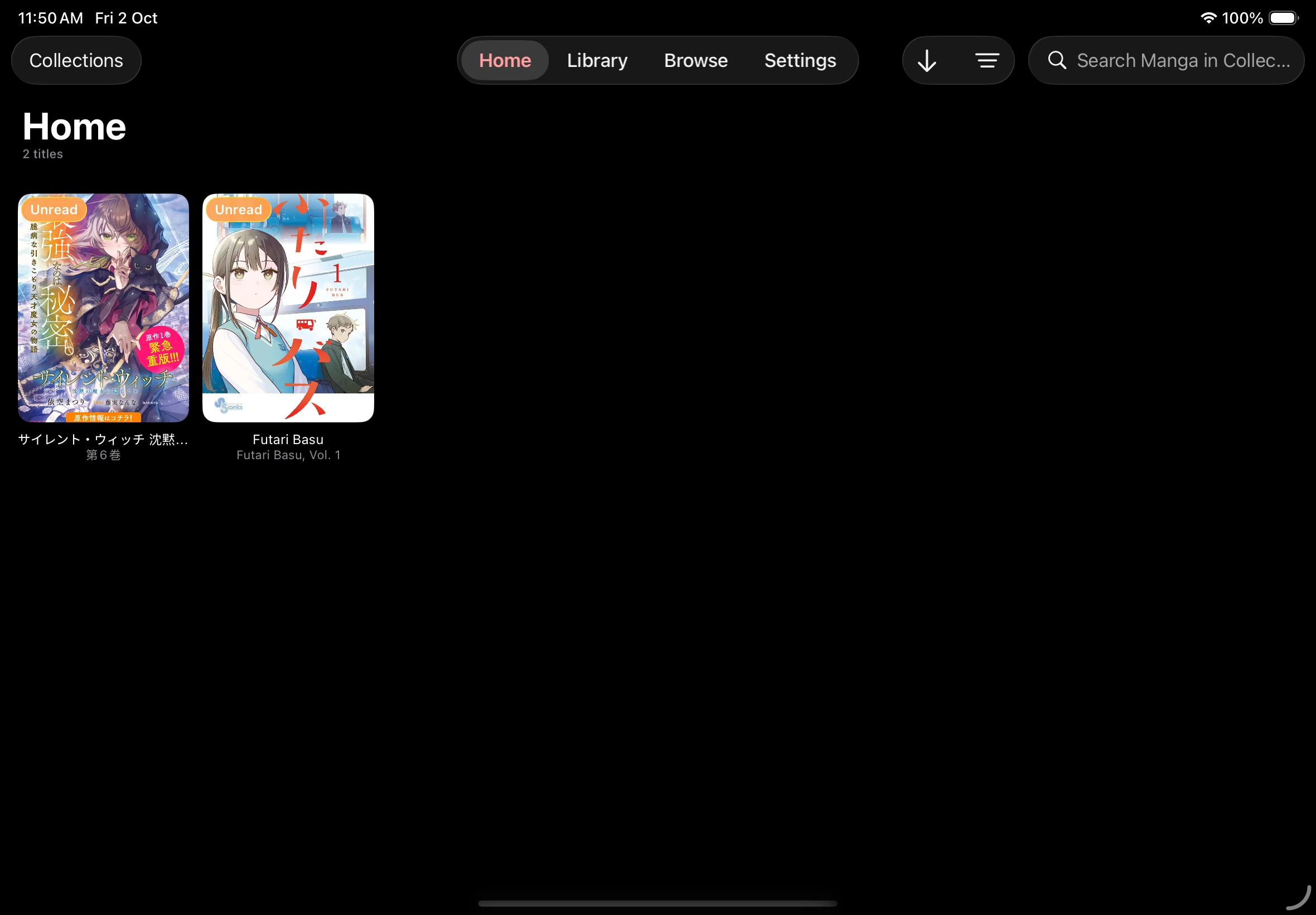
Section titled “1. Find your way around”Mankai has four main tabs.
| Tab | What you will find |
|---|---|
| Home | Your bookmarked titles and downloaded books |
| Library | Titles and search provided by your sources |
| Files | Local books, connected shares, and file imports |
| Settings | Reader preferences, sources, sync, and reading history |
2. Add a source
Section titled “2. Add a source”Choose one of two options:
- Stream-based (recommended): Add a source in Settings → Sources to search and read an external library. Follow the detailed source setup.
- File-based: Import book files or connect local and network shares in Files. Follow the detailed file-based source setup.
If your provider offers an add-source link or QR code, use it to preview and choose the sources to add. See link and QR code setup.
3. Find a book and start reading
Section titled “3. Find a book and start reading”- Open Library for titles from your sources or Files for book files and connected shares.
- Choose a book from a list or folder. Use search to find a title or author when your source supports it.
- Tap a book to open its details and chapter groups.
- Tap Read to begin. To choose a particular chapter, open a chapter group and tap the chapter you want.
- Swipe through the pages. Tap near the center of a page to show or hide the reading controls.
- Use the reader’s settings button to choose Paged or Continuous reading.
Choose a chapter from your library
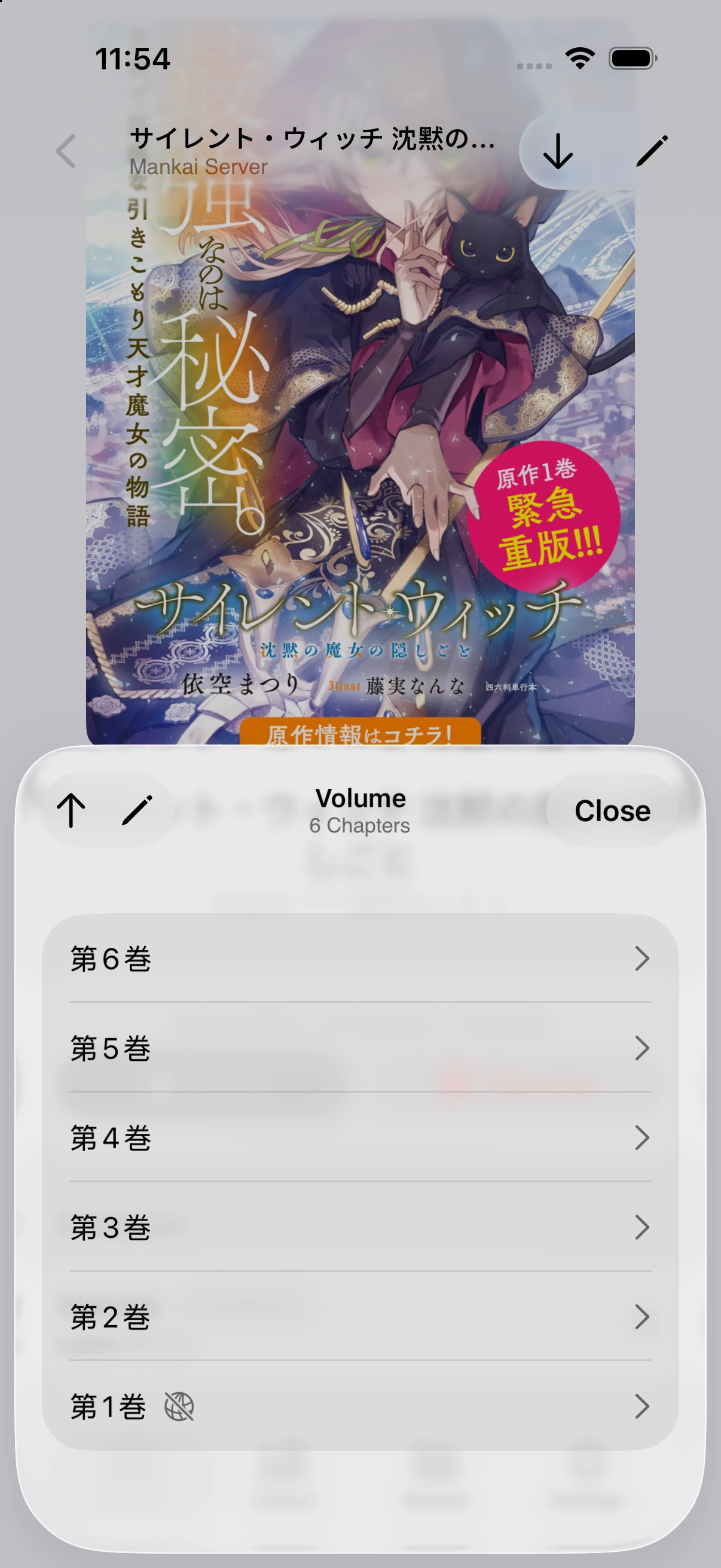
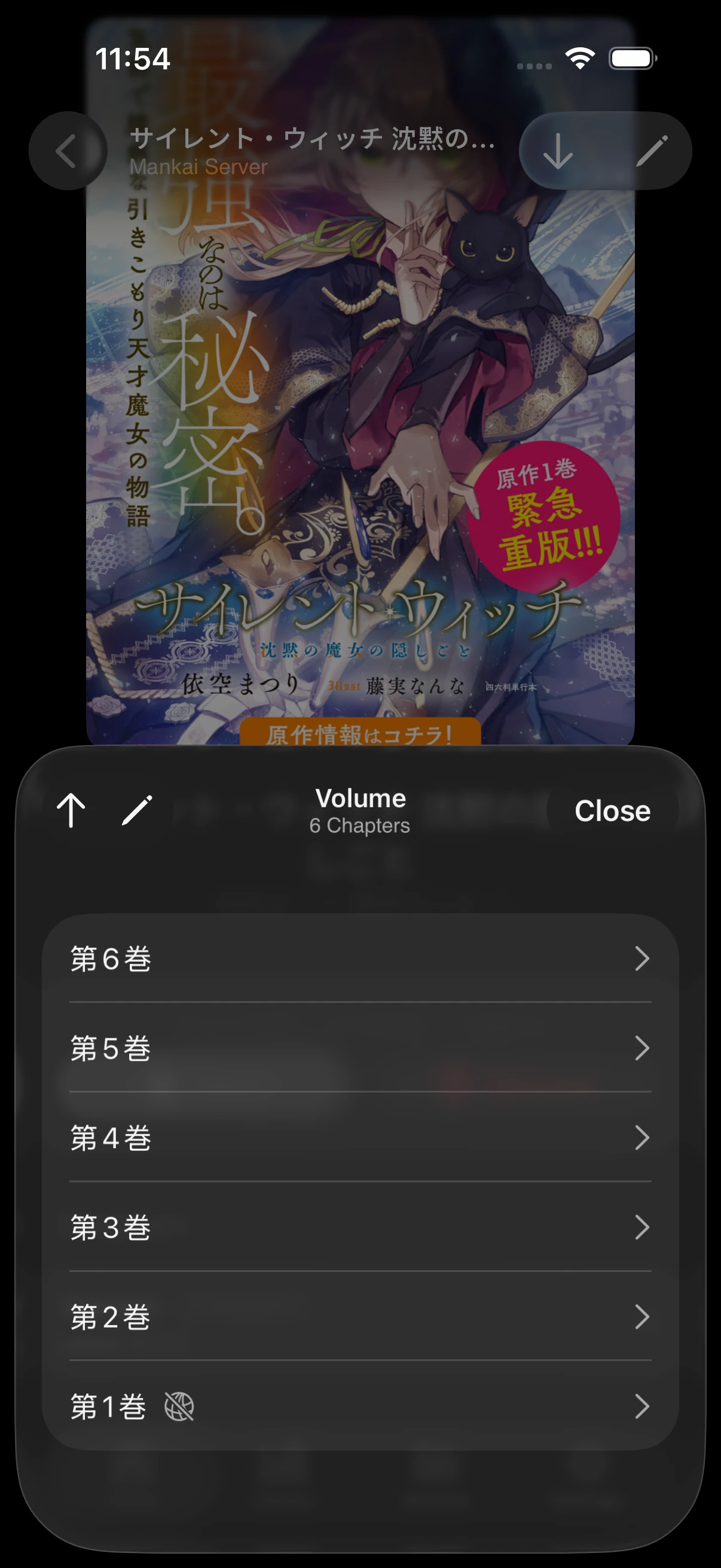
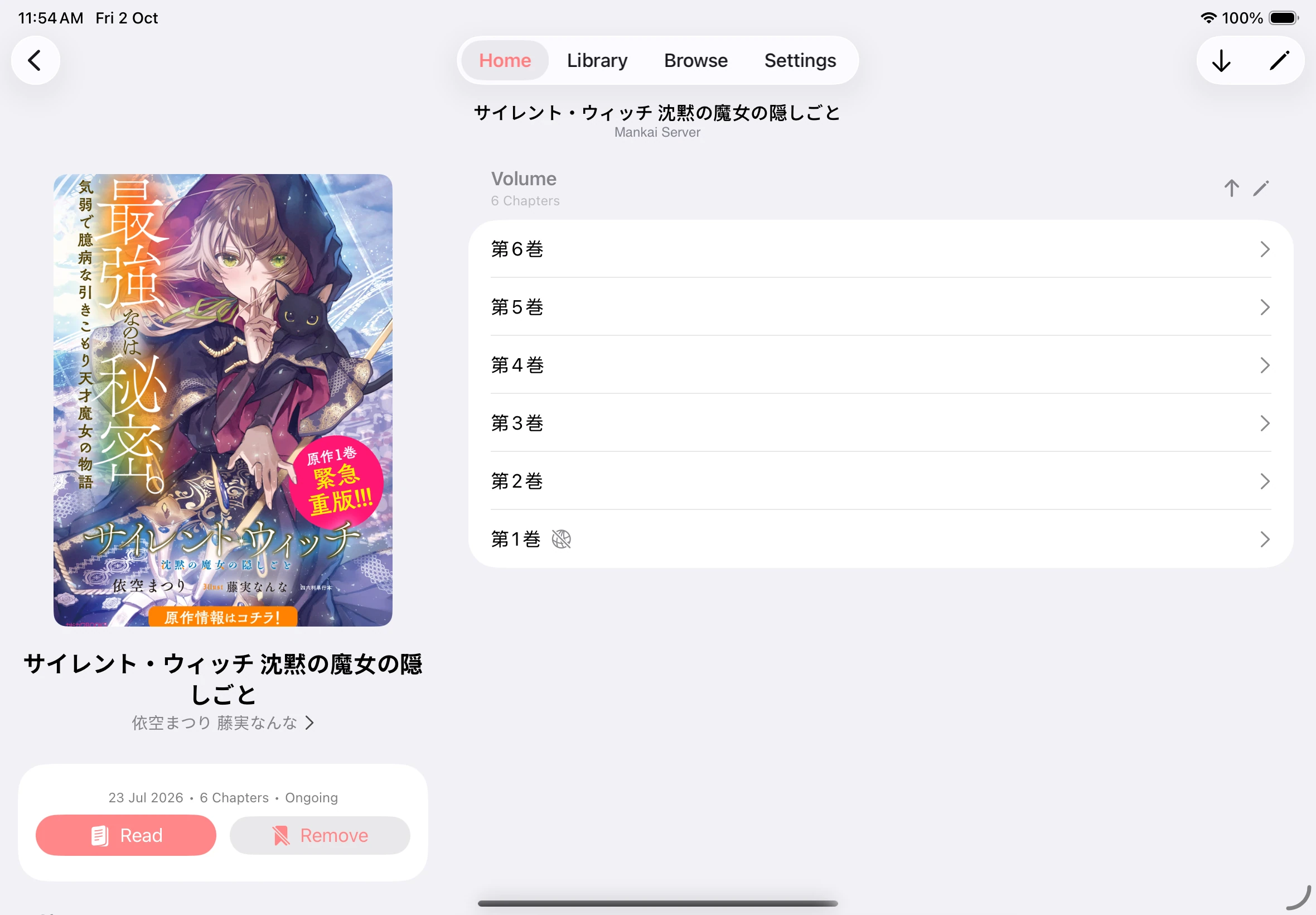
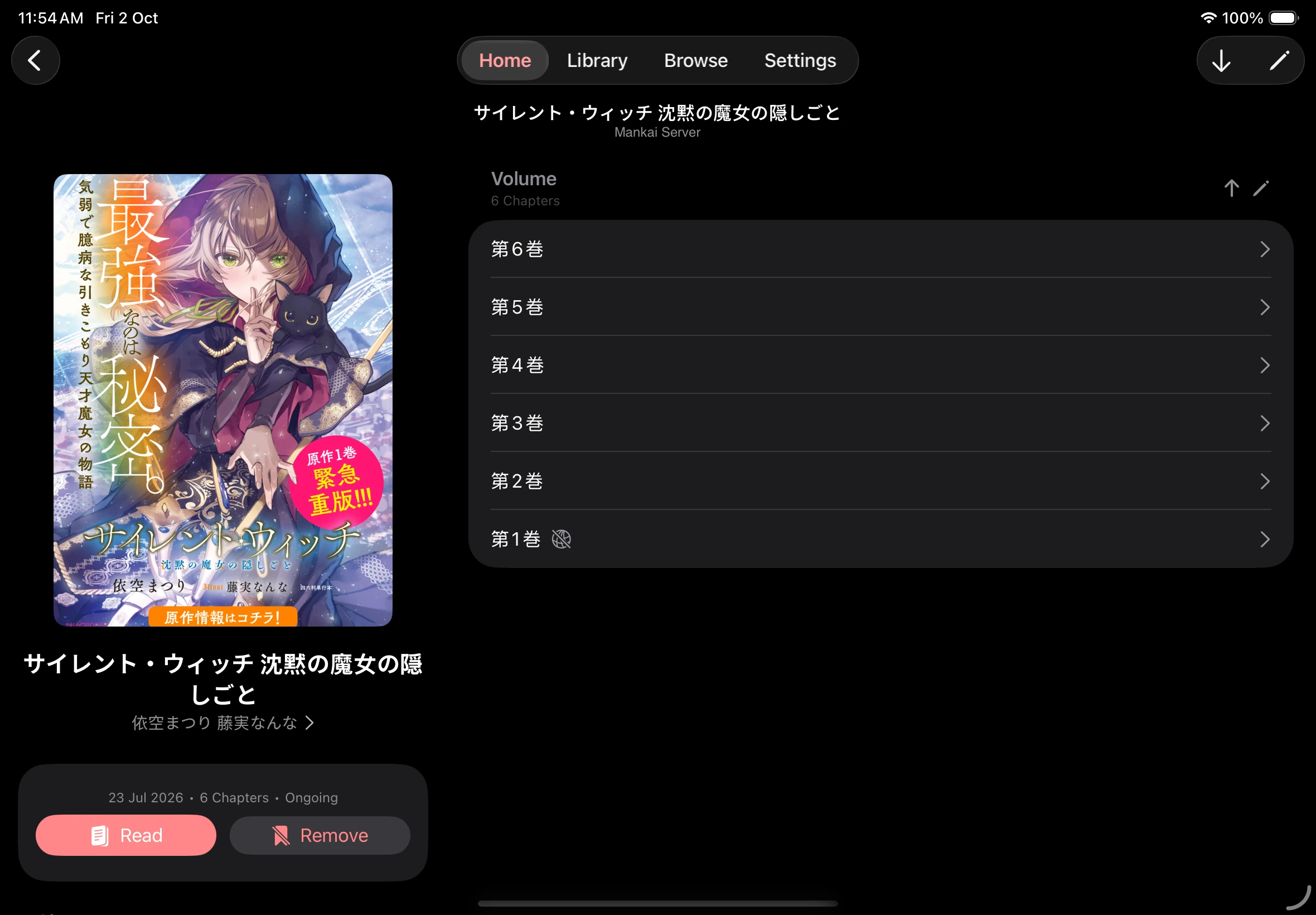
Available lists, search, and chapters depend on the source.
4. Save the book to your collection
Section titled “4. Save the book to your collection”- Return to the book’s details and tap Bookmark.
- Open Home and choose Collections in the source menu.
- Open the book again and tap Continue to pick up where you left off.
Mankai can automatically check saved titles for new chapters when the source supports updates. Pull down on the collection list to check manually.
Find your saved books
Continue with Reading and reader settings or Collections and downloads.