Collections and downloads
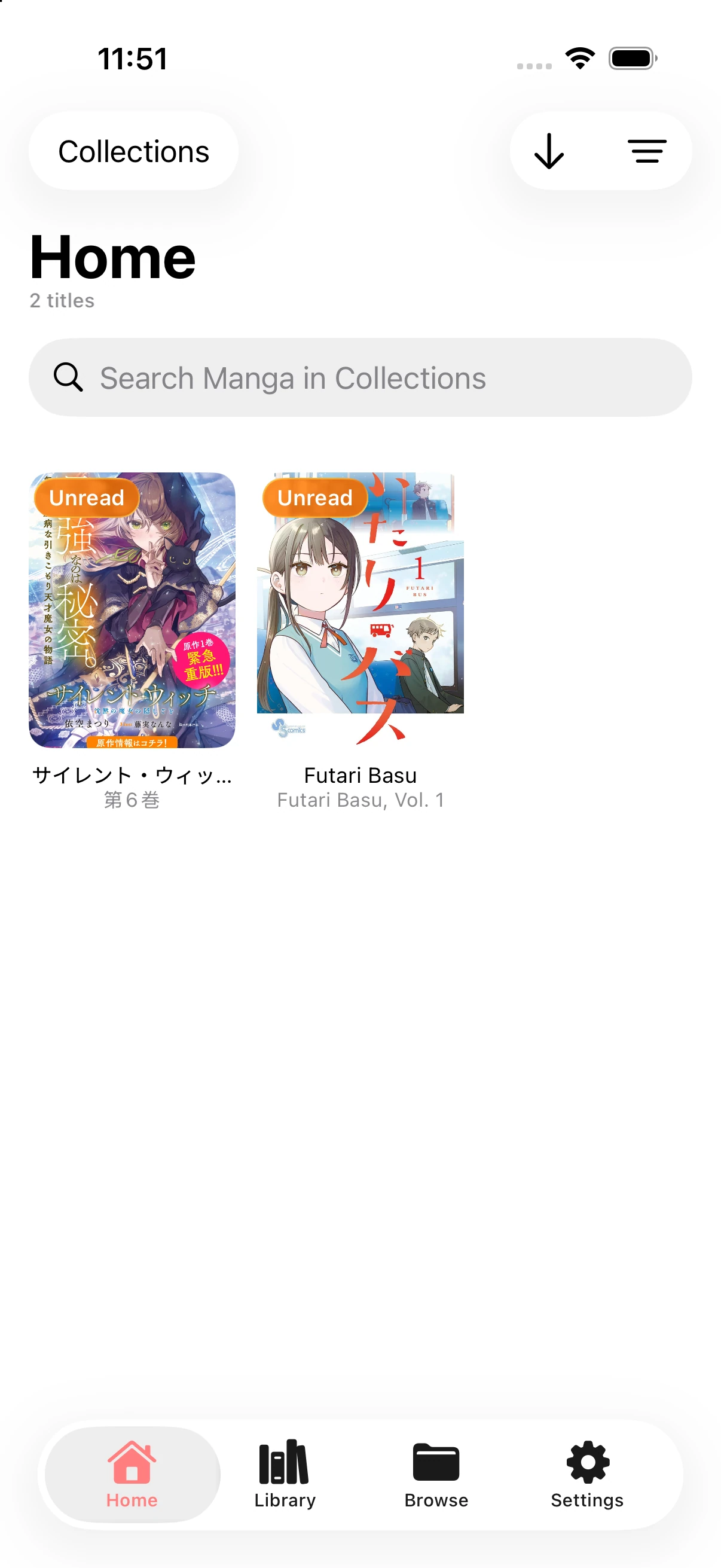
Home brings together your collections and downloads. Library is where you discover content offered by your sources.
Save and find your favorites
Section titled “Save and find your favorites”- Open a book’s details and tap Bookmark.
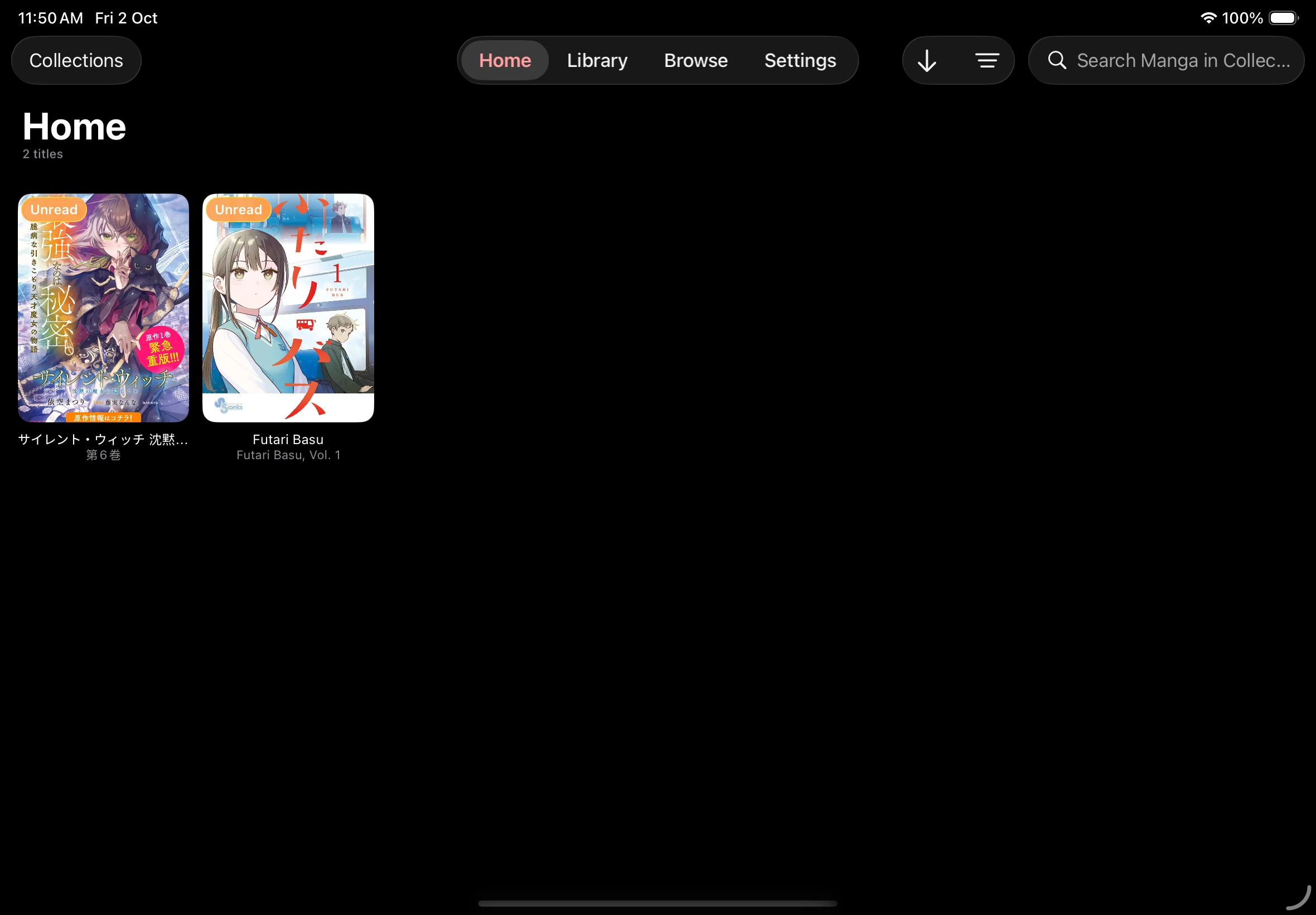
- Open Home and choose Collections in the source menu.
- Search your saved titles or filter by status and source.
- Pull down on the collection list to check for updates.
To remove a bookmark, open the book’s details and tap Remove.
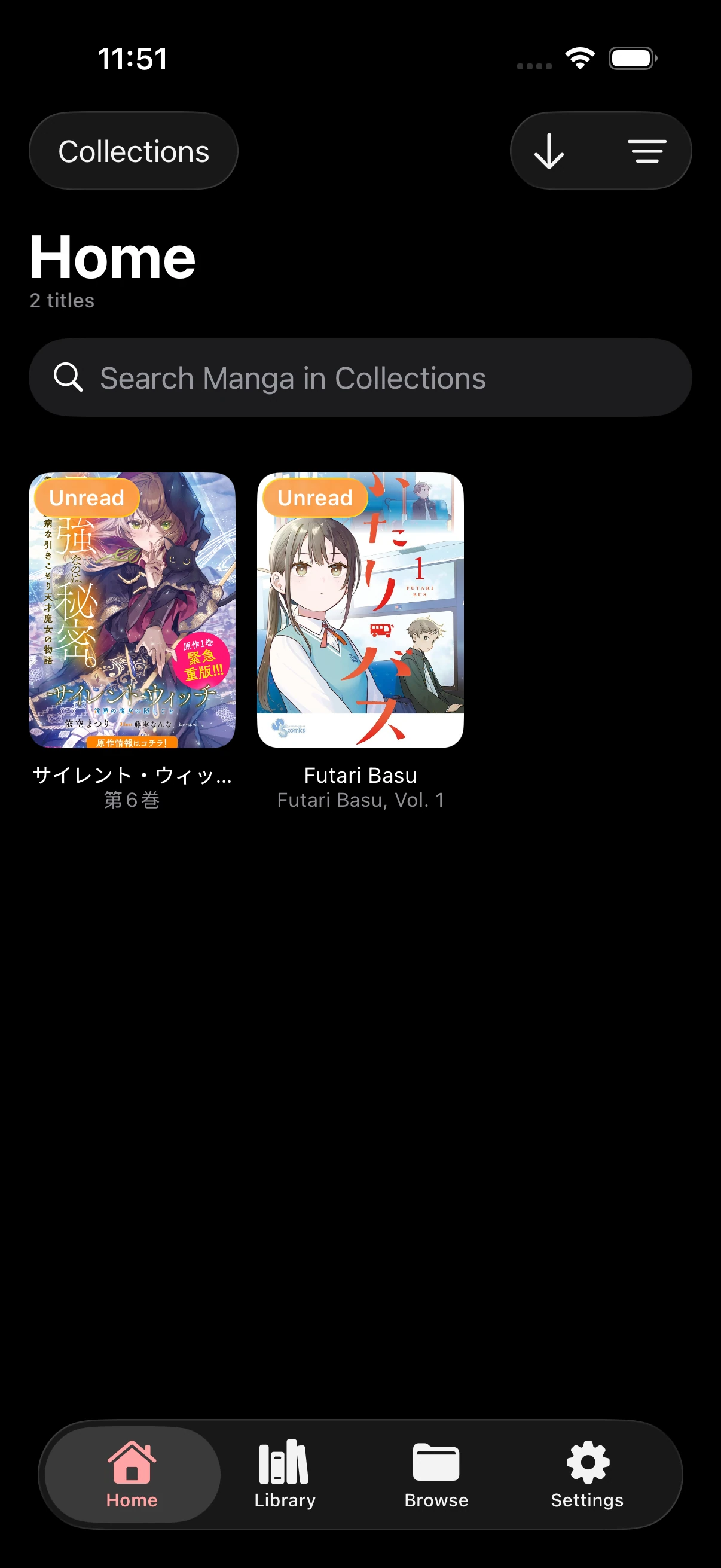
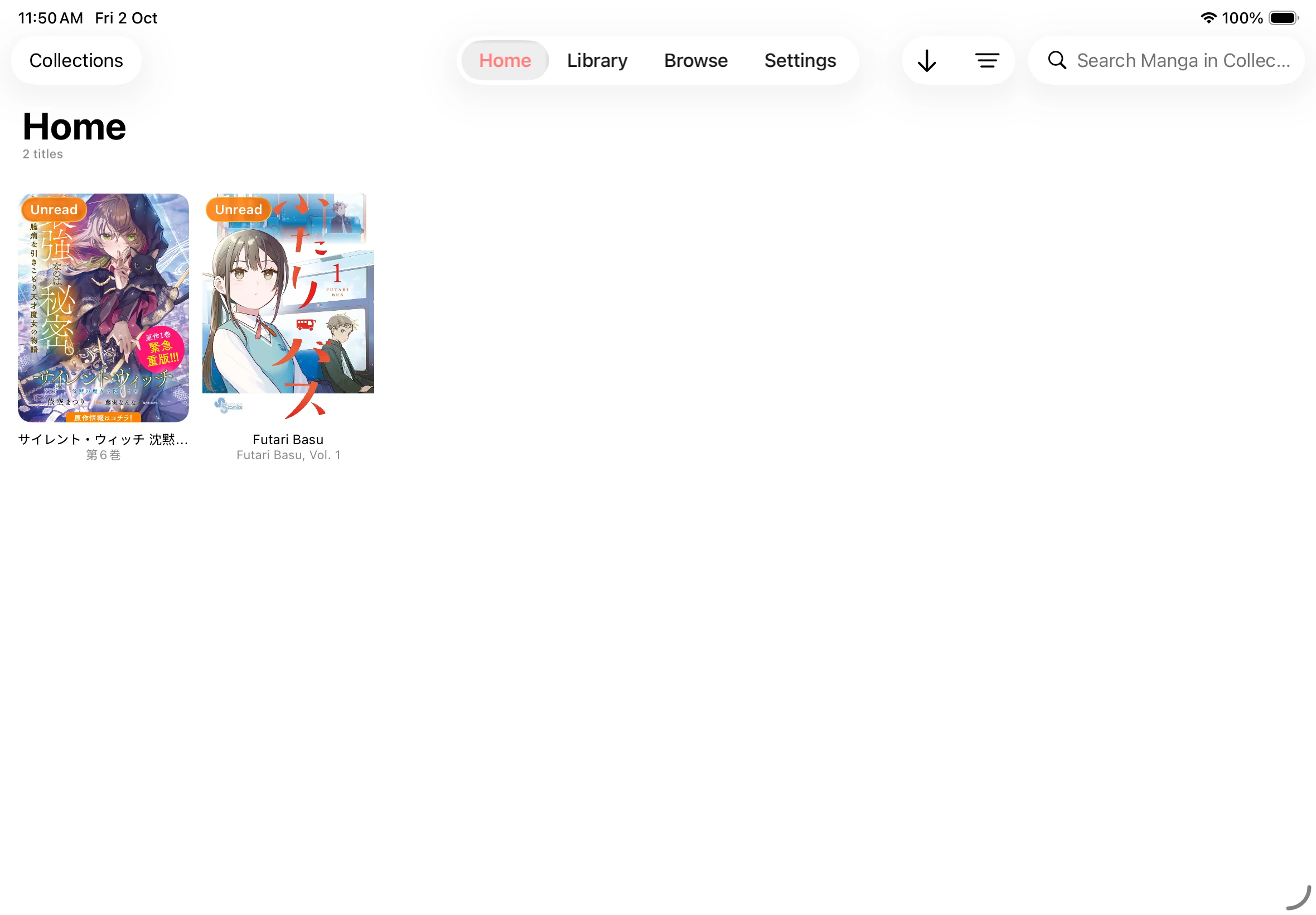
Your collection on Home
Find something to read
Section titled “Find something to read”- Open Library to see the lists offered by your sources.
- Open a title from a list, or use search if one of your sources supports it.
- Open the book’s details and choose Read, Continue, or a chapter.
To return to a recently read book, open Settings → History. History includes books you have read even if you did not bookmark them.
Download chapters
Section titled “Download chapters”- Open a book from a source that supports downloads and tap its download arrow.
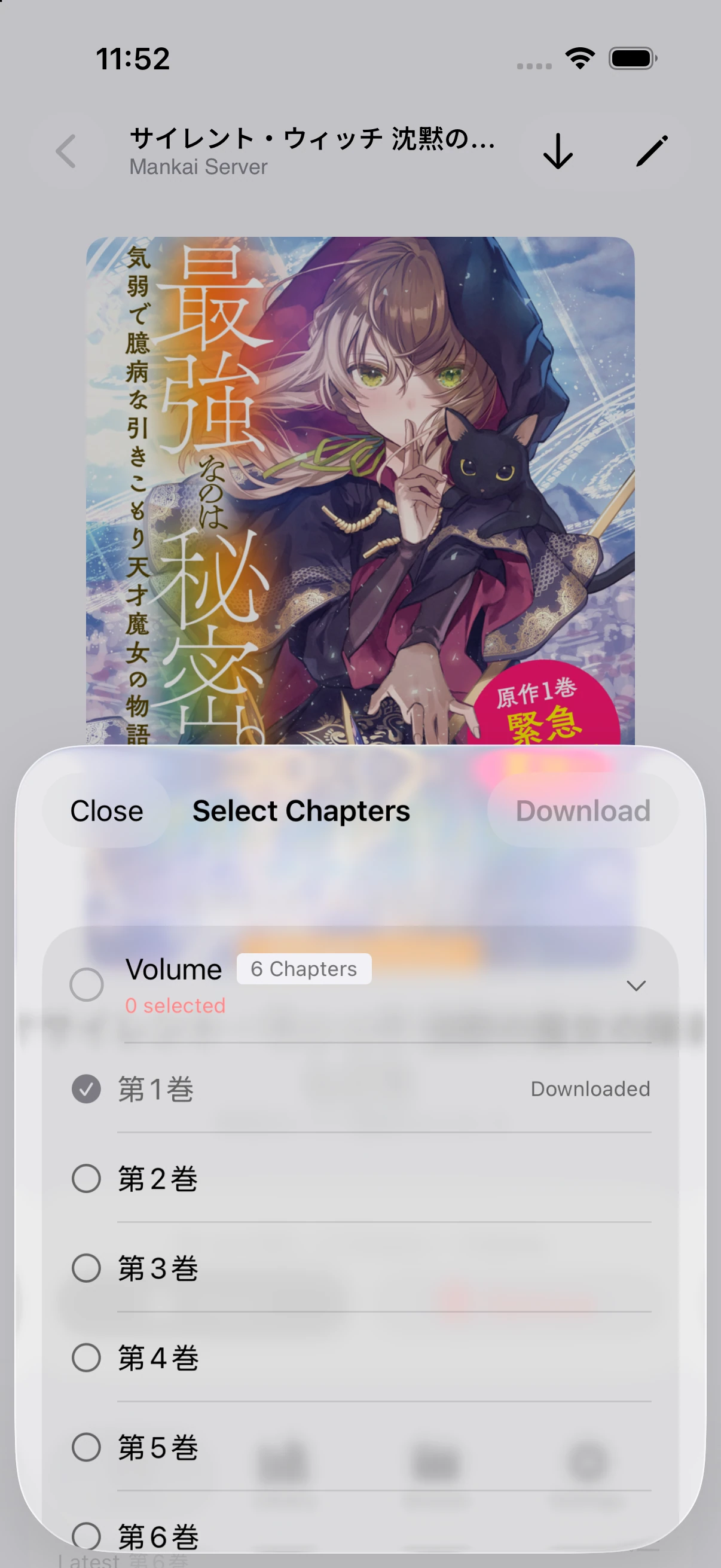
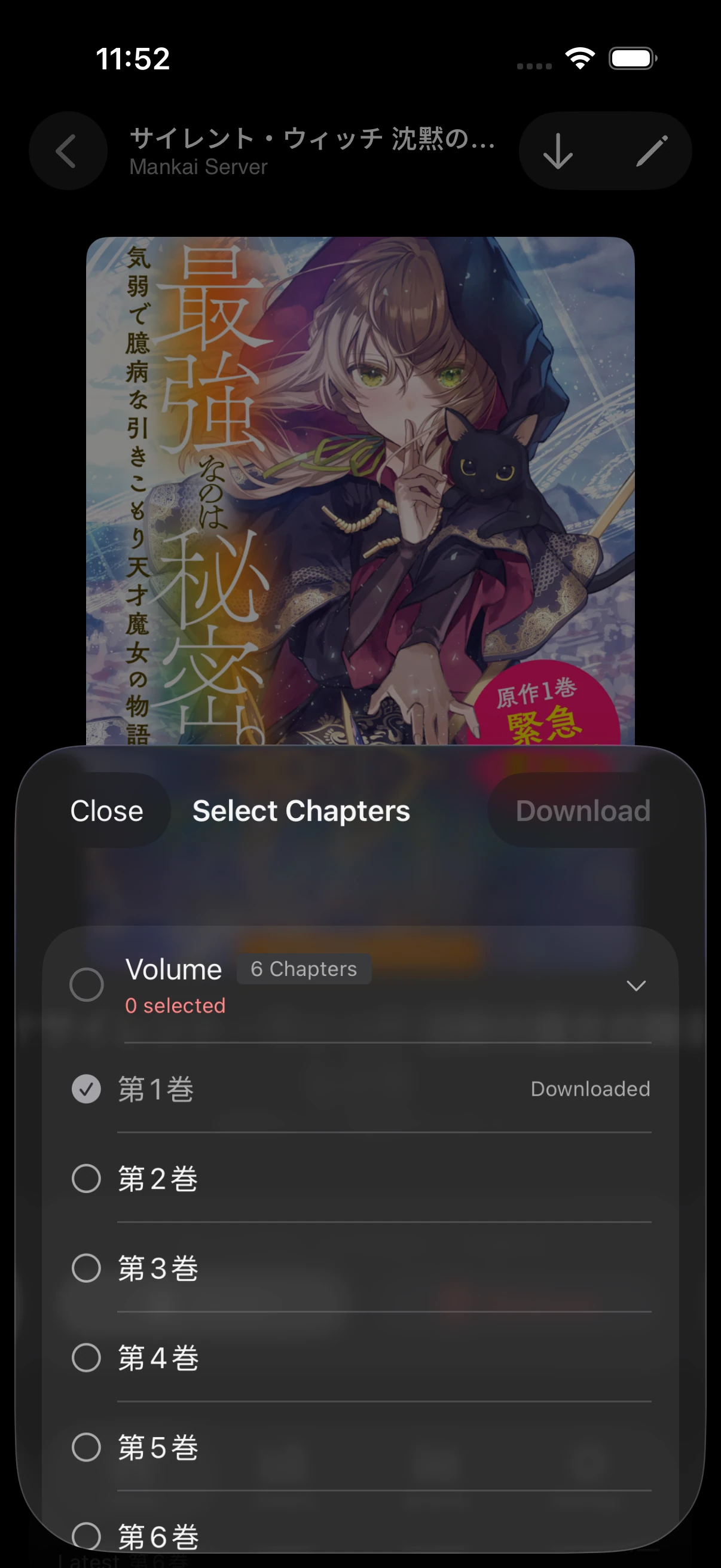
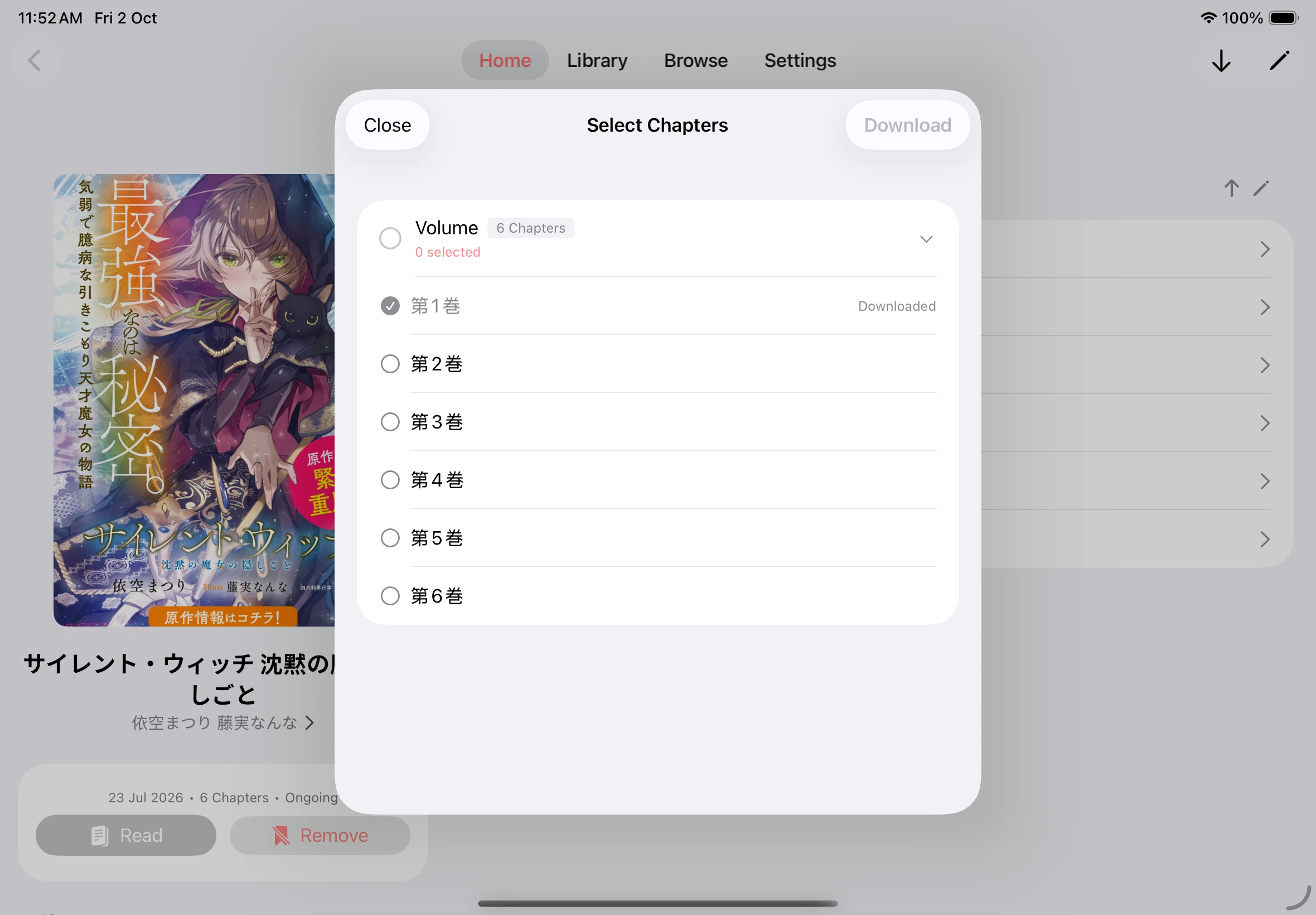
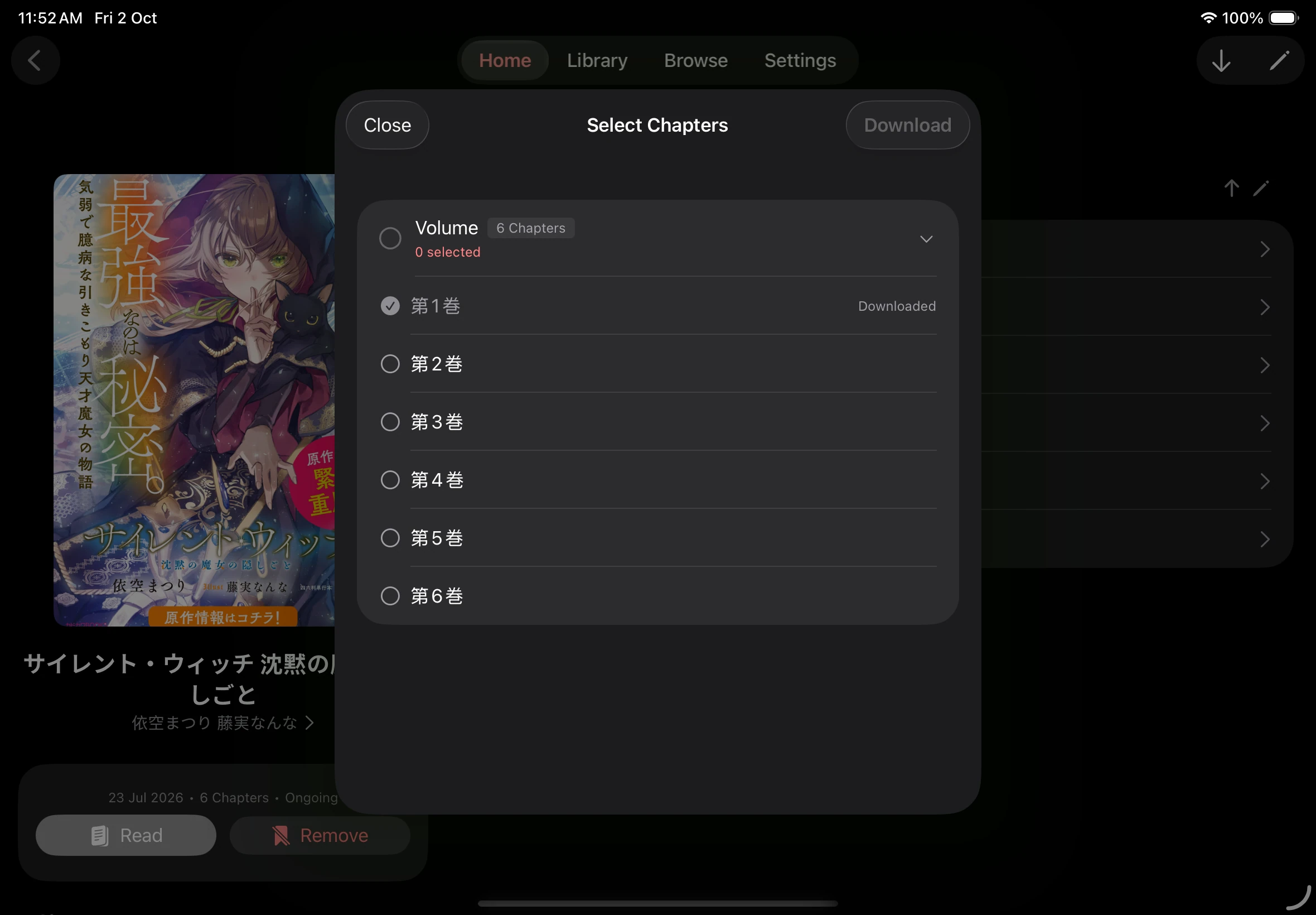
- In Select Chapters, expand a chapter group and select the chapters you want. Tap the circle beside a group to select all of its available chapters.
- Tap Download.
- Tap the download arrow on Home to check progress. A failed task has a retry button.
Select chapters to download
Read offline and manage storage
Section titled “Read offline and manage storage”- Wait for the download to finish while the source is reachable.
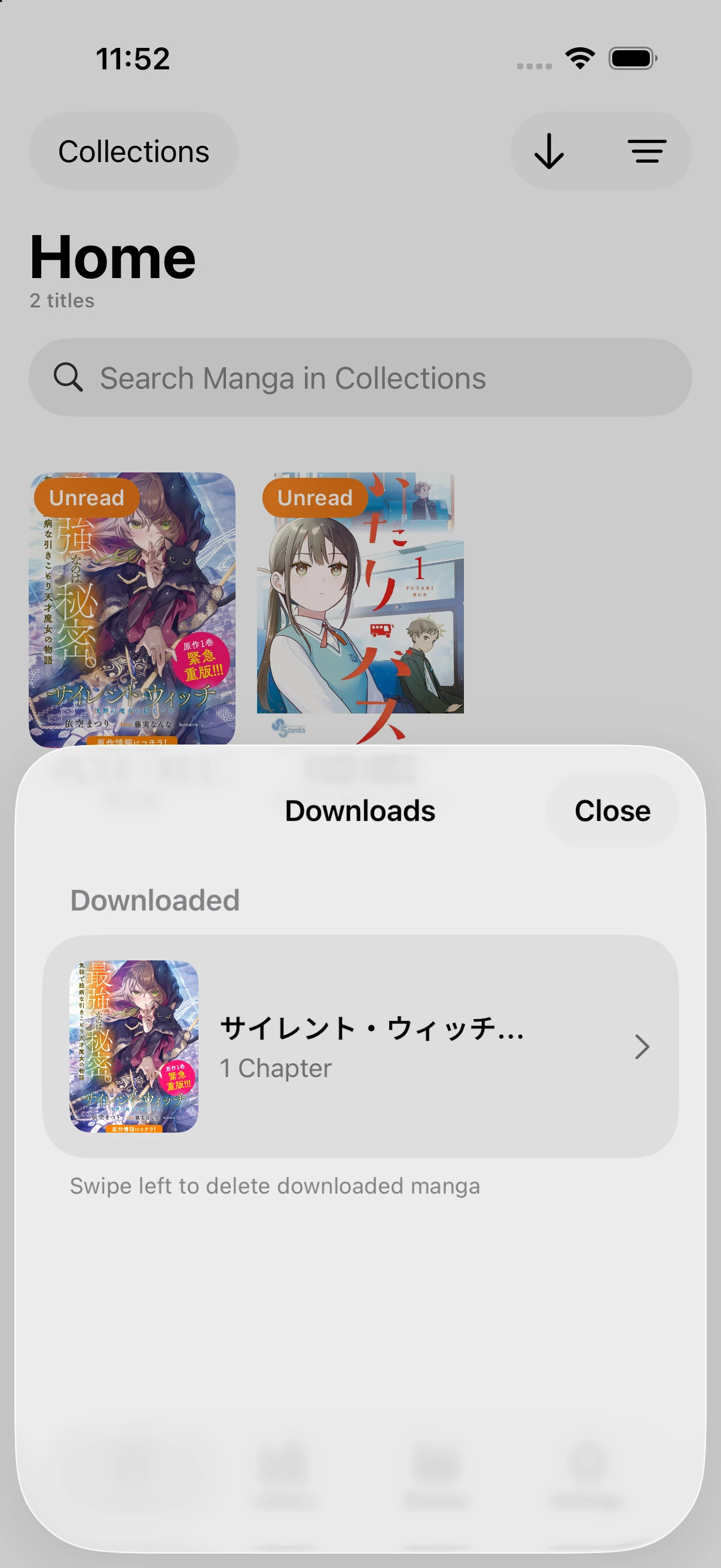
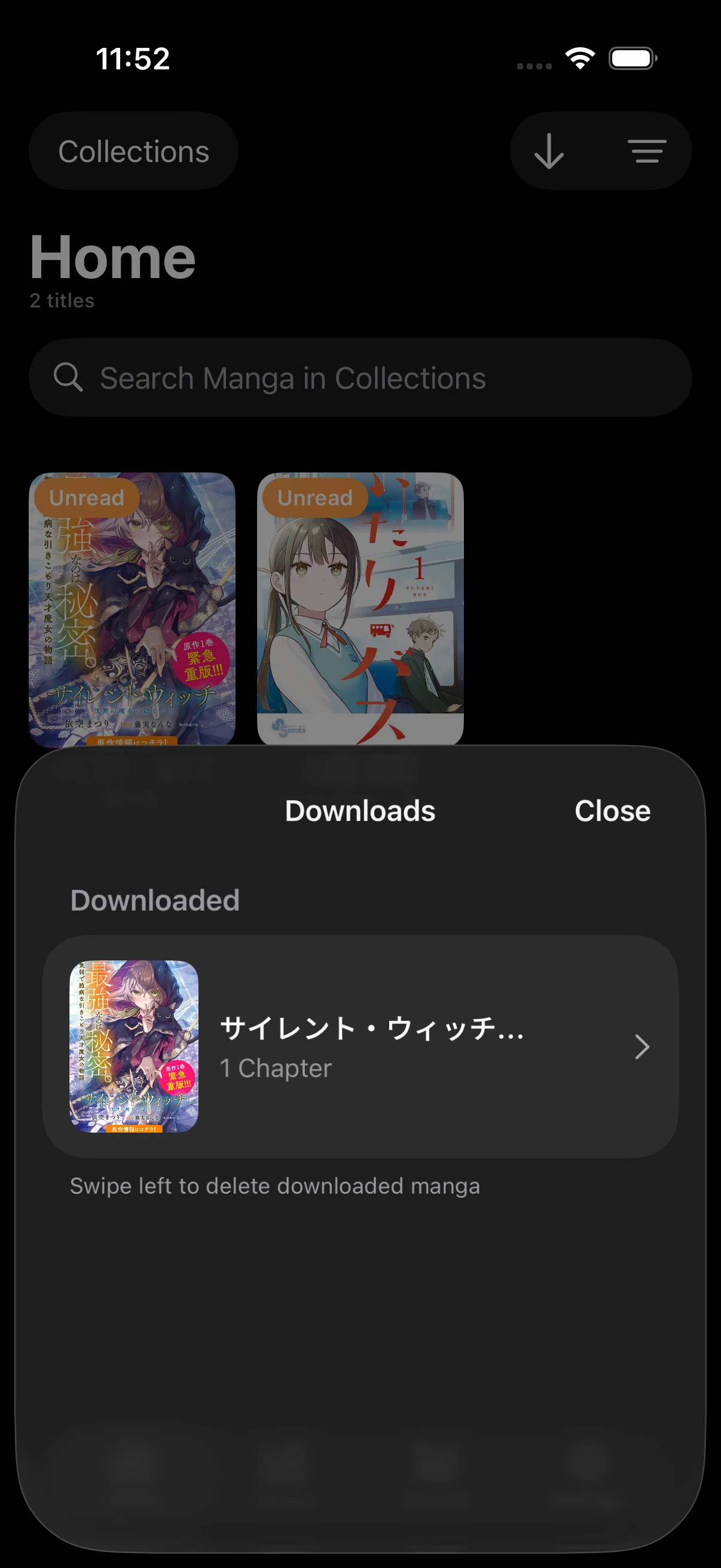
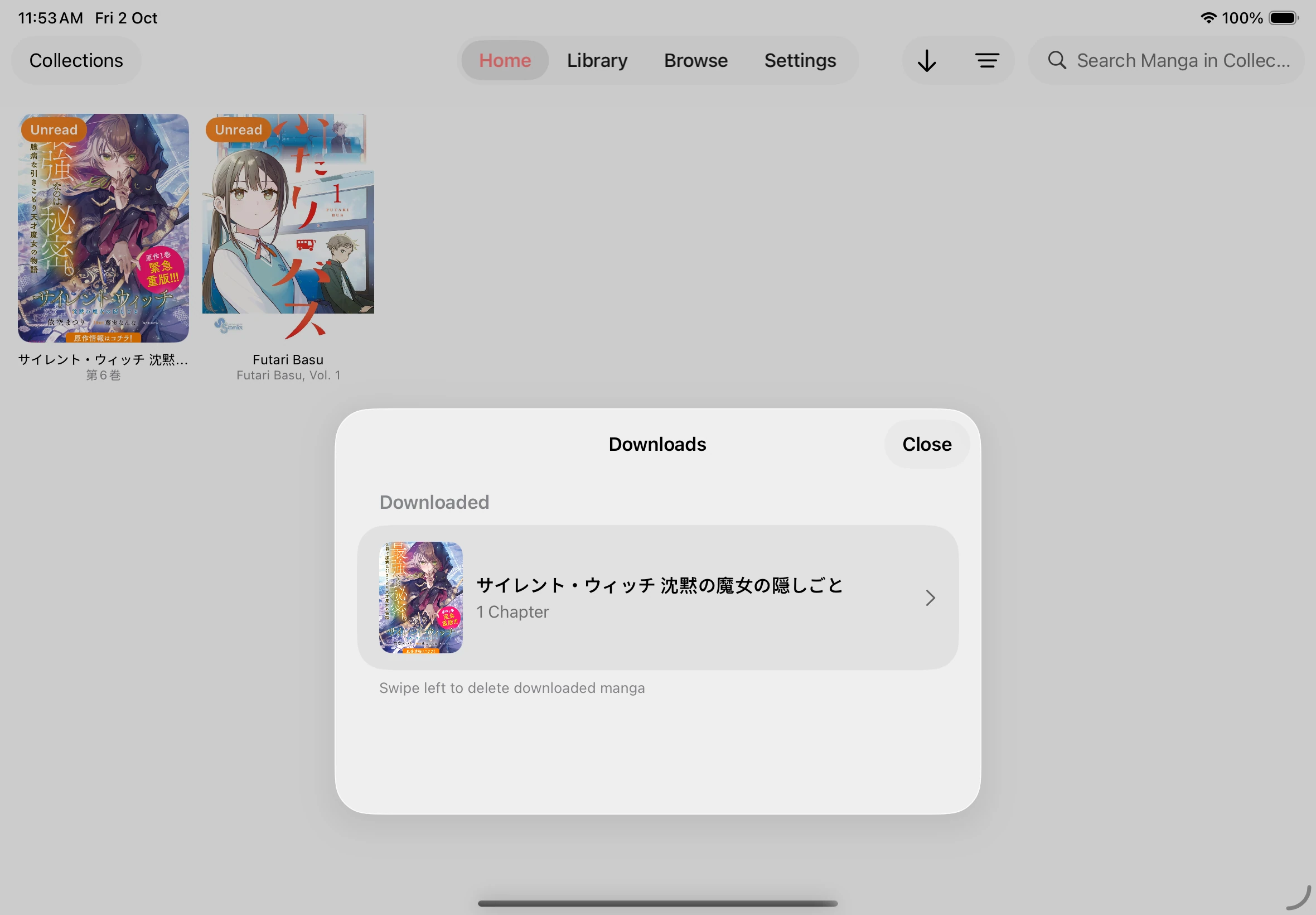
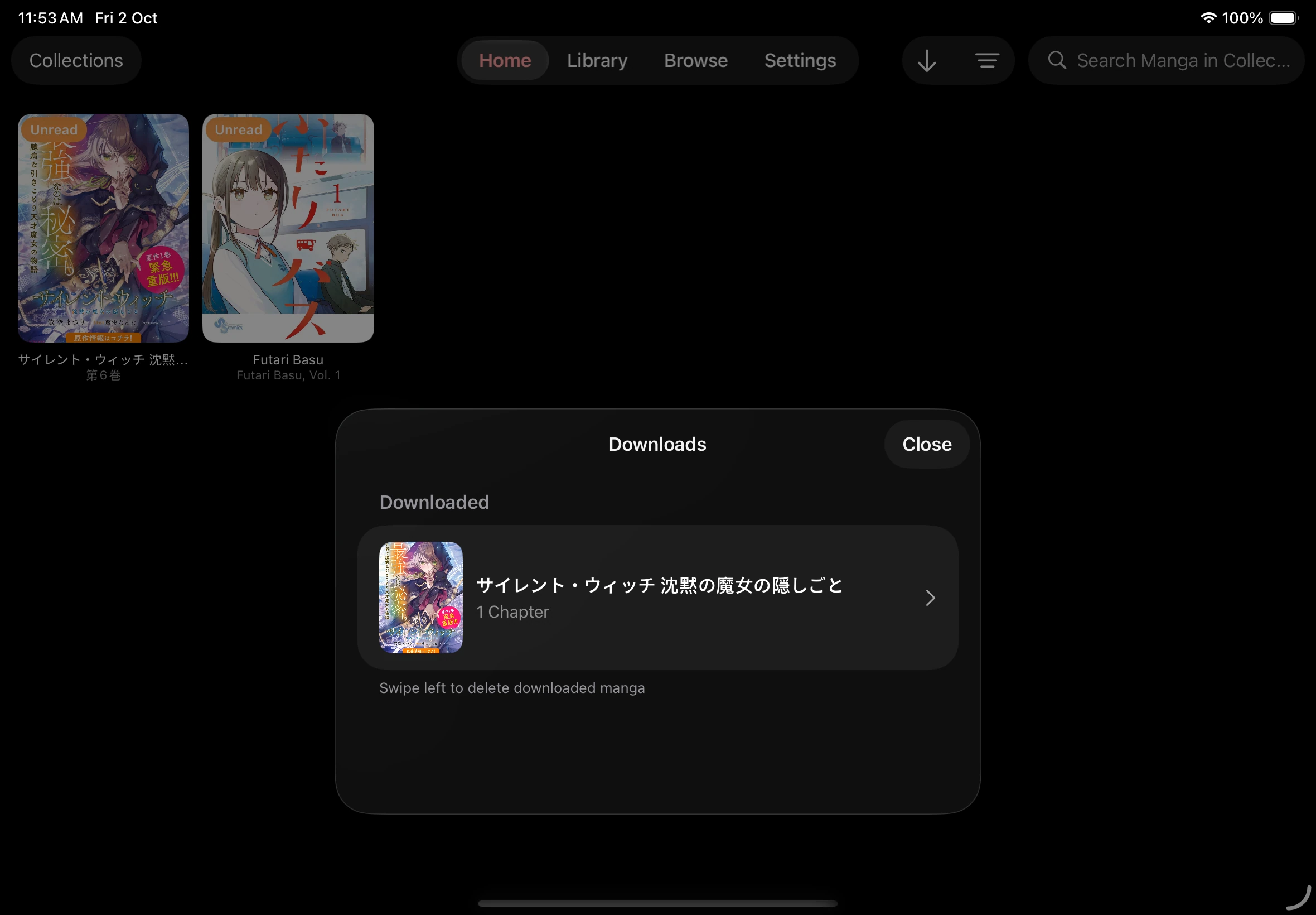
- Choose Downloads in the source menu on Home and open the book.
- Open a downloaded chapter to read it offline.
To free storage, swipe a downloaded title in the downloads panel and confirm Remove. The download controls also let you cancel pending downloads or retry failed ones.
Downloaded books
Export downloaded chapters
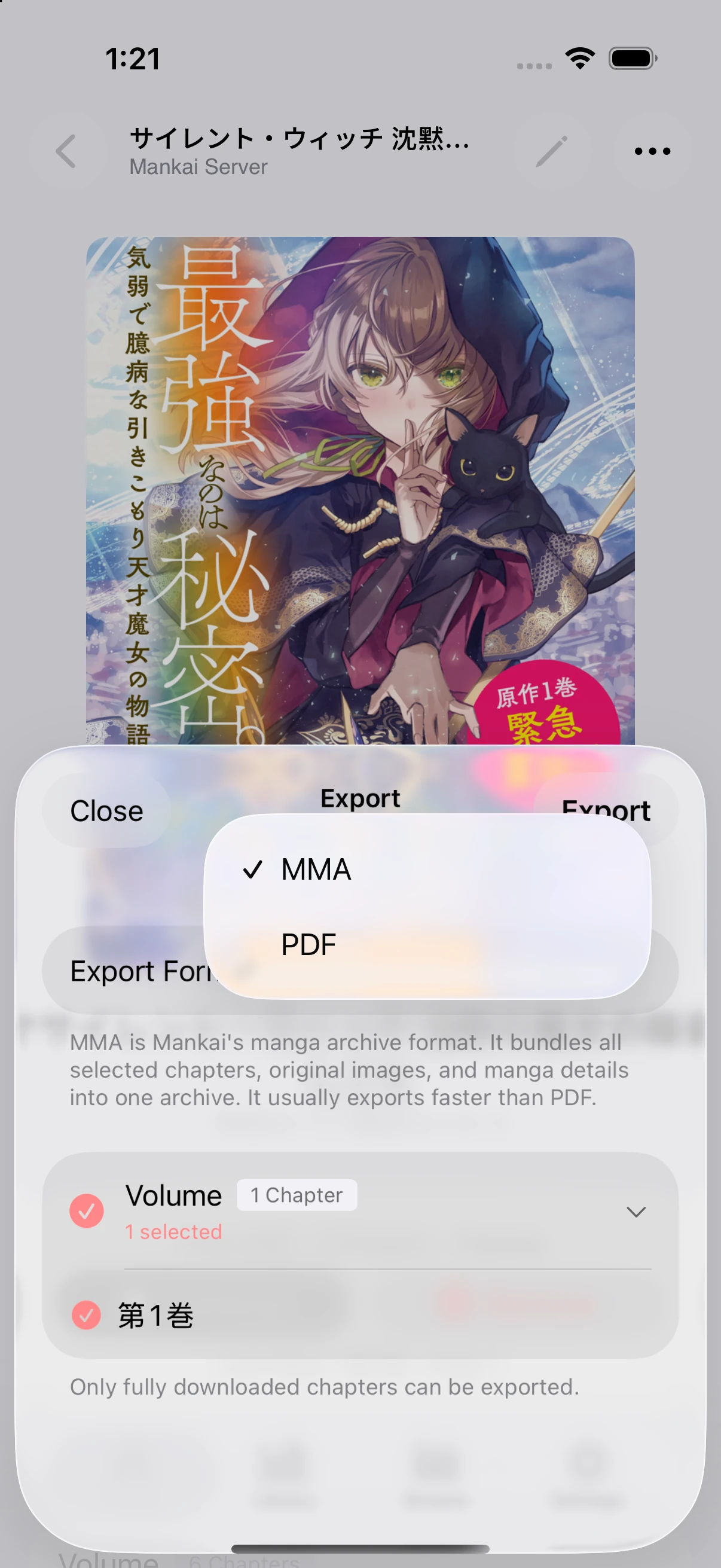
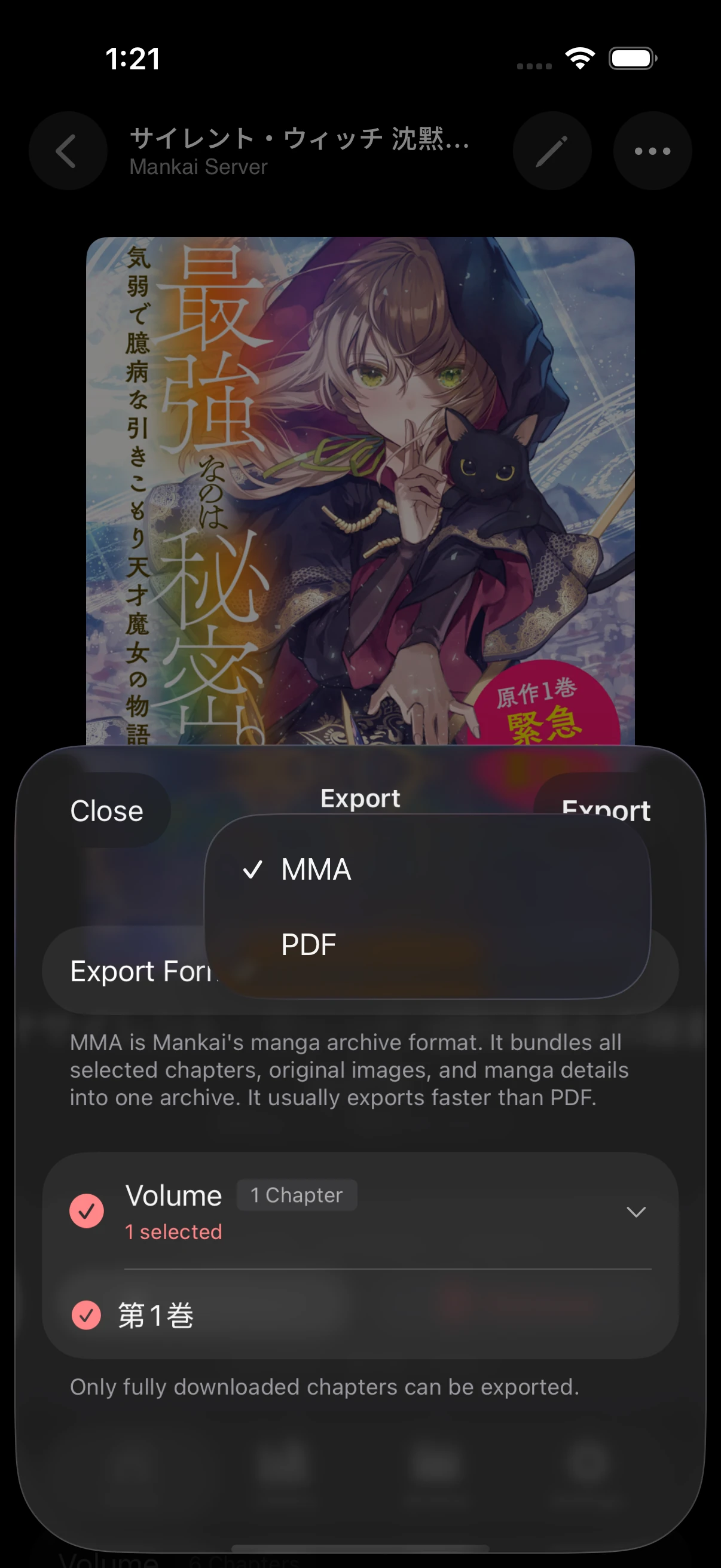
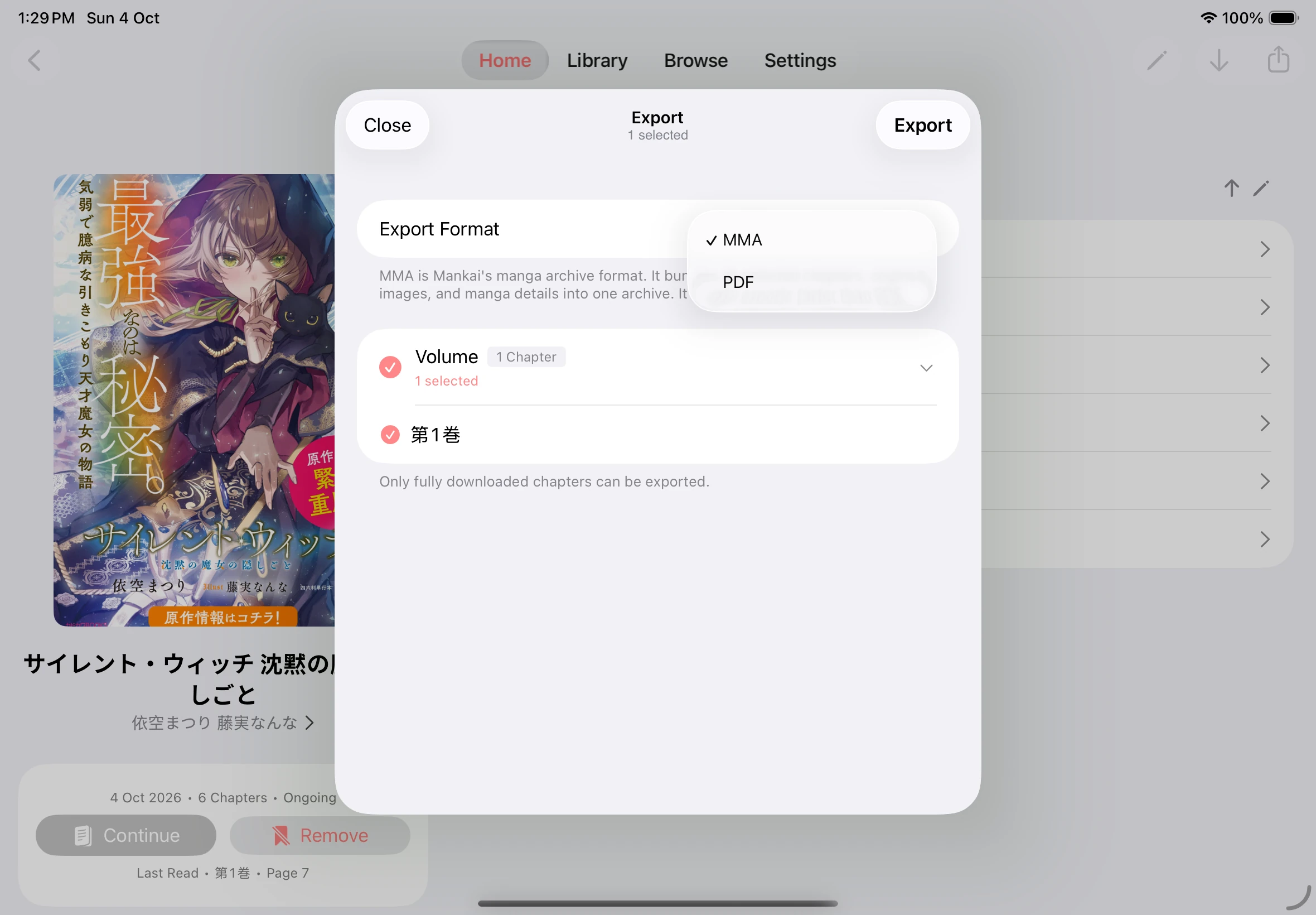
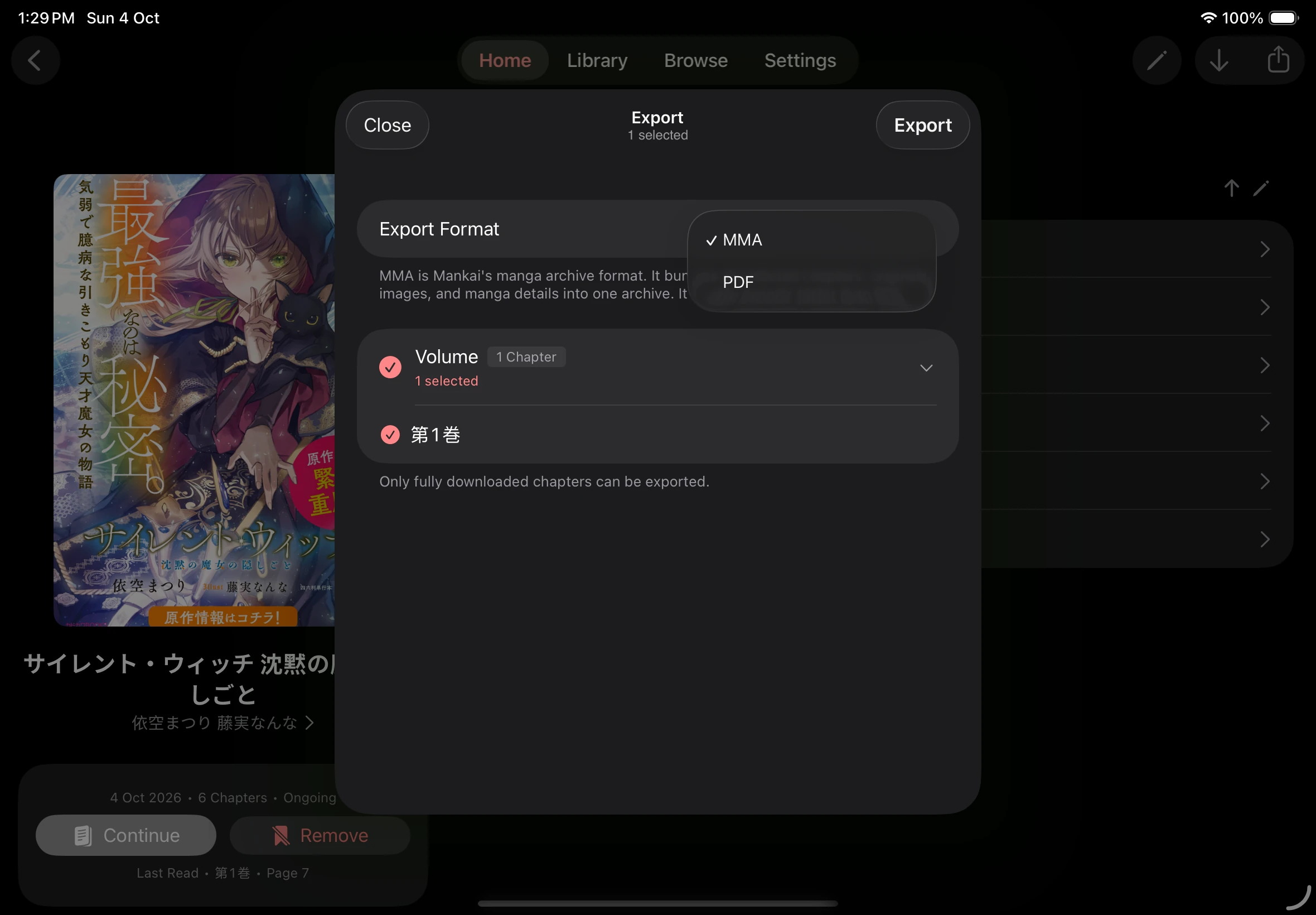
Section titled “Export downloaded chapters”Export selected downloaded chapters as MMA or PDF:
- MMA (Mankai Manga Archive) bundles all selected chapter groups, original page images, book metadata, and cover into one
.mmafile. It usually exports faster than PDF. For archive details, see MMA format. - PDF creates a separate
.pdffile for each selected chapter. Selecting three chapters produces three PDF files.
- Download the chapters you want to export and wait for the downloads to finish.
- Open the book’s details and choose Export from the toolbar or the ••• menu. The export button is a square with an upward arrow.
- Choose MMA or PDF under Export Format.
- Expand a chapter group and select the chapters you want. Tap the circle beside a group to select all of its downloaded chapters.
- Tap Export and wait for Export Complete.
- Tap Share, then choose Save to Files or another destination. Save or share the exported files before closing the export panel.
You can also touch and hold a book in the downloads panel on Home and choose Export.
Choose a format and chapters to export
To sync supported bookmarks and reading progress across devices, follow Sync across devices.